

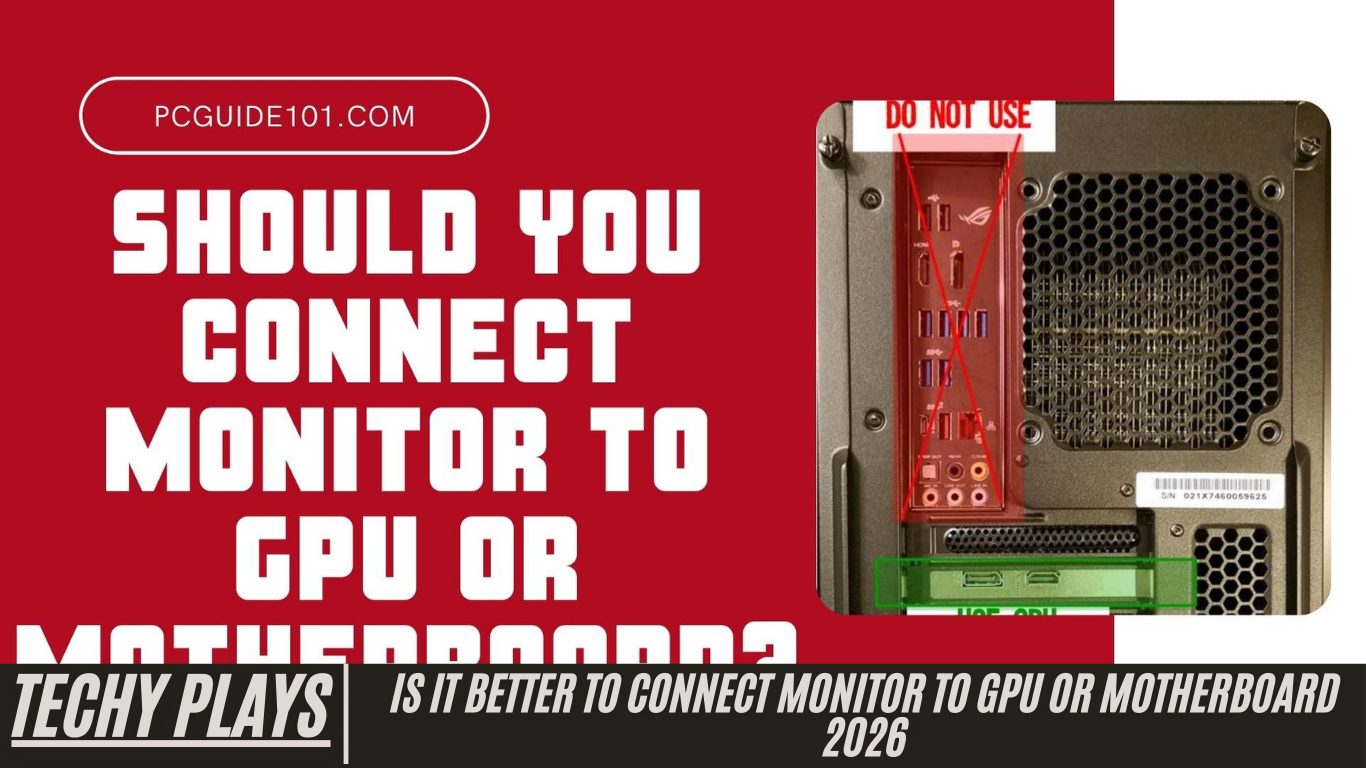
Should I Connect My Monitor to the Graphics Card or Motherboard
When setting up your PC, deciding whether to connect your monitor to the graphics card or the motherboard is crucial for performance. For optimal visual quality and smoother performance, especially if you are gaming, doing video editing, or working with graphics-intensive applications, you should always connect your monitor directly to the dedicated graphics card (GPU). The GPU is specifically designed to handle complex graphics calculations and will provide better frame rates, sharper visuals, and overall enhanced performance.
On the other hand, connecting your monitor to the motherboard is only suitable for basic tasks such as browsing the web, using office applications, or watching videos. Integrated graphics on the motherboard are not designed for high-performance workloads, so relying on them for gaming or creative tasks may lead to lag, reduced frame rates, and poorer image quality.
Should I connect my monitor into my motherboard or GPU?
For anyone aiming for the best possible performance, connecting your monitor to the GPU is highly recommended. Dedicated graphics cards are built to manage high-resolution visuals and demanding software, making them ideal for gamers, designers, and video editors.
Read more: Do Motherboards Come With Sata Cables – Ultimate Guidance 2025!
Using the motherboard’s display output is acceptable only when performing light tasks like reading emails, browsing the internet, or working on documents. If your system does not have a dedicated GPU, the motherboard output is the fallback option, but it will not provide the same level of performance or visual quality as a dedicated graphics card.
Should I connect HDMI to motherboard or graphics card?
When it comes to HDMI connections, the choice between the motherboard and graphics card can significantly affect performance. You should always connect your HDMI cable to the GPU if your PC has one. This ensures the highest possible graphics quality, smoother animations, and better overall responsiveness.
The motherboard HDMI port should only be used if your PC does not have a dedicated graphics card or if you are performing basic tasks that do not require intensive graphics processing. Connecting to the motherboard in performance-heavy scenarios may lead to lower resolution, screen tearing, and reduced frame rates.
Source: WindowsCentral
Should the monitor be connected to the GPU?
Yes, connecting your monitor to the GPU is strongly recommended for enhanced performance and superior visual quality. Dedicated GPUs are designed to handle modern games, 3D rendering, video editing, and other graphics-intensive tasks. Using the GPU ensures smoother gameplay, faster rendering times, and better overall user experience.
The motherboard connection should only be considered if your system lacks a dedicated graphics card or if you only need the PC for basic tasks such as browsing or office work. For high-end computing needs, relying on the motherboard’s integrated graphics will limit your system’s potential.
Should I plug my second monitor into my graphics card or motherboard?
For setups with dual monitors, it is generally better to connect both displays to the GPU. This approach ensures consistent performance across both screens, maintaining high visual quality and responsiveness. Dual monitors connected to the GPU allow you to fully leverage the capabilities of your graphics card for multitasking, gaming, or creative work.
Using the motherboard for the second monitor is an option only if the GPU does not have enough ports to accommodate multiple displays or if the second monitor is used for basic, non-demanding tasks such as reading documents or monitoring emails.
Should I plug my second monitor to the motherboard instead of the graphics card?
For improved performance and a better overall experience, it is preferable to connect your second monitor to the GPU. Doing so ensures that both monitors benefit from the graphics card’s processing power, providing sharper visuals, smoother animations, and consistent performance across multiple displays.
Only consider connecting the second monitor to the motherboard if your GPU lacks sufficient output ports or if the secondary display is intended for light usage. Otherwise, leveraging the GPU for all monitor connections is the best choice for maximizing your PC’s capabilities.
How to connect the monitor with a Graphics card?
Connecting your monitor to a dedicated graphics card (GPU) is essential for achieving the best visual performance, especially for gaming, video editing, or other graphics-intensive tasks. To properly set up your monitor with a GPU, follow these detailed steps:
Identify the video output ports on your graphics card:
Most modern graphics cards come with HDMI, DisplayPort, or DVI outputs. Check your GPU to see which ports are available for connection.
Locate the corresponding input port on your monitor:
Modern monitors typically support HDMI, DisplayPort, DVI, or VGA. Ensure your monitor has a matching input port to connect with the GPU.
Use a compatible cable to connect the GPU to the monitor:
Select the right cable type—HDMI, DisplayPort, or DVI—and firmly connect the graphics card output port to the monitor input port. High-quality cables can help reduce signal interference and provide better image clarity.
Ensure a secure connection:
Make sure the cable is fully inserted into both the graphics card and the monitor ports to avoid loose connections that may result in no display or flickering.
Power on your computer and monitor:
After connecting the cable, turn on your monitor and then boot your PC. The system should detect the monitor automatically.
Adjust monitor settings if necessary:
Some monitors require you to manually switch to the correct input source using the monitor’s on-screen menu to display the output from the GPU.
Verify the display output:
Once connected, your monitor should now display output from your graphics card, providing optimal resolution, refresh rate, and visual performance.
How to connect the monitor with a Motherboard?
Connecting your monitor to a motherboard is simpler but less performance-oriented than connecting it to a GPU. To do this, identify the video output ports available on your motherboard, such as HDMI, DisplayPort, DVI, or VGA, and match them with your monitor’s input ports. Use a compatible cable to securely connect the motherboard to the monitor. While this setup works for basic tasks like browsing, office work, or watching videos, it is not ideal for gaming or graphics-intensive applications, as integrated graphics on the motherboard provide lower performance compared to a dedicated GPU.
What should you do if your monitor doesn’t have the same input as your graphics card?
If your monitor does not support the same input as your graphics card, there are a few options to ensure proper connectivity. You can use an adapter or converter to bridge the connection, such as HDMI-to-DisplayPort or DVI-to-HDMI adapters. Alternatively, consider upgrading your monitor to one that matches your GPU’s output options for the best performance and image quality. Choosing the right connection method ensures stable performance, proper resolution, and avoids display issues.
What can happen if you didn’t plug your cable in the right spot?
Plugging your monitor into the wrong port can lead to several problems. The monitor may fail to display anything, show a distorted image, or flicker intermittently. Improper connections can also cause software or driver issues, and in rare cases, continuous strain on ports may damage your monitor or graphics card. Ensuring the cable is connected to the correct GPU or motherboard port is critical to maintaining stable and high-quality display output.
Does plugging your monitor to the GPU improve gaming?
Absolutely. Connecting your monitor directly to the GPU significantly improves gaming performance. Dedicated graphics cards are designed specifically to handle complex rendering tasks, delivering higher frame rates, smoother gameplay, and more detailed visuals compared to integrated graphics on the motherboard. This setup ensures an optimal gaming experience with reduced lag, minimal screen tearing, and overall better graphics performance, making it the preferred choice for gamers and creative professionals alike.
Should I plug my second monitor into my GPU or Motherboard?
When setting up a dual-monitor system, deciding whether to connect your second monitor to the GPU or motherboard can significantly affect performance. You should plug your second monitor into the GPU for optimal performance, especially if you plan to use both monitors for gaming, video editing, graphic design, or other graphics-intensive tasks. Dedicated graphics cards are designed to handle multiple high-resolution displays simultaneously, ensuring smooth performance and consistent visual quality.
Using the motherboard to connect your second monitor is suitable only for basic, non-demanding tasks, such as browsing the web, reading emails, or running office applications. The integrated graphics on the motherboard cannot match the power and performance of a dedicated GPU, which may result in reduced frame rates, slower rendering, or lower-quality visuals when performing resource-heavy tasks.
Can I Plug My Monitor Into My Graphics Card?
Yes, connecting your monitor to a graphics card is not only possible but also highly recommended. Doing so ensures that your monitor fully utilizes the GPU’s processing power, delivering superior graphics performance. This setup is particularly beneficial for gaming, 3D rendering, video editing, and graphic design, where high-quality visuals and smooth frame rates are essential. By connecting to the GPU, you reduce lag, prevent screen tearing, and enjoy an overall enhanced visual experience.
What’s the difference between plugging a monitor into a motherboard or graphics card?
The main difference lies in performance and visual quality. When your monitor is connected to a dedicated GPU, you benefit from higher frame rates, sharper images, and faster graphics processing. This makes it ideal for gaming, multimedia work, and other graphics-intensive applications.
In contrast, connecting a monitor to the motherboard relies on the CPU’s integrated graphics. While integrated graphics are sufficient for everyday computing tasks such as browsing, emailing, or watching videos, they are not designed for demanding workloads. As a result, graphics performance may be limited, and you could experience lower frame rates or reduced visual quality during high-performance tasks.
If I plug my monitor into my motherboard, does it use the GPU to process the graphics?
No. When you plug your monitor into the motherboard, it typically uses the integrated graphics provided by the CPU rather than your dedicated GPU. This means that the GPU’s full processing power is not being utilized, which can negatively impact performance in tasks that require high-quality graphics. For optimal performance and smooth visuals, especially in gaming or graphic design, connecting your monitor directly to the GPU is essential.
Connect 2nd monitor to GPU or motherboard?
For the best dual-monitor experience, always connect your second monitor to the GPU. This ensures both monitors benefit from the GPU’s processing power, providing higher frame rates, smoother visuals, and better overall performance. Using the motherboard for a second monitor is only recommended if your GPU lacks sufficient output ports or if the second display will be used for light, everyday tasks that do not demand high graphics performance.
Do I need to plug my monitor into my GPU for it to use my GPU?
Yes, in order for your system to take full advantage of your GPU’s capabilities, the monitor must be connected directly to the graphics card. This connection ensures that the GPU handles all the graphics processing, delivering the best possible performance for gaming, video editing, and other graphics-intensive tasks. Without connecting the monitor to the GPU, your system will default to integrated graphics, limiting both performance and visual quality.
Can I connect my monitor to the motherboard while still using the installed video card?
Yes, it is possible to connect your monitor to the motherboard even if you have a dedicated video card installed. However, this setup may not fully leverage the capabilities of your GPU. When using the motherboard’s display output, your system typically relies on the CPU’s integrated graphics rather than the dedicated GPU. This can result in lower performance in gaming, video editing, or graphic design tasks, as integrated graphics are not as powerful as modern GPUs. For optimal performance and to utilize the full potential of your video card, it is recommended to connect your monitor directly to the GPU.
How to set up dual monitors, one in GPU, one in motherboard?
Setting up dual monitors with one connected to the GPU and the other to the motherboard is possible but requires careful configuration. First, identify the available video output ports on both the GPU and the motherboard, such as HDMI, DisplayPort, DVI, or VGA. Connect one monitor to the GPU for tasks requiring high performance, and the second monitor to the motherboard if it will be used for less demanding tasks like browsing or office work. After connecting both monitors, adjust your system’s display settings in Windows or your operating system to ensure proper resolution, orientation, and display mode. While this setup works, keep in mind that the monitor connected to the motherboard will not benefit from the GPU’s full processing power.
Monitor works fine with motherboard, but when I connect it to the GPU it says no signal
If your monitor functions correctly when connected to the motherboard but displays a “no signal” message when connected to the GPU, several troubleshooting steps can help. First, ensure that the GPU is properly installed in the PCIe slot and that the power connectors are securely attached. Next, verify that the GPU drivers are up to date, as outdated drivers can prevent the system from recognizing the monitor. Also, check that the cable connecting the GPU to the monitor is properly seated and not damaged. Switching to a different compatible cable or port may resolve the issue.
After building a computer, should you plug your monitor’s HDMI cord into the GPU or the motherboard?
After assembling a new computer, it is highly recommended to connect your monitor’s HDMI cord to the GPU rather than the motherboard. Connecting to the GPU ensures that your system takes full advantage of the graphics card’s processing power, resulting in superior performance for gaming, graphic design, video editing, and other resource-intensive tasks. The motherboard connection should only be used for basic activities such as browsing the web, reading emails, or performing office work, as it relies on integrated graphics that cannot match the GPU’s performance.
Am I suppose to connect my monitor to the motherboard or video card?
You should connect your monitor to the video card for the best performance and visual quality. Dedicated GPUs are specifically designed to handle graphics-intensive tasks, providing higher frame rates, smoother gameplay, sharper images, and faster rendering. Using the motherboard connection is suitable only for light, everyday tasks where high graphics performance is not required. For gaming, creative work, or professional graphics applications, connecting directly to the GPU is essential to ensure optimal performance and a high-quality visual experience.
Plug monitor into graphics card or motherboard?
For optimal performance, it is strongly recommended to plug your monitor into the graphics card (GPU). Doing so ensures that your system can fully utilize the GPU’s processing power, providing smoother visuals, higher frame rates, and better overall performance. This is especially important for tasks like gaming, video editing, or graphic design, where high-quality graphics and responsiveness are essential. Using the motherboard connection, which relies on integrated graphics, is generally suitable only for basic tasks such as browsing the web, office work, or watching videos.
Where should I plug in my monitor — Motherboard or Graphics card?
To achieve the best visual performance, you should connect your monitor directly to the graphics card. This allows your system to leverage the full power of your GPU, resulting in sharper images, smoother motion, and better handling of demanding applications. Connecting the monitor to the motherboard is a fallback option for light computing tasks or in situations where a dedicated GPU is not installed, but it will not provide the same level of graphics performance.
First Boot up. Connect Monitor to Motherboard or GPU?
When booting up a newly built or freshly configured computer, it is recommended to initially connect your monitor to the motherboard. This ensures that you can access the system BIOS and install the necessary GPU drivers without issues. Once the drivers are installed and the GPU is properly configured, you can switch the monitor connection to the graphics card. This setup provides the best balance of accessibility during initial setup and high performance for tasks like gaming, video editing, or graphic design.
Where do I plug in my monitor?
The choice of where to plug in your monitor depends on your intended use. For demanding tasks like gaming, 3D rendering, or graphic design, connect your monitor to the GPU to maximize performance and visual quality. For general everyday tasks like browsing, office work, or media consumption, connecting to the motherboard is acceptable, but it will not take advantage of the dedicated GPU’s capabilities.
Is it better to connect monitor to GPU or motherboard gaming
For gaming, it is always better to connect your monitor directly to the GPU. This ensures that your graphics card is fully utilized, delivering higher frame rates, reduced input lag, and smoother graphics performance. Connecting the monitor to the motherboard may work for light gaming, but the integrated graphics will struggle with modern games and provide a lower-quality experience overall.
Do you plug DisplayPort into GPU or motherboard
DisplayPort connections should be plugged into the GPU to take full advantage of the graphics card’s capabilities. This is particularly important for gaming, video editing, or graphic design, where high-resolution displays and fast refresh rates are required. Using the motherboard DisplayPort is suitable only for basic computing tasks where graphics performance is not critical.
How to plug monitor into graphics card
To connect your monitor to a graphics card, first locate the available video output ports on the GPU, which may include HDMI, DisplayPort, or DVI. Next, identify the corresponding input port on your monitor. Use a compatible cable to securely connect the GPU output to the monitor input. Once connected, power on your computer and monitor, and adjust your display settings if necessary to ensure the system recognizes the monitor and provides the optimal resolution and refresh rate.
Monitor plugged into motherboard no signal
If your monitor is connected to the motherboard and shows a “no signal” message, there are several troubleshooting steps to follow. First, ensure that the motherboard’s integrated graphics are enabled in the BIOS settings. Check that the cable is securely connected and that the monitor is set to the correct input source. Sometimes, a faulty cable or an incorrect input selection on the monitor can prevent a proper signal from being displayed.
Monitor plugged into GPU not working
If your monitor does not display output when connected to the GPU, check the cable and port connections to ensure they are secure. Verify that the GPU is properly seated in the motherboard PCIe slot and that any necessary power connectors are attached. Updating or reinstalling the GPU drivers may also resolve the issue. Ensuring the hardware and drivers are correctly installed will allow your monitor to function properly with the GPU.
Do You Plug Your Monitor Into Graphics Card Or Motherboard
For the best performance and visual quality, always plug your monitor into the graphics card. This allows the system to take full advantage of the GPU’s processing power, providing smoother gameplay, higher frame rates, and better performance in graphic-intensive tasks like video editing or 3D design. Using the motherboard connection is only recommended for basic tasks, such as browsing the internet, office work, or watching videos, as it relies on integrated graphics that cannot match a dedicated GPU’s performance.
Frequently Asked Questions(FAQs)
Is it better to put HDMI in motherboard or GPU?
For optimal performance, it is always better to plug your HDMI cable into the GPU rather than the motherboard. Connecting your monitor to the GPU ensures that the dedicated graphics card handles all rendering tasks, providing smoother gameplay, higher frame rates, and better graphics quality. Using the motherboard HDMI port, which relies on integrated graphics, is suitable only for basic tasks like web browsing, office work, or video playback, but it will not deliver the same level of performance required for gaming or graphic design.
Should I use GPU or CPU for display?
You should use the GPU for your display whenever possible, particularly for resource-intensive applications such as gaming, 3D modeling, video editing, or graphic design. Dedicated GPUs are specifically engineered to handle high-performance graphics processing, offering better visual quality, faster rendering, and smoother performance. The CPU’s integrated graphics, while capable of running basic display tasks like browsing or office applications, are not designed to manage demanding visual workloads and will limit overall performance.
Where should I plug in my second monitor?
For the best performance in a dual-monitor setup, plug your second monitor directly into the GPU. This ensures both displays benefit from the graphics card’s processing power, providing consistent frame rates, higher resolutions, and improved overall graphics quality. Using the motherboard for the second monitor may be acceptable for light productivity tasks, but it will not deliver optimal performance if both monitors are used for gaming, streaming, or graphic-intensive work.
Is a DisplayPort better than HDMI?
DisplayPort generally provides better performance compared to HDMI, especially at higher resolutions and refresh rates. It supports higher bandwidth, which allows for smoother gameplay, reduced screen tearing, and enhanced visual fidelity. DisplayPort is often preferred in professional setups for gaming, video editing, and graphic design, particularly when using high-resolution monitors or high-refresh-rate displays.
Should I use DisplayPort or HDMI for gaming?
Both DisplayPort and HDMI can be used for gaming, but DisplayPort is usually preferred for high-performance setups. It supports higher bandwidth, higher refresh rates, and better compatibility with adaptive sync technologies such as G-Sync or FreeSync. HDMI is still suitable for standard gaming, but for competitive gaming or high-resolution displays, DisplayPort offers superior performance and a more responsive experience.
Should I use HDMI or DisplayPort for 144Hz?
For gaming monitors with a 144Hz refresh rate, DisplayPort is recommended over HDMI. DisplayPort’s higher bandwidth allows it to handle high refresh rates and resolutions more effectively, providing smoother gameplay and reducing screen tearing or stuttering. While some modern HDMI versions can also support 144Hz, DisplayPort remains the more reliable choice for high-performance gaming setups.
What should be plugged into my graphics card?
Your monitor should always be plugged into the graphics card for optimal performance. This connection ensures that your dedicated GPU handles all graphics processing, providing better frame rates, improved visual quality, and smoother performance in gaming, graphic design, or video editing tasks. Using the motherboard’s integrated graphics is only suitable for light tasks where high performance is not required.
Can 1 graphics card support 3 monitors?
Yes, many modern graphics cards are capable of supporting multiple monitors simultaneously. Depending on the GPU’s available output ports and specifications, it is common to connect up to three monitors to a single graphics card. This setup is ideal for gaming, multitasking, streaming, or productivity workflows, allowing users to take full advantage of the GPU’s processing power across multiple displays.
When setting up dual monitors, is it better to have both connected to my GPU or one to my GPU and one to the motherboard?
It is better to connect both monitors to the GPU to ensure consistent performance and optimal graphics quality across both displays. Using one monitor on the GPU and another on the motherboard can lead to inconsistent performance, as the second display will rely on integrated graphics, which cannot match the GPU’s processing power. For gaming, graphic design, or professional productivity, keeping all monitors connected to the GPU is the recommended setup.
How bad is it to run a monitor on the GPU and one in the motherboard?
Running one monitor on the GPU and another on the motherboard can lead to inconsistent performance and inefficient utilization of your GPU. The monitor connected to the motherboard relies on the CPU’s integrated graphics, which may not handle demanding tasks like gaming or graphic design effectively. This can result in reduced frame rates, lower image quality, and potential lag on one of the screens. For best performance, it is advised to connect all monitors to the dedicated GPU whenever possible.
Conclusion
In conclusion, for optimal performance in gaming, video editing, or graphic design, it is strongly recommended to connect your monitor directly to the GPU rather than the motherboard. This ensures that your dedicated graphics card handles all visual processing, delivering smoother gameplay, higher frame rates, and superior graphics quality. Additionally, using DisplayPort over HDMI is generally preferred for higher resolutions and refresh rates, making it the ideal choice for high-performance gaming and professional monitor setups.
