

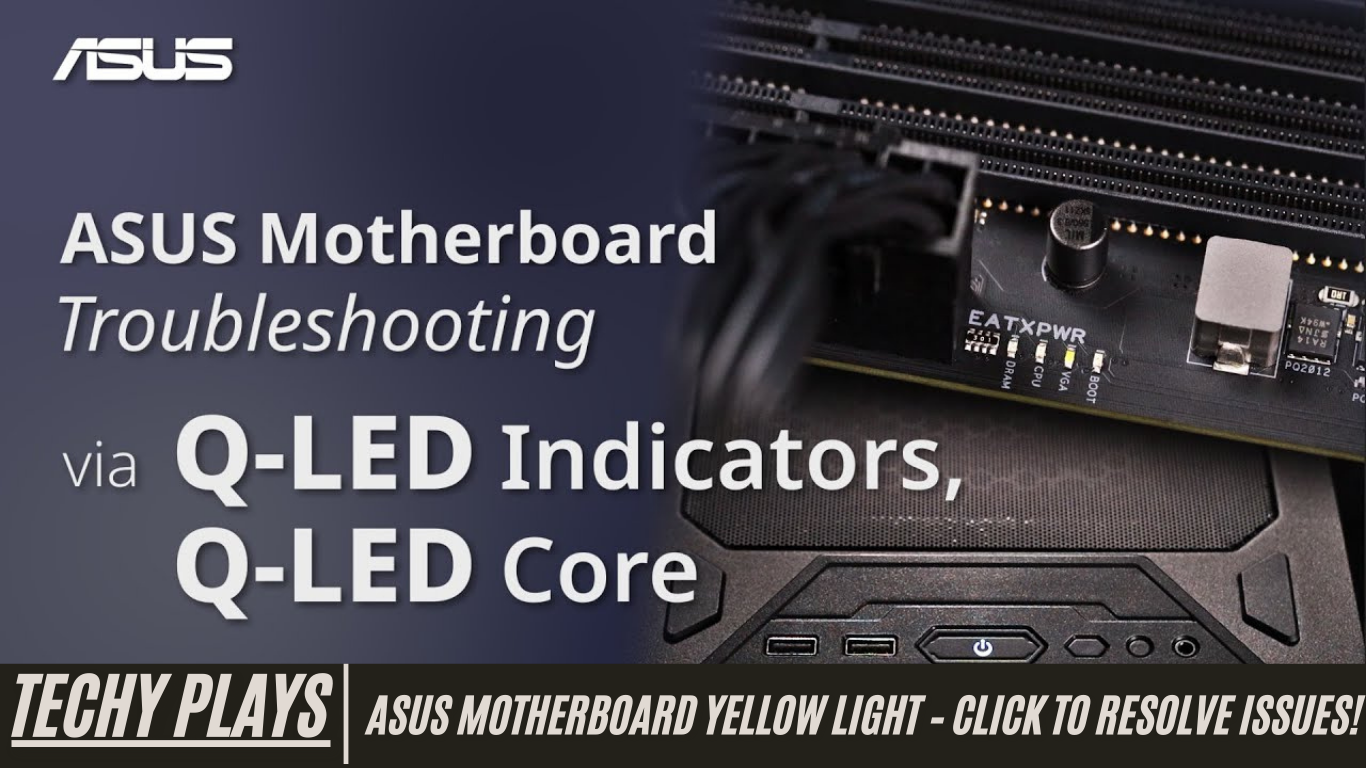
Understanding the Meaning of the Yellow Light
The yellow light on your Asus motherboard serves as a warning indicator, signaling that there is a potential issue with either power delivery or hardware components. When this light appears, it’s your motherboard’s way of alerting you that something in your system is not functioning as expected. Ignoring this warning can lead to system instability, performance issues, or even hardware damage over time.
To address this, it is crucial to carefully check all connections and hardware components in your system. Additionally, updating your BIOS settings to the latest version can often resolve compatibility or configuration issues. Troubleshooting these alerts promptly is essential to ensuring the long-term stability and performance of your computer.
Read more: Is It Better To Connect Monitor To GPU Or Motherboard 2026
Importance of Motherboards
Motherboards are the central hub of your computer, connecting all the essential components and ensuring they communicate effectively. Think of the motherboard as a traffic controller for your computer: it manages the flow of data between the CPU, RAM, storage devices, and peripherals. A reliable and properly functioning motherboard is critical for maintaining system stability, performance, and the overall lifespan of your computer. Without a properly working motherboard, even high-end components may fail to perform optimally.
What Does Yellow Light on Motherboard Mean?
The yellow light on an Asus motherboard can indicate several potential issues, primarily related to RAM or system settings. Understanding these possibilities can help you identify and fix the problem efficiently.
1. Faulty or Defective RAM Modules
One of the most common reasons for a yellow light is the presence of defective or malfunctioning RAM modules. Faulty RAM can cause system crashes, freezes, or failure to boot properly. If you suspect your RAM is the issue, running a memory diagnostic test or swapping out modules for known working ones can help determine the root cause.
2. Inadequate or Incompatible RAM
Sometimes, the yellow light appears because the installed RAM does not meet the motherboard’s specifications or is incompatible with the system. Using RAM that is not supported by your motherboard can lead to performance issues, system instability, and even prevent the system from booting. Always ensure that your RAM matches the motherboard’s requirements in terms of speed, capacity, and type.
3. Improperly Seated RAM
In many cases, the yellow light issue can be resolved simply by reseating the RAM modules. Over time or during installation, RAM sticks may become slightly loose, preventing proper contact with the motherboard slots. Carefully removing and reinserting the RAM, ensuring it clicks securely into place, can often eliminate this warning.
4. BIOS or Firmware Settings
Incorrect BIOS or firmware settings can also trigger the yellow light on your motherboard. Outdated BIOS versions or misconfigured settings may prevent your system from recognizing hardware correctly, leading to errors. Updating the BIOS to the latest version and reviewing configuration settings can restore normal operation and prevent recurring issues.
By understanding the meaning of the yellow light and taking proactive troubleshooting steps, you can ensure your Asus motherboard and overall system function reliably. Regular maintenance, proper hardware installation, and keeping firmware up to date are key to preventing these warnings and maintaining optimal system performance.
Troubleshooting Yellow Light on Motherboard
If your Asus motherboard displays a yellow light, it indicates a potential issue with the RAM or system configuration. Proper troubleshooting is essential to identify the root cause and restore your system’s stability. The following steps provide a systematic approach to resolving the yellow light warning.
1. Power Down and Disconnect
The first step in troubleshooting is to safely power down your computer and disconnect all power sources, including the power supply cable and any external devices. This ensures your safety while inspecting the motherboard and prevents accidental short circuits. A completely powered-down system allows you to perform a detailed check of internal components without risking further damage.
2. Check RAM Module Seating
Improperly seated RAM is a common cause of the yellow light warning. Carefully inspect each RAM module and ensure it is fully inserted into its designated slot. Press down gently until you hear a click, confirming the module is secured. Loose or unevenly seated RAM can prevent the motherboard from recognizing memory correctly, triggering the yellow light.
3. Test Each RAM Module Individually
If reseating does not resolve the issue, the next step is to test each RAM module individually. Remove all modules and insert them one at a time, powering on the system after each installation. This process helps identify any defective RAM modules that may be causing instability or preventing the system from booting properly.
4. Confirm Compatibility and Specifications
It is crucial to verify that all installed RAM modules meet the motherboard’s compatibility requirements. Check the motherboard manual for supported RAM types, speeds, and capacities. Using incompatible or inadequate RAM can lead to system errors, crashes, or the persistent yellow light warning. Ensuring full compatibility helps maintain overall system performance and stability.
5. Reset BIOS or Firmware Settings
Incorrect BIOS or firmware settings can sometimes trigger the yellow light on your motherboard. Resetting the BIOS to default settings can eliminate configuration errors and restore normal hardware recognition. Additionally, consider updating the BIOS to the latest version, as firmware updates often include fixes for hardware compatibility issues.
6. Test RAM on Another System
To isolate the problem further, test your RAM modules on another compatible system. If the modules work without issues on a different motherboard, the problem may lie with your original motherboard rather than the RAM. Conversely, if the yellow light or memory errors persist, the RAM itself is likely defective.
7. Perform Memory Tests with Memtest86
For a thorough diagnostic, run memory tests using tools like Memtest86. This software checks for errors in the RAM modules that may not be immediately apparent during regular use. Detecting and addressing faulty memory early can prevent system crashes, data corruption, and repeated yellow light warnings.
8. Seek Professional Assistance
If all troubleshooting steps fail to resolve the yellow light issue, it may be necessary to consult professional computer technicians or contact the motherboard manufacturer for further support. Experts can perform advanced diagnostics, repair faulty components, or provide replacement solutions to ensure your system operates reliably.
Best Practices to Avoid Yellow Light Issues
The yellow light on your Asus motherboard can indicate potential hardware or power-related problems. Following best practices can help prevent these warnings and ensure your system runs smoothly. Implementing preventive measures not only reduces the risk of motherboard errors but also prolongs the life of your computer components.
1. Regular Cleaning and Maintenance
Regular cleaning and maintenance of your PC are essential to prevent dust and debris buildup, which can cause overheating and hardware malfunctions. Dust accumulation on RAM, CPU, GPU, or motherboard components can interfere with electrical contacts and airflow, increasing the likelihood of yellow light warnings. Cleaning your PC with compressed air and ensuring proper ventilation helps maintain optimal temperatures and component performance.
2. Invest in Quality Power Supply Units
A high-quality power supply unit (PSU) is crucial for stable and reliable power delivery to all components. Low-quality or unstable PSUs can lead to voltage fluctuations, potentially triggering the yellow light on the motherboard. Investing in a reputable PSU ensures consistent power, reduces hardware stress, and minimizes the risk of power-related issues that could prevent your PC from booting properly.
3. Keep BIOS Firmware Updated
Keeping your motherboard’s BIOS and firmware updated is an essential preventive measure. Manufacturers frequently release BIOS updates to improve hardware compatibility, stability, and performance. Outdated BIOS versions can cause errors, including yellow light warnings, due to incompatibility with newer RAM or CPU models. Regularly checking the motherboard manufacturer’s website and applying updates ensures smooth operation and reduces the chance of BIOS-related problems.
4. Handle Hardware Components with Care
When installing or removing hardware components, careful handling is essential to prevent damage. Improper installation, bending pins, or applying excessive force can lead to hardware faults that trigger yellow light warnings. Always follow manufacturer guidelines and use anti-static precautions to protect sensitive components like RAM, CPU, and graphics cards during handling.
5. Monitor System Temperatures
Monitoring your PC’s system temperatures with software utilities is crucial for preventing overheating-related issues. Components running above safe temperature thresholds can cause instability, errors, and motherboard warnings, including yellow LEDs. Regularly check CPU, GPU, and motherboard temperatures, and ensure adequate cooling solutions, such as fans or liquid cooling, are properly installed to maintain a safe operating environment.
Solid Yellow LED on Motherboard. PC not boot
A solid yellow LED on your motherboard accompanied by a failure to boot indicates a serious underlying issue. This warning could stem from faulty hardware, incompatible or improperly seated RAM, or a malfunctioning power supply. Resolving this issue requires careful troubleshooting, such as checking RAM modules, ensuring proper power connections, testing components individually, and possibly resetting BIOS settings. Prompt attention to this warning is essential to restore system functionality and prevent further damage.
PC turning on but no display – Yellow RAM light on motherboard
If your PC powers on but displays nothing on the monitor while a yellow light appears on the motherboard near the RAM slots, it typically indicates a problem with the memory modules. This warning is the motherboard’s way of signaling that it cannot properly detect or initialize the RAM. To resolve this, start by checking whether the RAM sticks are securely seated in their slots. Remove and carefully reinstall each module, ensuring it clicks firmly into place. Additionally, test each RAM module individually to identify any defective sticks that might be causing the issue. Addressing RAM problems promptly can restore display output and system stability.
Computer goes all black, Yellow light on motherboard turns on, everything running fine from the looks of it, won’t boot
In cases where your computer screen goes completely black and the yellow motherboard light is active, even though fans and other components seem to be running normally, the problem often points to a hardware malfunction. This scenario may be caused by improperly seated components, faulty RAM, or power delivery issues. Begin troubleshooting by reseating RAM, GPU, and other peripherals, as well as checking all power connections to ensure consistent electrical supply. Identifying the specific faulty component will allow you to restore your PC to normal operation without risking additional damage.
No boot and DRAM yellow light
When your PC fails to boot and a yellow light on the motherboard specifically indicates DRAM issues, it signals problems with the memory modules. This is a clear warning from the motherboard that the RAM is either not properly installed, incompatible, or defective. To resolve the issue, carefully check each RAM module’s seating and verify functionality by testing modules individually. Running memory diagnostic tools, such as Memtest86, can also help detect underlying problems with the RAM, ensuring accurate identification and resolution.
White and Yellow Lights on X670-E Plus
Observing both white and yellow lights simultaneously on your X670-E Plus motherboard can indicate a combination of issues, ranging from hardware malfunctions to power supply inconsistencies. The presence of multiple indicator lights suggests that one or more critical components are not functioning properly. It is important to systematically troubleshoot the system by checking RAM, CPU, GPU, and power connections. Identifying the exact cause of the warning lights is essential to prevent further hardware damage and restore stable system performance.
Why is there a flashing yellow light on my ASUS motherboard and my PC won’t boot up?
A flashing yellow light on an ASUS motherboard, combined with a failure to boot, typically signals a potential hardware or power supply problem. This warning indicates that the motherboard is unable to initialize critical components required for system startup. To address this, verify that all hardware components are properly connected, inspect RAM and other modules for defects, and ensure the power supply is delivering consistent voltage. Resolving these issues promptly is critical to restoring normal functionality and preventing permanent damage to your PC components.
How can I fix yellow DRAM light (not flickering) Asus TUF motherboard?
A steady yellow DRAM light on an Asus TUF motherboard indicates that the motherboard is detecting an issue with the RAM modules. To fix this, start by powering down your system and reseating the RAM modules firmly into their slots. Ensure that each module clicks into place and is properly aligned with the slot. If the problem persists, test the RAM modules on another compatible system to determine whether the issue lies with the RAM itself or the motherboard. Identifying faulty memory early can prevent further system instability and avoid potential hardware damage.
Yellow light on motherboard lit
When a yellow light on your motherboard is illuminated, it usually points to a hardware problem that requires attention. This warning could be caused by improperly seated components, defective RAM, CPU issues, or power supply inconsistencies. Begin troubleshooting by checking all connections, ensuring that every component is correctly installed, and verifying that cables are properly connected. Conducting a systematic inspection helps isolate the faulty hardware, allowing you to restore normal system functionality.
What is a steady yellow light on a motherboard?
A steady yellow light on a motherboard is typically a hardware warning, signaling issues with critical components such as RAM, CPU, or the power supply. It indicates that the motherboard has detected a problem that prevents it from operating correctly. To resolve this, systematically troubleshoot each major component, checking for proper installation, functionality, and compatibility. Addressing the underlying issue promptly ensures system stability and reduces the risk of long-term hardware damage.
Why is there an orange light on the bottom left of an ASUS motherboard? Nothing will turn on.
If an orange light appears on the bottom left of an ASUS motherboard and the system fails to power on, this often indicates a power supply problem. The motherboard may not be receiving sufficient voltage to initialize the hardware components. To resolve this, inspect all power connections, including the 24-pin ATX and 8-pin CPU power cables, and verify that the PSU is functioning correctly. Replacing or testing the power supply can often restore normal operation.
What does it mean by an Asus motherboard orange LED light blinking? Are there any issues on the motherboard?
A blinking orange LED light on an ASUS motherboard signals that there may be an underlying hardware or power supply issue. This could range from unstable power delivery to malfunctioning components such as RAM, GPU, or CPU. To fix the problem, systematically inspect hardware components and connections. Ensure all devices are properly seated and test each component individually if necessary. Proper troubleshooting can identify the root cause and restore system functionality.
Intermittent No boot (Solid Yellow or Blinking Yellow LED) on ASUS ROG Strix B450-I
Experiencing intermittent no boot issues with a solid or blinking yellow LED on an ASUS ROG Strix B450-I motherboard typically points to hardware or power-related problems. These warning lights indicate that the motherboard cannot properly initialize critical components. Begin by checking all power and component connections, reseating RAM and expansion cards, and testing individual hardware modules. Addressing these issues methodically ensures that the system can boot reliably and reduces the risk of repeated yellow light errors.
ROG STRIX Z790-H yellow/amber post light on mobo – no video also
A yellow or amber post light on a ROG STRIX Z790-H motherboard, accompanied by no video output, indicates potential hardware or connectivity issues. This warning suggests that the motherboard is detecting a problem preventing the system from completing the Power-On Self-Test (POST). To resolve this, carefully inspect all hardware components, including RAM, CPU, GPU, and power connections. Ensure that each module is correctly seated and connected. Systematic troubleshooting is essential to identify the faulty component and restore normal functionality.
New build is turning on, but no display. Asus ROG Strix Motherboard shows yellow/orange Q-LED light
If you have a new PC build that powers on but displays nothing on the monitor while a yellow or orange Q-LED light is visible on your Asus ROG Strix motherboard, this typically indicates a hardware-related issue. The motherboard uses the Q-LED indicator to alert you to components that are not functioning correctly or are improperly installed. Begin by checking all internal connections, ensuring RAM and GPU modules are securely seated, and confirming that power supply cables are properly connected. Testing each component individually can help isolate the source of the problem.
Yellow LED Light RAM motherboard ASUS ROG Strix B450F Gaming
On an ASUS ROG Strix B450F Gaming motherboard, a yellow LED specifically indicating RAM issues points to potential problems with the memory modules. This warning occurs when the motherboard cannot detect or properly initialize the RAM. To resolve this, reseat the RAM modules carefully, making sure each stick is fully inserted. If the issue persists, test the RAM modules in another compatible system to identify any defective sticks. Ensuring that your RAM is functioning properly is crucial for system stability and booting successfully.
No boot, and yellow light stays on?
When your PC fails to boot and the yellow light on the motherboard remains solid, it signals potential hardware issues that may include defective RAM, CPU problems, or other critical components. To address this, systematically troubleshoot each component, checking connections, reseating hardware, and testing individual modules. Resolving these issues ensures that the motherboard can properly initialize all components and allows the system to boot normally.
Red LED, then quickly switches to yellow LED
A red LED light on a motherboard that quickly switches to yellow indicates possible hardware or power supply problems. This pattern often occurs when the system detects a fault during POST and attempts to identify the affected component. To troubleshoot, inspect all internal connections, verify that the PSU is delivering stable power, and check the functionality of RAM, CPU, and GPU modules. Correctly identifying and resolving the underlying hardware or power issue is essential to restore reliable system operation.
By understanding what yellow or amber post lights, Q-LED indicators, and red-to-yellow transitions mean on Asus ROG Strix motherboards, users can effectively troubleshoot hardware issues, identify defective components, and ensure their PC operates reliably.
New Build – Asus Motherboard Yellow Light
If you see a yellow light on your Asus motherboard in a new PC build, it typically signals a potential hardware or connectivity issue. This warning light indicates that the motherboard is detecting a component that is either improperly installed or not functioning correctly. To resolve this, carefully check all internal connections, including RAM, CPU, GPU, and power cables. Ensuring that every component is securely seated and properly connected can help eliminate the yellow light warning and allow your system to boot normally.
No picture (is it even booting correctly?) – Q-LED yellow on Hive – Z790-I
When your Hive Z790-I motherboard displays a yellow Q-LED light and no picture appears on the monitor, it points to a potential hardware problem affecting the boot process. The motherboard uses the Q-LED indicator to highlight issues with critical components such as RAM, CPU, or GPU. Begin troubleshooting by checking all connections and reseating components to ensure proper contact. Testing each module individually can help identify faulty hardware, restoring display output and proper system booting.
Asus Motherboard Yellow Light, No Boot
A yellow light on your Asus motherboard accompanied by a failure to boot often suggests underlying hardware or power supply issues. This could include defective RAM, CPU errors, or inconsistent power delivery. To address this, systematically inspect all connections, ensure that every module is correctly seated, and test hardware individually if necessary. Resolving the root cause of the yellow light is essential to restore full system functionality and prevent further hardware damage.
Asus Motherboard Light Codes
Asus motherboards feature LED indicators or light codes that provide valuable diagnostic information. Each light corresponds to a specific hardware component or error type, helping users identify the source of issues quickly. To effectively troubleshoot problems, refer to your motherboard manual for the exact meaning of each light code. Understanding these indicators can save time and guide targeted repairs, ensuring your system runs reliably.
Asus Motherboard Red Light
A red light on an Asus motherboard typically indicates a critical hardware or power supply problem. This warning suggests that the motherboard has detected a serious issue that may prevent the system from booting or operating safely. To resolve the problem, check all component connections, reseat RAM and expansion cards, and verify that the power supply unit is functioning properly. Addressing red light warnings promptly helps prevent potential hardware damage.
Asus Motherboard Orange Light
An orange light on an Asus motherboard usually indicates a potential power supply issue. This warning suggests that the motherboard is not receiving stable or sufficient voltage to operate correctly. To troubleshoot, inspect all PSU connections, ensure cables are securely plugged in, and test the PSU for proper functionality. Stable power delivery is crucial for system stability and to prevent further errors or component damage.
Asus Motherboard Yellow Light Blinking
A blinking yellow light on an Asus motherboard indicates ongoing hardware or power supply problems. Unlike a steady yellow light, a blinking indicator may signify intermittent issues affecting booting or system performance. To resolve this, carefully inspect and troubleshoot hardware components, check power connections, and verify RAM and CPU functionality. Systematic troubleshooting can identify the root cause and restore stable system operation.
Asus Motherboard Yellow Light Not Working
If the yellow LED on your Asus motherboard is not functioning, it could signal a malfunctioning diagnostic LED or an underlying hardware issue. While a non-functional LED may make troubleshooting more difficult, it is important to inspect connections, test hardware modules, and ensure all components are correctly installed. Proper diagnosis ensures the system operates reliably even if the motherboard LED is not providing visual feedback.
Motherboard Yellow Light No Display
When your motherboard displays a yellow light but no display appears on the monitor, it suggests potential hardware or connectivity issues that prevent successful booting. This could involve improperly seated RAM, faulty CPU or GPU, or unstable power supply connections. Troubleshoot by checking all internal connections, reseating critical components, and testing individual modules. Identifying and resolving the cause of the yellow light ensures your system can boot properly and maintain stable performance.
Frequently Asked Questions(FAQs)
1. What Do Lights On Asus Motherboard Mean?
The LED lights on an ASUS motherboard serve as diagnostic indicators that provide users with real-time information about the system’s status. These lights can indicate power status, CPU activity, RAM functionality, storage device activity, or potential hardware malfunctions. By interpreting these lights correctly, users can quickly identify issues during boot-up or operation, enabling faster troubleshooting and reducing the risk of hardware damage.
2. What Does The Orange Light On An Asus Motherboard Mean?
An orange light on an ASUS motherboard typically signals potential power supply issues. This indicator suggests that the motherboard may not be receiving stable or sufficient voltage, which can prevent the system from booting or cause intermittent errors. To address this, check all power connections, ensure the PSU is functioning correctly, and verify that cables are properly seated. Maintaining a stable power supply is crucial for overall system stability and hardware longevity.
3. What Does Yellow Light Mean On PC?
A yellow light on a PC can indicate a variety of issues, including hardware malfunctions, RAM problems, CPU faults, or power supply inconsistencies. It acts as a warning that a specific component is not functioning as expected. Prompt troubleshooting is necessary to identify the root cause, which may involve checking connections, reseating hardware, or testing individual components to ensure your system operates reliably.
4. Why Is The Yellow Light Blinking On My Asus A320?
A blinking yellow light on an ASUS A320 motherboard suggests intermittent hardware or power-related issues. This may point to RAM instability, CPU detection problems, or irregular voltage supply. A blinking indicator helps users identify that the problem is ongoing or inconsistent, requiring a careful and methodical troubleshooting approach to resolve the issue.
5. How To Fix Yellow Blinking Light On Motherboard?
To fix a yellow blinking light on a motherboard, start by checking all internal connections and ensuring components such as RAM, CPU, and GPU are securely seated in their respective slots. Inspect the power supply for stability and proper voltage output. Testing each hardware component individually can help isolate faulty modules. Following a systematic troubleshooting approach ensures accurate diagnosis and restores system functionality.
6. What Does A Yellow Flashing Light Mean?
A yellow flashing light on a motherboard typically indicates hardware or power supply issues that require attention. Unlike a steady light, flashing signals that the problem may be intermittent or related to specific components. Users should perform thorough diagnostics, checking RAM, CPU, GPU, and PSU connections to prevent further errors and maintain reliable system performance.
7. What Does A Solid Yellow Light Mean?
A solid yellow light on a motherboard indicates a constant status related to hardware or power supply issues. It may signal defective RAM, CPU errors, or unstable power delivery. Identifying the specific component causing the steady yellow light is crucial for efficient troubleshooting and ensuring the system boots and operates correctly.
8. What Is The Difference Between A Yellow Light And A Flashing Yellow Light?
The key difference between a steady yellow light and a flashing yellow light is the nature of the issue. A steady yellow light indicates a constant or ongoing problem with a component, while a flashing yellow light suggests intermittent issues or activity that requires immediate attention. Understanding this distinction helps users prioritize troubleshooting steps based on the severity and consistency of the issue.
9. What Is The Difference Between A Solid Yellow Light And A Flashing Yellow Light?
A solid yellow light represents a continuous hardware or power issue, whereas a flashing yellow light indicates irregular or intermittent problems. Both require careful troubleshooting, but the flashing light often points to issues that may only appear under certain conditions, such as specific loads or voltage fluctuations. Recognizing these differences aids in precise diagnostics and effective resolution.
10. Do I Stop At A Blinking Yellow Light?
A blinking yellow light on a motherboard serves as a warning, signaling caution. Users should carefully evaluate the situation, check all connections, and troubleshoot hardware components before proceeding. Ignoring a blinking yellow light can lead to further system instability or hardware damage, so it is critical to address the root cause safely and methodically.
Final Thoughts
Understanding the meanings of LED lights on ASUS motherboards is essential for diagnosing and resolving hardware issues effectively. Whether you encounter a solid yellow light, a blinking indicator, or an orange LED, proper troubleshooting, component inspection, and maintenance are critical for system stability. By interpreting these diagnostic signals correctly, users can prevent hardware failures, improve PC reliability, and ensure optimal performance.
