

What Is A Windows Product Key?
A Windows product key is a unique, secret code that serves as the digital key to unlock your computer’s Windows operating system. Think of it as a specialized key that opens a locked door, granting you full access to your Windows software.
This key typically consists of a combination of letters and numbers, which you must enter to activate your Windows system. The product key not only proves that your copy of Windows is genuine but also ensures that it has been legally obtained. Once activated, it allows you to enjoy all the features and functionalities of the Windows operating system, providing a seamless and secure computing experience.
A legitimate Windows product key is vital for users who want to avoid software piracy issues, receive official updates, and ensure that their system remains protected against security vulnerabilities.
How Do Windows Product Keys Work?
Windows product keys function as unique “magic passwords” for your computer, composed of a specific combination of letters and numbers. Each key is distinct, meaning no two keys are exactly alike. When you enter your product key into your system, it communicates with Microsoft’s activation servers to verify that your copy of Windows is legitimate.
This verification process ensures that your Windows installation is properly licensed and fully functional. In essence, the product key acts as your computer’s secret handshake with Windows, confirming that your software is authorized and genuine.
By activating Windows with a product key, you unlock advanced features such as security updates, personalization options, and access to premium tools that enhance your overall computing experience. Without this key, your system may still run, but certain functionalities will remain restricted.
Linkage With Motherboard
Windows activation is often linked directly to your computer’s motherboard, creating a secure association between your license and your hardware. This linkage is crucial for maintaining the authenticity of your Windows installation and preventing unauthorized usage or software piracy.
By tying the license to your motherboard, Windows ensures a smoother activation process. Users benefit from peace of mind, knowing that their software is properly licensed and legally compliant. If you ever replace your motherboard or make significant hardware changes, reactivation may be required to maintain this legitimacy, safeguarding your system against misuse.
Can I Use Windows Without A Product Key?
Yes, it is possible to use Windows without a product key, but there are some important limitations. Without a valid key, you can still run Windows and perform essential tasks, such as browsing the internet, using applications, and creating documents. However, many personalization options, such as changing desktop backgrounds, themes, and colors, will be restricted.
Using Windows without activation is somewhat like driving a car without premium features—functional but limited. Additionally, some system notifications may remind you to activate, and certain security updates or advanced features might be unavailable. For a fully functional and uninterrupted experience, it is always recommended to use a legitimate Windows product key.
Where To Buy Windows Product Keys
Windows product keys can be purchased from several reliable sources, giving you multiple options to secure a genuine license. The safest place to buy a product key is directly from the official Microsoft Store, where you are guaranteed an authentic and fully functional key. Additionally, authorized retailers and certified resellers also offer legitimate keys, often with added customer support and guidance for activation.
Some new computers come with Windows pre-installed, and their product keys are included as part of the system package, which can be convenient for first-time setups. While third-party websites may offer discounted Windows keys, it is essential to exercise caution. Always verify the legitimacy of the seller before making a purchase to avoid counterfeit keys or potential scams, which could result in activation errors or legal issues. Choosing a trustworthy source ensures that your Windows installation remains secure, legal, and fully supported.
How Long Does A Windows Product Key Last?
A Windows product key is designed to last indefinitely once it has been activated on a device. Unlike subscription-based software, it does not expire, have a time limit, or require renewal. After activation, your Windows operating system remains fully functional for the lifetime of the device.
This permanent activation allows users to focus on using their computer without worrying about license expiration or recurring fees. It also ensures that your Windows system continues to receive updates, security patches, and new features without interruption. Essentially, a product key is a one-time investment that guarantees a lifetime of genuine Windows usage on your device.
Can You Use The Same Product Key On Two Different PCs?
No, a single Windows product key cannot be used on two different computers. Each product key is uniquely assigned to one device, and attempting to use the same key on multiple PCs violates Microsoft’s licensing terms.
Using a product key on more than one system can lead to activation failures and potential legal consequences, as it bypasses Microsoft’s rules for legitimate software usage. For individuals or organizations with multiple computers, it is necessary to purchase separate product keys for each device. This ensures proper activation, uninterrupted updates, and compliance with Microsoft’s licensing policies, providing a smooth and fully functional Windows experience on every PC.
Purchase A Valid Windows License Key And Activate Your Windows Today
If you want to unlock the full potential of your Windows operating system, purchasing a valid Windows license key is essential. A genuine product key allows you to activate your Windows software quickly and securely, giving you access to all features, including desktop personalization, exclusive apps, and seamless updates.
Activating Windows with an authentic product key not only guarantees compliance with Microsoft’s licensing rules but also enhances system security and performance. Don’t compromise on functionality—secure a legitimate Windows license today and enjoy a fully optimized, legal, and reliable operating system experience.
Reactivating Windows After A Hardware Change
If you’re planning to upgrade or replace hardware components on your computer, such as the motherboard, CPU, or RAM, you might wonder how it affects your Windows activation. The good news is that Windows is designed to be flexible with hardware changes. However, significant hardware upgrades may require you to reactivate Windows to ensure your operating system remains fully licensed and functional.
Read more: Do Motherboards Come With Thermal Paste – How To Apply!
Reactivating Windows after a hardware change is straightforward. Microsoft provides step-by-step instructions to guide you through the process, either online through the Settings app or by contacting their support team for assistance. This ensures a smooth transition and allows you to continue enjoying all the features of Windows without interruption. By following these steps, you can maintain a genuine, legally activated version of Windows on your updated computer.
Where Is The Windows 11 Or Windows 10 Product Key?
Previously, Windows product keys were physically attached to computers via stickers or labels, making them easy to reference during reinstallation or troubleshooting. However, with the introduction of Windows 10 and Windows 11, this process has evolved.
Now, product keys are digitally embedded into the motherboard during factory assembly. This means that during installation or activation, Windows automatically detects the key stored in your computer’s BIOS or UEFI firmware. As a result, users no longer need to manually enter a product key, simplifying the activation process while maintaining security and legitimacy. This modern approach ensures that the system is ready for activation as soon as it is powered on, streamlining the setup experience.
Identify A Genuine Windows 11 Or Windows 10 Computer
Identifying a genuine Windows 11 or Windows 10 computer is easier than ever thanks to digital product keys and BIOS-based activation. A genuine computer will have a product key injected into the motherboard during manufacturing. This ensures that the activation and installation process can verify authenticity automatically.
When purchasing a computer, you can check for authenticity through the system’s activation settings. A properly activated Windows installation, verified via BIOS information, confirms that the operating system is legitimate. This process eliminates the need for a physical product key while protecting users from counterfeit software and providing a fully licensed Windows experience.
Are Windows Licenses Tied To The Hard Drive Or The Machine?
Windows licenses are primarily tied to the machine itself, specifically the motherboard, rather than individual components like the hard drive. When you activate Windows, key information about your computer’s hardware configuration is recorded, linking your license to that particular device.
This means that even if you replace the hard drive, your Windows license remains valid as long as the motherboard—the core of your system—remains the same. This approach ensures continuity for users performing upgrades while preventing unauthorized use on different machines, reinforcing Microsoft’s licensing policies.
2 Windows Keys Stored In One Motherboard?
No, a single motherboard typically does not store multiple Windows product keys. Each Windows key is unique and linked to a specific device. While a motherboard can support multiple installations of Windows, each installation requires its own valid product key for proper activation.
Attempting to use multiple keys on the same motherboard or share a single key across devices violates Microsoft’s licensing agreements. Such actions can lead to activation errors, reduced functionality, and potential compliance issues. Ensuring that each Windows installation has a separate, legitimate product key maintains system integrity and guarantees a fully activated, genuine operating system.
Is The Windows 10 Product Key In BIOS?
Yes, in many modern computers, the Windows 10 product key can be stored directly in the computer’s BIOS or UEFI firmware. This feature, often referred to as the Embedded Product Key (EPK), allows Windows to automatically recognize and activate your operating system during installation. With this setup, users no longer need to manually enter a product key, making the installation and activation process seamless and convenient.
However, it’s important to note that not all computers support this feature. Older systems or custom-built PCs may still require you to enter the product key manually during installation or activation. By checking whether your Windows key is embedded in the BIOS, you can save time and ensure a smooth activation process when reinstalling or upgrading your operating system.
Is Windows PC License Tied To HD Or Motherboard?
A Windows PC license is primarily tied to the motherboard of your computer rather than the hard drive. When you activate Windows, the system records essential information about your hardware, especially the motherboard, to link the license to that specific device.
This setup allows users to replace the hard drive, upgrade RAM, or make other minor hardware changes without affecting the validity of their Windows license. However, significant changes to the motherboard or replacing it entirely may trigger the need to reactivate Windows or transfer the license to the new hardware. Understanding this linkage is crucial for maintaining a properly activated and genuine Windows installation.
Changed My Motherboard And Can’t Reactivate Windows 10
If you have recently replaced your motherboard and are unable to reactivate Windows 10, you are not alone. Windows licenses are tied to specific hardware configurations, and changing the motherboard can sometimes disrupt the automatic activation process.
Fortunately, there are several solutions to resolve this issue. You can use the Windows Activation Troubleshooter in the Settings app, which guides you through the steps to reactivate your digital license. Alternatively, contacting Microsoft Support can help you transfer your license to the new motherboard, ensuring your system remains fully activated and legitimate. By following these procedures, you can restore full access to Windows features and updates without losing your digital license.
Untie Digital License From A Motherboard
Untying a digital license from a motherboard can be necessary if you plan to move your Windows license to a new device. Digital licenses are typically linked to the hardware configuration of a computer, with the motherboard being the key component.
While this process can present some challenges, it is possible to transfer the license to a new device by following the correct procedures. Microsoft provides tools and support to assist in this process, allowing you to deactivate the license on the old motherboard and reactivate it on the new hardware. Understanding how to manage and transfer digital licenses ensures compliance with Microsoft licensing terms while keeping your Windows system properly activated.
Solved: Windows Key Lost After Motherboard Replacement
If you’ve lost your Windows product key after replacing your motherboard, there’s no need to panic. Replacing a motherboard can sometimes disrupt Windows activation because your license is tied to the hardware configuration of your device. However, there are effective solutions to regain full access to your Windows key and ensure your system remains properly activated.
You can resolve this issue by reaching out to Microsoft Support, which provides guidance for reactivating Windows on a new motherboard. Additionally, Windows includes built-in activation troubleshooters that can help automatically detect and reactivate your license. By following these steps, you can restore your system’s full functionality and continue enjoying all features of Windows without interruption.
Is Windows License Tied To Motherboard
Yes, in most cases, a Windows license is tied to the motherboard of your computer. When you activate Windows, critical information about your hardware, particularly the motherboard, is registered with Microsoft’s activation servers. This hardware linkage ensures that your license is valid and that the operating system remains fully functional.
If you replace the motherboard, Windows may require reactivation. This is an important consideration when performing hardware upgrades or repairs, as it ensures your operating system remains legally licensed and fully supported. Understanding this connection helps avoid unexpected activation issues and keeps your system compliant with Microsoft’s licensing policies.
Benefits Of Windows License Tied To The Motherboard
Tying a Windows license to the motherboard offers several significant advantages:
- Convenience: Users don’t need to track or repeatedly enter product keys during hardware upgrades or replacements, simplifying the activation process.
- Security: Linking the license to the motherboard reduces the risk of unauthorized use or software piracy, ensuring your Windows installation remains legitimate.
- Simplicity: Activation becomes straightforward, as the system automatically verifies the license against the motherboard, streamlining compliance with Microsoft’s licensing agreements.
- Consistency: By keeping the license associated with the motherboard, activation remains consistent across multiple installations or reinstalls, preventing conflicts or errors.
- Reliability: A motherboard-linked license provides a stable and dependable activation method, minimizing disruptions and maintaining smooth operation of your Windows system.
This approach balances user convenience with robust security, offering a seamless experience while protecting your software investment.
Are Windows Licenses Tied To The Hard Drive, Or The Machine?
Windows licenses are tied to the machine itself, specifically the motherboard, rather than the hard drive. While replacing components like RAM or hard drives usually does not affect activation, significant changes to the motherboard may impact your Windows license. Understanding this distinction helps ensure that your operating system remains fully activated and compliant with Microsoft’s terms.
Is My Windows License Tied To My Motherboard?
Yes, your Windows license is linked to your motherboard. Any change to this critical hardware component can affect your activation status and may require you to reactivate Windows. If you encounter activation issues after a motherboard replacement, Microsoft Support can assist in transferring your license or reactivating it, ensuring continued access to all Windows features.
Do Motherboards Come With A Windows 10 Activation Key Written In BIOS?
Some modern motherboards come with a Windows 10 activation key embedded directly in the BIOS or UEFI firmware. This allows for automatic activation when you install Windows, eliminating the need to manually enter the product key. However, not all motherboards include this feature, especially older or custom-built systems, so it’s essential to verify whether your motherboard supports BIOS-based activation before reinstalling Windows.
Windows 10 License For New Motherboard
When installing a new motherboard, you may need to transfer your Windows 10 license to the new hardware. Microsoft permits license transfers under certain conditions, especially for retail licenses, ensuring that you can reactivate Windows on your upgraded system. By following Microsoft’s guidelines, you can maintain a genuine, fully activated version of Windows 10 on your new motherboard, safeguarding your operating system’s functionality and compliance.
I Am Buying A New Motherboard. Will My Windows 10 License Linked To My Microsoft Account Work On The New Motherboard?
Yes, if your Windows 10 license is linked to your Microsoft account, you can generally transfer it to a new motherboard without any issues. This feature provides a seamless way to reactivate Windows on upgraded hardware, allowing you to continue using all features of your operating system without purchasing a new license. By signing in with your Microsoft account after the motherboard replacement, Windows should recognize your digital license and restore full activation.
How To Use The Win10 Key Saved On The Motherboard For A Clean Install Of Win11
If your Windows 10 product key is embedded in the motherboard, you can use it to perform a clean installation of Windows 11. During the setup process, Windows 11 will automatically detect the embedded key stored in your BIOS or UEFI firmware. This ensures that the installation is activated without requiring manual input of a product key. This process provides a smooth upgrade path from Windows 10 to Windows 11 while preserving your digital license.
Is There A Windows Product Key Chip On My PC’s Motherboard
No, there isn’t a physical chip dedicated to storing a Windows product key on your motherboard. Instead, modern systems use BIOS or UEFI firmware to store an embedded Windows activation key, which allows automatic detection and activation during installation. This digital storage method eliminates the need for physical stickers or printed keys, simplifying activation while enhancing security.
How To Tell If A Windows 10 Key Is Linked To My Account
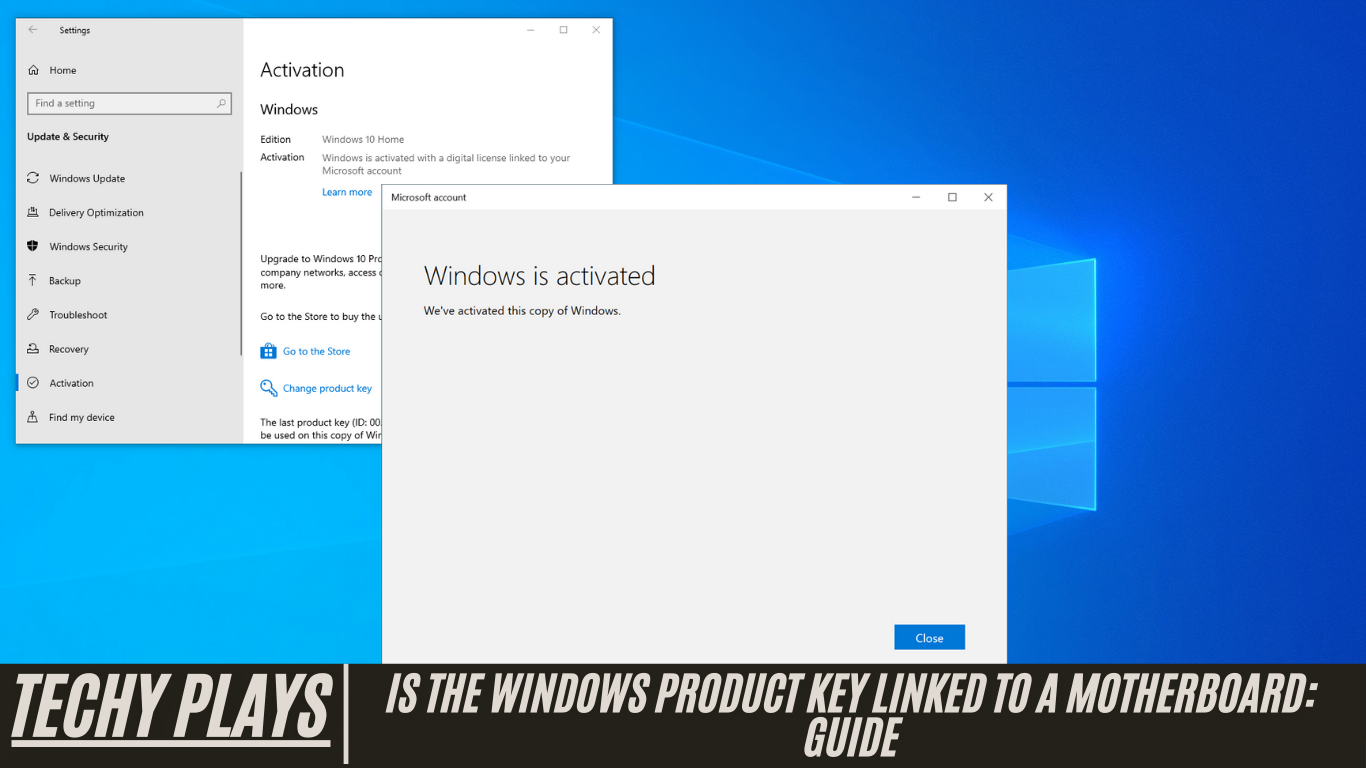
To check if your Windows 10 key is linked to your Microsoft account, navigate to Settings > Update & Security > Activation. If your license is connected, you will see a message stating: “Windows is activated with a digital license linked to your Microsoft account.” This confirmation ensures that your license can be transferred to new hardware, such as a replaced motherboard, without needing to purchase a new key.
Retail Copy Of Windows 11 Is Tied To Motherboard?
No, a retail copy of Windows 11 is not tied to a specific motherboard. Unlike OEM licenses, which are bound to the hardware they were first activated on, retail licenses are fully transferable. This allows you to move your Windows 11 installation to a new motherboard or even a different PC without purchasing a new license, providing greater flexibility during hardware upgrades or system replacements.
Do I Have To Buy Windows 10 Every Time I Upgrade My CPU, Motherboard, Or Primary Storage?
No, you do not need to buy a new Windows 10 license each time you upgrade components such as your CPU, motherboard, or primary storage. If you have a retail license, you can transfer it to the upgraded hardware and reactivate Windows. This ensures that your system remains fully licensed and compliant with Microsoft’s terms while saving you the cost of purchasing a new license.
Is Windows PC License Tied To HD Or Motherboard?
A Windows PC license is primarily tied to the motherboard rather than the hard drive. When significant hardware changes occur, especially replacing the motherboard, Microsoft may treat the system as a new device, which can affect your license activation status. Minor changes like upgrading storage or RAM generally do not impact activation, but motherboard replacements often require license reactivation.
Changed My Motherboard And Can’t Reactivate Windows 10
If you’ve replaced your motherboard and cannot reactivate Windows 10, it may be necessary to transfer your license to the new motherboard or contact Microsoft Support for assistance. Microsoft provides tools and guidance to ensure your digital license is properly linked to the new hardware, allowing full reactivation and uninterrupted use of Windows 10 features.
Windows Is Activated With A Digital License Windows 11
Windows 11 can be activated using a digital license, which is linked to your Microsoft account and hardware configuration, primarily the motherboard. This digital license streamlines activation and reactivation processes, allowing your Windows installation to remain legitimate and fully functional across upgrades and hardware changes.
Is The Windows Product Key Linked To A Motherboard USB
No, the Windows product key is not associated with a USB port on the motherboard. Instead, the key is tied directly to the motherboard itself. This linkage forms part of the system’s hardware identification, which Microsoft uses to validate and maintain activation of your Windows license.
Is Windows 11 License Tied To Motherboard
Yes, the Windows 11 license is generally tied to the motherboard. When you replace the motherboard, Microsoft may detect the system as a new device, which could require license reactivation or transferring your digital license. This ensures the license remains valid while maintaining compliance with Microsoft’s licensing policies.
Windows Is Activated With A Digital License Linked To Your Microsoft Account
A digital license for Windows links activation to both your Microsoft account and your PC’s hardware, primarily the motherboard. This setup simplifies license management and allows for easy reactivation after hardware changes or upgrades, ensuring that your Windows installation remains legitimate and fully operational.
Conclusion
In conclusion, the Windows product key is closely linked to the motherboard, particularly in OEM licenses, ensuring proper activation and verifying the legitimacy of your Windows installation. This hardware-based linkage simplifies the activation process, strengthens system security, and provides users with a reliable, hassle-free computing experience. Whether you are upgrading hardware or reinstalling Windows, understanding the relationship between your product key and motherboard helps maintain a seamless and fully activated system.
Frequently Asked Questions(FAQs)
1. Can I Transfer My Windows License To A New Motherboard?
Yes, transferring a Windows license to a new motherboard is possible, especially if your license is linked to your Microsoft account. However, in cases of major hardware changes, it may be necessary to contact Microsoft Support for guidance to ensure the license is properly reassigned and activated on the new motherboard.
2. What Happens If I Replace My Motherboard Without Deactivating Windows?
Replacing the motherboard without deactivating Windows can trigger activation issues, as Microsoft may detect the hardware change as a new device. In such cases, you will need to reactivate Windows using the built-in Activation Troubleshooter or by contacting Microsoft Support to restore proper license validation.
3. Can I Use The Same Product Key On Multiple Devices?
No, Windows product keys are intended for single-device use. Sharing or using the same key on multiple devices simultaneously violates Microsoft’s licensing agreements and can lead to activation errors and limited functionality.
4. What Should I Do If I Encounter Activation Issues After Changing My Motherboard?
If Windows fails to activate after a motherboard replacement, you can use Windows Activation Troubleshooter to attempt automatic reactivation. If that doesn’t work, contacting Microsoft Support will help you transfer your license or resolve any conflicts, ensuring your system remains fully activated and compliant.
5. Does My Windows 10 License Follow the Motherboard or the CPU?
A Windows 10 license primarily follows the motherboard. Even if you retain the CPU during an upgrade, replacing the motherboard can make Windows treat your system as a new device. In this case, you may need to reactivate Windows or transfer your license to the new motherboard to maintain activation.
6. Is a Windows Key Stored on the Motherboard? Should I Pay More for This Feature in a Beginner Build?
Some motherboards include a Windows product key embedded in the BIOS, allowing automatic activation during installation. Investing in a motherboard with this feature can be beneficial, especially in beginner builds, as it simplifies future upgrades and reduces the risk of activation issues, saving time and money in the long run.
7. How to Find Windows 10 Product Key on the Motherboard?
To locate a Windows 10 product key stored in the motherboard, you can use third-party tools such as ProduKey or Belarc Advisor to extract the key from the BIOS firmware. Alternatively, check with your motherboard manufacturer, as they may provide specific instructions for retrieving embedded keys.
8. Is Windows Product Key Stored in BIOS?
Yes, in many modern systems, the Windows product key is stored in the BIOS or UEFI firmware. This embedded key allows for automatic activation when installing or reinstalling Windows, removing the need for manual entry and ensuring a smooth setup process.
9. How to Recover Windows 10 Product Key After Motherboard Change?
After replacing your motherboard, you can recover your Windows 10 product key using software like ProduKey or Belarc Advisor. If the key is linked to your Microsoft account, simply signing in can restore activation. For additional assistance, contacting Microsoft Support ensures that your license is properly transferred and reactivated.
10. Will Resetting PC Remove Product Key?
No, resetting your PC does not typically remove the Windows product key. The license remains intact, especially if it is linked to your Microsoft account or embedded in the motherboard. However, it is recommended to check your activation status after a reset to ensure Windows remains fully activated.
