

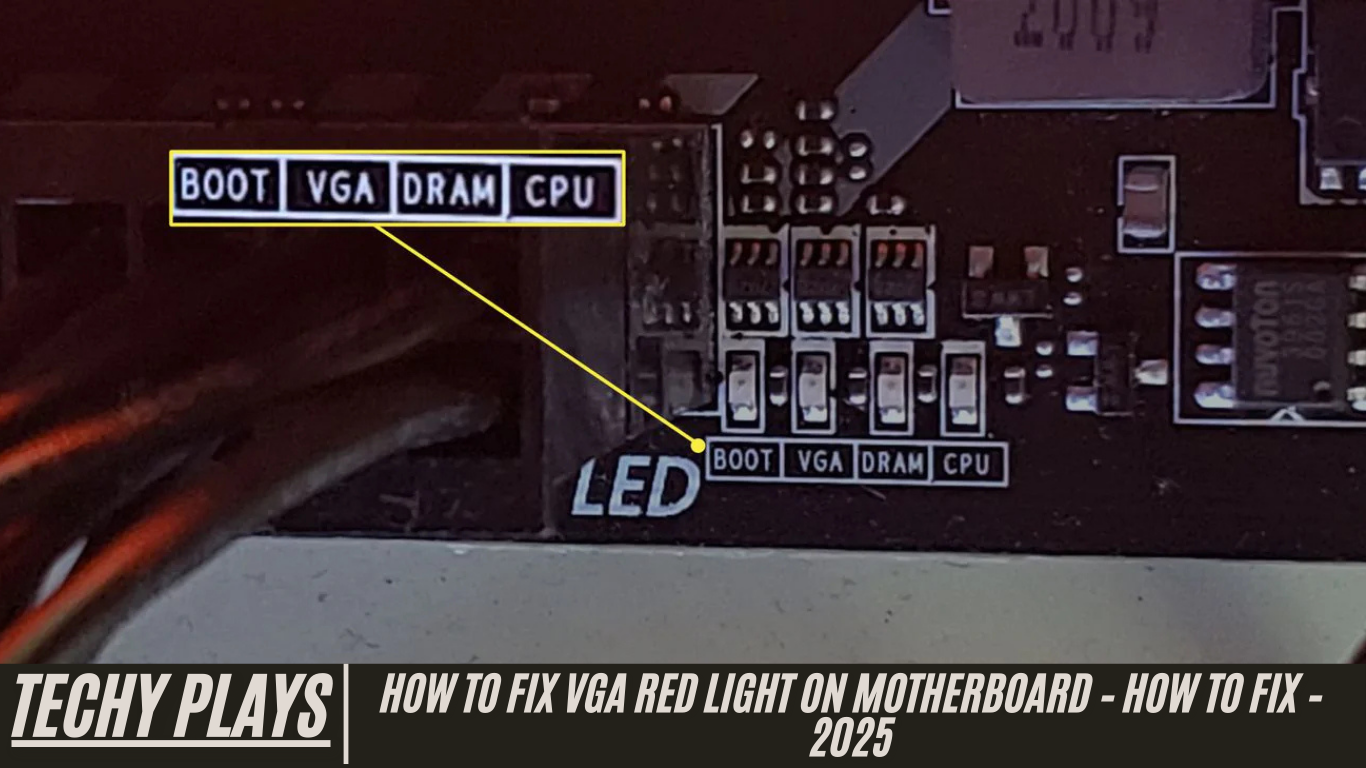
Have you encountered the dreaded VGA red light on your motherboard? Don’t panic! While it can be alarming to see this indicator, understanding what it means and knowing the right steps to take can help you resolve the issue quickly and safely. The VGA red light typically signals a problem with your graphics card or its connection to the motherboard, but it doesn’t always indicate a serious hardware failure. By following a systematic approach, you can identify the root cause and get your system running smoothly again.
To fix the VGA red light on the motherboard, start by checking the most common culprits. First, ensure your GPU is properly seated in its PCIe slot. An improperly installed graphics card can trigger the red light, preventing your system from detecting it correctly. Next, verify that all power connections to the GPU are securely attached. Modern graphics cards often require additional power from your PSU, and a loose or disconnected cable can cause the VGA light to activate. Finally, it’s important to update your graphics drivers. Outdated or corrupted drivers can prevent your GPU from functioning properly, sometimes resulting in error indicators on your motherboard.
In this guide, we’ll explore the common causes of the VGA red light and provide a detailed walkthrough on how to fix it effectively. By following these steps, you can troubleshoot your system confidently, avoid unnecessary hardware replacements, and ensure your computer performs optimally.
Significance of Identifying Graphics Card Issues
Understanding and identifying graphics card issues is essential for maintaining smooth and reliable computer operation. When the VGA red light on the motherboard illuminates, it serves as a clear warning that there may be a problem with your graphics card or its connection to the motherboard. Ignoring this indicator can lead to more serious issues, including system crashes, potential data loss, and even permanent hardware damage.
Promptly recognizing graphics card problems allows users to take timely corrective action, ensuring that their computers continue to operate efficiently and reliably. Regular maintenance, such as checking GPU seating, verifying power connections, and keeping graphics drivers updated, can prevent many common issues. By actively monitoring and troubleshooting graphics card performance, users not only improve system stability but also prolong the lifespan of critical hardware components and enhance overall system performance.
What is VGA Light on Motherboard and its Importance?
The VGA light on the motherboard is an important diagnostic indicator that signals a potential problem with the graphics card or its connectivity. This light serves as an early warning system, helping users identify and address graphics-related issues before they escalate. Recognizing the significance of the VGA light is crucial for smooth and uninterrupted computer operation.
By understanding what the VGA light represents, users can troubleshoot problems efficiently, preventing system crashes and minimizing the risk of hardware damage. Regular inspection, maintenance, and timely troubleshooting of the graphics card can ensure that the computer operates at its best. Proper care not only maintains optimal performance but also extends the overall lifespan of the graphics card and other hardware components, providing a more stable and satisfying user experience.
What Causes the VGA Light on Motherboard to Light Up?
Faulty or Loose Graphics Card Connection
One of the most common reasons for the VGA light on the motherboard to activate is a faulty or loose graphics card connection. When a graphics card isn’t properly seated in its PCIe slot or if the connections are loose, the system may fail to detect it correctly. This can result in a range of issues, including poor display quality, intermittent screen flickering, or in severe cases, complete system failure. To resolve this, it’s essential to carefully remove the graphics card and ensure it is securely installed in its slot. Additionally, all power and display connections should be checked and tightened to guarantee optimal performance and stability.
Incompatible or Outdated Graphics Card Drivers
Another significant cause of the VGA red light is using incompatible or outdated graphics card drivers. Drivers act as the communication bridge between your operating system and your GPU. When they are outdated or not compatible with your current software, users may experience screen freezes, graphical glitches, or error messages, especially while running demanding applications or games. Keeping graphics drivers up to date not only ensures compatibility with the latest software but also enhances overall system performance, improves stability, and prevents potential errors that could trigger the VGA warning light.
Read more: Msi Motherboard Error Codes – Resolve All Problems In 2026!
Power Supply Issues
A stable and sufficient power supply is crucial for the proper functioning of your graphics card. Insufficient wattage or unstable power delivery can lead to system instability, performance drops, or the motherboard failing to recognize the GPU. Common signs of power supply problems include unexpected system crashes, spontaneous reboots, or failure to boot. Users can address these issues by verifying that the GPU power cables are correctly connected, or by upgrading to a power supply unit (PSU) with higher wattage to accommodate the graphics card’s requirements. Ensuring proper power delivery is key to preventing VGA-related issues and maintaining overall system reliability.
Overheating of the Graphics Card
Overheating is a frequent issue, especially for users who engage in intensive gaming, 3D rendering, or other resource-heavy tasks. Excessive heat can trigger thermal throttling, reduce GPU performance, and in extreme cases, cause permanent hardware damage. Signs of overheating include system instability, visual artifacts, or unexpected shutdowns. To mitigate this, ensure proper airflow within the computer case, regularly clean dust buildup from the GPU heatsink, and apply high-quality thermal paste when necessary. Adequate cooling not only prevents the VGA light from illuminating but also prolongs the lifespan of your graphics card and maintains consistent performance under heavy loads.
Symptoms of VGA Light on Motherboard
Display Not Working or Showing Artifacts
One of the most obvious signs of a VGA light issue on the motherboard is when the display fails to work or begins showing unusual visual artifacts. Users may notice flickering screens, distorted images, unexpected lines, or strange colors appearing on the monitor. These symptoms often indicate problems with the graphics card or its connection to the motherboard. Effective troubleshooting steps include ensuring that all display cables are securely connected, verifying that the graphics card is correctly seated in its PCIe slot, and updating the graphics drivers to the latest version. Performing these checks can help restore proper display functionality and prevent further system instability.
System Freezing or Crashing
Another common symptom associated with the VGA light is system freezing or unexpected crashes, particularly during graphics-intensive tasks such as gaming, video editing, or 3D rendering. Users may experience sudden system freezes where the computer becomes completely unresponsive or frequent crashes that interrupt their work or gameplay. These issues often stem from graphics card malfunctions, driver conflicts, or overheating. To address these problems, it’s recommended to update graphics drivers, monitor GPU temperatures to prevent overheating, and, if necessary, test the graphics card in another system to determine if the hardware itself is at fault.
Error Messages Related to the Graphics Card
Error messages specifically linked to the graphics card are also key indicators of VGA light issues. Common examples include alerts such as “Display driver stopped responding and has recovered” or “No signal detected.” These messages suggest that the system is having difficulty communicating with the GPU or that the graphics card is failing to perform correctly. Troubleshooting these errors involves updating drivers, checking all power and display connections, and testing the graphics card in different PCIe slots or systems to isolate and resolve the underlying problem. Addressing these error messages promptly helps maintain system stability and prevents potential hardware damage.
Troubleshooting VGA Light on Motherboard Issue
Basic Troubleshooting Steps
Check the Graphics Card Connection
The first step in resolving a VGA light issue on the motherboard is to ensure that your graphics card is correctly installed and all connections are secure. Start by turning off your computer and unplugging it from the power source. Remove the case panel to access the internal components. Check that the graphics card is firmly seated in its PCI Express slot, pressing gently to confirm it’s fully in place.
Next, inspect the power connectors from the power supply to the graphics card. Ensure they are correctly aligned and securely attached. Loose or improperly connected cables can cause the VGA light to illuminate and prevent the GPU from functioning properly. Additionally, examine the display cables linking your graphics card to the monitor. Make sure these cables are intact, securely connected at both ends, and show no signs of wear or damage.
Update Graphics Card Drivers
Outdated or incompatible graphics card drivers are a common software-related cause of the VGA light turning on. To update your drivers, visit your GPU manufacturer’s website and locate the support or drivers section. Download the latest drivers compatible with your operating system and graphics card model.
Before installing the new drivers, it’s essential to remove the current drivers. Open Device Manager, locate your graphics card under Display Adapters, right-click, and select “Uninstall device.” Follow the prompts to complete the uninstallation. Once removed, run the downloaded installer and follow the manufacturer’s instructions to install the updated drivers. Restart your computer and check if the VGA light issue persists, as updated drivers often resolve software conflicts causing this problem.
Verify Power Supply Connections
A stable and sufficient power supply is critical for your graphics card’s operation. Turn off the computer and disconnect it from all power sources. Open the case and trace the cables from the PSU to your graphics card. Make sure these connections are secure, in the correct position, and fully inserted. If your PSU uses detachable cables, confirm you are using the appropriate ones for your GPU.
It’s also important to check if your PSU provides enough wattage for your graphics card. Insufficient power can trigger the VGA light and cause system instability. Upgrading to a higher-wattage PSU or ensuring all power connections are correct can often resolve the issue.
Advanced Troubleshooting Steps
Reseat the Graphics Card
If basic steps don’t solve the problem, try reseating the graphics card. Turn off and unplug your computer, then remove the side panel. Gently remove the graphics card from its PCIe slot by releasing any clips or unscrewing it. Clean the metal contacts on the bottom of the card with a soft cloth or eraser to remove dust and debris.
Reinsert the graphics card into the slot, making sure it’s properly aligned, and push it firmly into place. Secure it with the clip or screws, reconnect all power and display cables, replace the side panel, and turn on your computer. This process often resolves connection-related VGA light issues.
Check for Hardware Conflicts
Hardware conflicts can also trigger the VGA light. Restart your computer and enter the BIOS/UEFI settings (usually accessed by pressing Del, F2, or F10 during boot). Navigate to the “Devices” or “Peripherals” section. If your system has an integrated GPU, ensure it’s disabled to prevent conflicts with your dedicated graphics card. Save changes and restart your computer. Disabling conflicting hardware can help your graphics card operate correctly and may resolve the VGA light problem.
Monitor System Temperatures
Overheating can also cause VGA-related issues. Install monitoring software such as CPU-Z, HWMonitor, or GPU-specific tools to track your graphics card’s temperature under load. Run applications or games that utilize the GPU heavily and observe temperature readings. Ensure all cooling fans are functioning properly and clean any dust buildup from the heatsink and fans to improve airflow. Maintaining optimal temperatures helps prevent thermal throttling, reduces performance issues, and keeps the VGA light from illuminating unnecessarily.
Why Does the Motherboard Red Error Light Appear?
The red error light on a motherboard is a critical diagnostic indicator that signals potential hardware or system issues. This warning light can illuminate for a variety of reasons, such as graphics card malfunctions, loose or improperly connected cables, overheating, or incompatible hardware components. Understanding why this light appears is essential for effective troubleshooting, as it allows users to identify the root cause and take the appropriate steps to prevent further damage or system instability. By addressing the underlying problem promptly, users can maintain optimal system performance and protect expensive hardware components from unnecessary wear or failure.
How to Fix the Red Error Light on a Motherboard
Check if the Red Light Has a Label
Before diving into troubleshooting, inspect the red error light on your motherboard for any labels or markings. Many motherboards include diagnostic LEDs labeled for specific components such as CPU, RAM, VGA, or DRAM. These labels can provide valuable insights into the source of the problem, making it easier to pinpoint the issue and apply the correct solution efficiently.
Verify That Cables Are Properly Plugged In
Loose or improperly connected cables are a common cause of the motherboard’s red error light. Carefully check that all power cables, data cables, and peripheral connections are firmly attached. This includes the 24-pin ATX power connector, CPU power connectors, GPU power cables, and storage device connections. Securing these cables can often resolve the red light issue without further intervention.
Check if Your Hardware Is Compatible
Compatibility issues between the motherboard and other hardware components can trigger the red error light. Ensure that your CPU, RAM, graphics card, and expansion cards are fully compatible with your motherboard. Using incompatible hardware may lead to startup failures, system instability, or persistent red light warnings. Refer to your motherboard’s specifications and manufacturer guidelines to verify compatibility before installing new components.
Reset the Motherboard BIOS
Resetting the BIOS can resolve configuration errors that may cause the red error light to appear. This process restores the BIOS settings to their default values, clearing potential misconfigurations. You can reset the BIOS using the jumper on the motherboard or by removing and reinserting the CMOS battery. After the reset, restart your system to see if the red light has been cleared.
Reseat Motherboard Hardware Components
Sometimes, poor physical connections can trigger the red error light. Carefully reseat all hardware components, including the CPU, RAM modules, graphics card, and any expansion cards. Remove each component, clean contacts if necessary, and reinstall them firmly into their respective slots. Properly seated hardware ensures reliable connectivity and may resolve the red light issue.
Replace the CMOS Battery
If the red light persists after resetting the BIOS, the CMOS battery may be weak or dead. A failing battery can cause BIOS settings to be lost, leading to system instability and the illumination of the red error light. Replacing the CMOS battery with a new one can restore proper BIOS functionality and resolve related issues.
Check if the Motherboard or PSU is Dying
If none of the above steps fix the problem, the issue may lie with the motherboard itself or the power supply unit (PSU). Faulty or failing hardware can prevent the system from starting correctly and trigger persistent red error lights. Testing your system with known working components or seeking professional assistance can help identify the faulty hardware. In cases of motherboard or PSU failure, replacement may be necessary to restore full system functionality.
VGA Red Light On Motherboard
The VGA red light on a motherboard indicates a problem with the graphics card or the display setup. This warning light often appears due to loose cable connections, outdated graphics drivers, BIOS issues, or a faulty graphics card. To resolve the problem, first ensure all cables connecting the GPU to the motherboard and monitor are secure. Updating your graphics drivers and BIOS can often fix software-related issues that trigger the VGA red light.
How To Fix VGA Light On My PC?
To fix the VGA light on your PC, start by checking all cable connections between your graphics card, motherboard, and monitor. Reseat the graphics card to ensure it’s fully seated in its PCIe slot. Updating the BIOS and graphics drivers is crucial to resolve compatibility or driver-related problems. If the issue persists, testing the system with a different graphics card can help determine whether your current GPU is faulty.
Causes Of A Mobo VGA Red Light? (With Working GPU)
Even with a working GPU, a VGA red light on the motherboard can occur due to loose or improperly connected cables, outdated BIOS firmware, insufficient power supply, or occasional GPU hardware glitches. Double-check all connections, update the BIOS and drivers, and ensure the power supply is adequate for your graphics card to prevent false VGA warnings.
Help With Red VGA Light Troubleshooting
To troubleshoot a persistent red VGA light, verify all power and data connections, reseat the graphics card, and ensure the BIOS and drivers are updated. If these steps do not resolve the issue, testing with a different graphics card can help isolate the faulty component.
New Build, Red VGA Light On Mobo, No POST Or Signal
In a new PC build, if a red VGA light appears and the system shows no POST (Power-On Self-Test) or display signal, the problem likely involves the graphics card or its connections. Reseat the GPU, verify all cables, update the BIOS, and confirm that the power supply meets the graphics card’s requirements. These steps often resolve display detection issues in new builds.
VGA Red LED Sometimes Lights Up On Startup?
If the VGA red LED illuminates intermittently on startup, it could be due to loose connections, occasional hardware instability, or outdated BIOS settings. Check all GPU and motherboard connections, update the BIOS, and monitor the system for any signs of hardware failure to prevent recurring issues.
VGA + Boot Red Light On Motherboard | Please Help!
When both VGA and Boot red lights appear on a motherboard, the issue may involve power delivery or multiple hardware connections. Check all power and data cables, reseat the graphics card and RAM modules, and ensure the BIOS is up to date. Resolving conflicts between components often clears both warning lights.
Red VGA Light On Mobo. New Build
For a new build showing a red VGA light, ensure the graphics card is properly seated and that all connections are secure. Updating the motherboard BIOS and graphics drivers is essential. If the light persists, testing with an alternative graphics card can help determine if the original GPU is faulty.
VGA Red Light On Motherboard But GPU Works
If the VGA red light is on but the GPU appears to function normally, the issue may stem from a connection problem or outdated BIOS. Check all cable connections, reseat the GPU, and update the BIOS and drivers to ensure proper detection by the motherboard.
How To Fix VGA Red Light On Motherboard MSI
On MSI motherboards, resolving a red VGA light typically involves verifying all cable connections, reseating the graphics card, and updating the BIOS to the latest version. If the issue persists, testing the system with a different graphics card can help identify a hardware fault.
Red VGA Light On Motherboard No Display
A red VGA light with no display output indicates the motherboard is not detecting the graphics card. Troubleshooting steps include checking all power and display connections, reseating the GPU, updating the BIOS, and testing with a different graphics card if necessary.
VGA White Light On Motherboard
A white VGA light usually signals a connection or graphics card issue. To resolve it, verify that all cables are securely connected, reseat the GPU, and update the motherboard BIOS and graphics drivers. These steps help ensure proper communication between the GPU and motherboard.
VGA And Boot Red Light On Motherboard
When both VGA and Boot red lights are active, check all power and data connections, reseat the graphics card and RAM, and update the BIOS. Following these steps typically resolves the issue and restores normal system functionality.
B550 Tomahawk Not Booting – Stuck At VGA Red Light
For a B550 Tomahawk motherboard stuck at the VGA red light, check that the graphics card is seated correctly and all connections are secure. Update the BIOS to the latest version and ensure the power supply is sufficient. If the problem continues, test the system with a different graphics card to identify if the original GPU is defective.
Frequently Asked Questions(FAQs)
1. Everything Seems To Work Fine But Red VGA Light Is On
If your system appears to be functioning normally but the red VGA light on your motherboard remains on, it usually signals an underlying issue with your graphics card or its connection. Start by checking all GPU connections to ensure the card is firmly seated in its PCIe slot. Additionally, verify that all power connectors from the PSU are properly attached. Updating your GPU drivers to the latest version can also resolve false warning lights. Sometimes, even minor dust accumulation in the PCIe slot can trigger the red VGA light, so cleaning the slot carefully may help.
2. VGA Light On But GPU Working Fine
Occasionally, the red VGA light may remain illuminated even when your graphics card is functioning correctly. This often occurs due to driver mismatches, temporary glitches in the motherboard, or slightly loose cables. Reseating the GPU and ensuring all connections are secure can typically resolve this issue. Running a GPU stress test can confirm that the card is performing correctly and that the warning light is likely a false positive.
3. How To Fix A Red VGA Light On A Motherboard
Fixing the red VGA light on a motherboard involves several troubleshooting steps. Begin by powering down your PC and reseating the GPU in its slot. Confirm that all power cables connected to the GPU are secure. Update your graphics drivers and motherboard BIOS to ensure compatibility. In some cases, switching to a different PCIe slot or testing the GPU on another system can help determine if the issue is hardware-related.
4. PC Won’t Boot, Red VGA Light On Mobo
When your PC fails to boot and the red VGA light is on, it indicates a critical problem with the graphics card or its connection. Check for loose power cables, ensure the GPU is correctly seated, and confirm that the monitor cable is securely attached to the GPU rather than the motherboard’s video output (unless using integrated graphics). If these steps do not resolve the problem, the GPU may be faulty or the motherboard could have a compatibility issue.
5. What Does the Red VGA Light Mean on a Motherboard?
The red VGA light on a motherboard serves as a diagnostic indicator specifically for graphics-related issues. It typically points to a problem with the GPU, such as a loose connection, a malfunctioning card, or outdated BIOS settings. Observing this light can prevent further damage by alerting users to hardware issues before system instability or crashes occur.
6. Why Does My Motherboard Have a Red Light?
A red light on your motherboard generally signals a hardware fault. Depending on the motherboard model, it may indicate issues with the CPU, RAM, or graphics card. Begin by checking all physical connections and reseating components if necessary. Updating the BIOS ensures compatibility with newer hardware and can resolve false error lights.
7. Can Bad RAM Cause VGA Light?
Yes, faulty or improperly seated RAM can trigger the red VGA light on a motherboard. Bad RAM can cause system instability and interfere with GPU initialization, making the motherboard interpret it as a graphics card issue. Testing your RAM with tools like MemTest86 or reseating memory modules can help identify and resolve this problem.
8. What is the VGA Debug Light on My Motherboard?
The VGA debug light is a diagnostic feature designed to alert users to problems with the graphics card or its connection. When illuminated, it indicates that the motherboard has detected a graphics-related issue, which could range from a loose GPU connection to a more severe hardware failure. Monitoring this light is an essential step in troubleshooting display problems.
9. How to Enable VGA on Motherboard?
To enable VGA on a motherboard, enter the BIOS or UEFI settings during system startup. Locate the settings for integrated graphics or primary display adapter, and select VGA or integrated graphics as the main display output. This allows the system to run using the onboard graphics, which can help in troubleshooting issues with discrete GPUs.
10. How to Fix VGA Ghosting?
VGA ghosting, where screen images appear to leave trails, can be resolved by inspecting the display cable for damage and ensuring it is securely connected. Adjusting your monitor’s refresh rate to match the GPU output often eliminates ghosting. Using a high-quality VGA or HDMI cable and updating your GPU drivers can also prevent display artifacts.
11. How to Fix Red Boot Light on Motherboard?
The red boot light indicates problems with hardware initialization. To fix it, check that all components, including the CPU, RAM, and storage devices, are properly connected. Reseating RAM and GPU modules can eliminate connection errors. Updating the BIOS to the latest version ensures hardware compatibility and can resolve persistent boot errors.
12. What Does VGA Mode Do?
VGA mode allows your computer to run using basic display settings. It operates at a lower resolution and uses generic drivers, which is particularly helpful for troubleshooting display issues. Activating VGA mode can help isolate problems caused by incompatible or corrupted graphics drivers.
Conclusion
In conclusion, addressing the red VGA light on your motherboard requires a systematic approach. Start by checking all connections and reseating the GPU, RAM, and other relevant hardware. Ensure drivers and BIOS are up to date to maintain compatibility and stability. Regular system maintenance, such as cleaning dust from slots and monitoring hardware health, can prevent future VGA-related issues. By understanding the meaning of motherboard lights and following proper troubleshooting steps, you can optimize your system performance and avoid hardware damage.
