

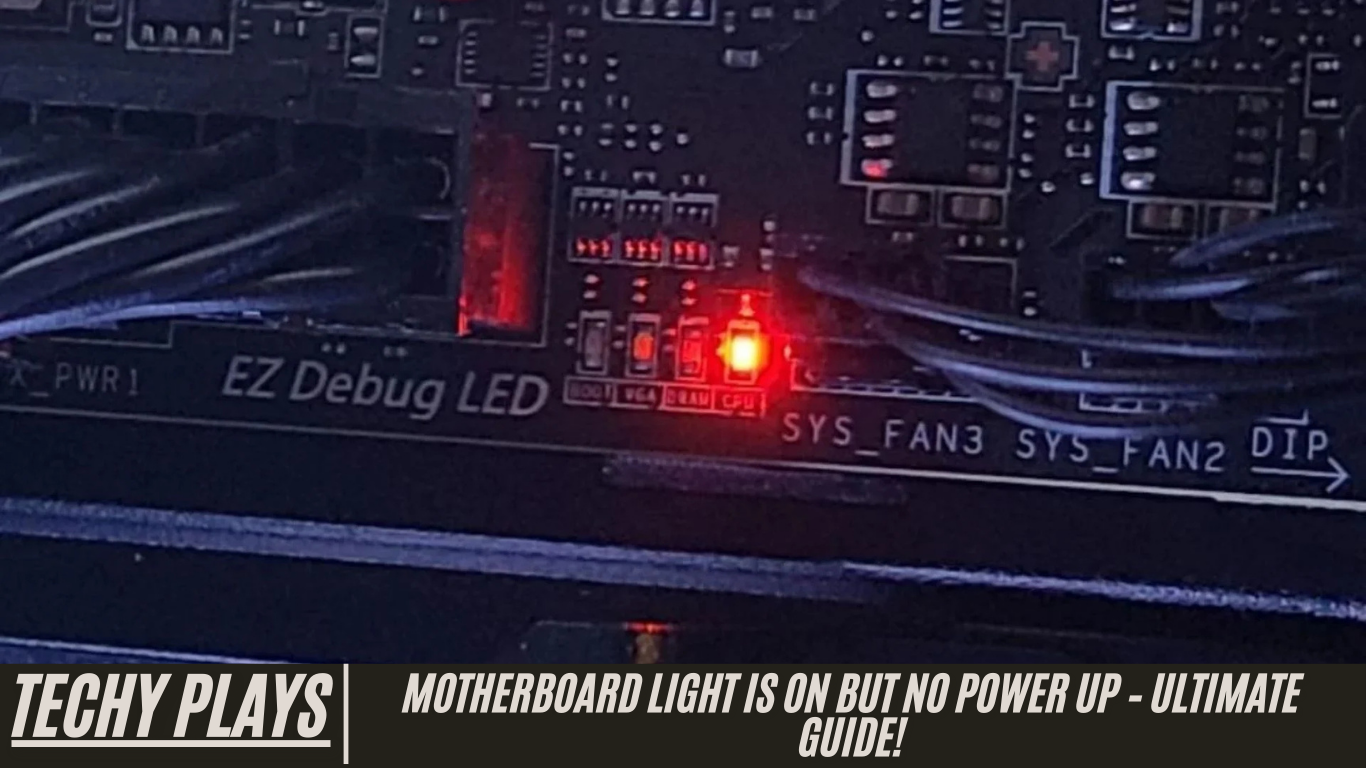
Understanding the Motherboard Light
The motherboard light is an important indicator that your computer is receiving some level of power. However, it’s essential to understand that the motherboard light alone does not guarantee that your computer will start successfully. Essentially, the light confirms that the motherboard is connected to a power source, but it doesn’t indicate that all components are functioning correctly or that the system can fully boot. Many factors can prevent a computer from powering on, even when the motherboard light is illuminated.
Common Causes of Power Issues
Read more: Ethernet Port On Motherboard Not Working – Resolve Issues!
Faulty Power Supply: One of the most frequent causes of a computer not turning on, despite the motherboard light being active, is a failing or faulty power supply unit (PSU). The power supply is responsible for delivering stable power to all computer components. If it malfunctions, your PC may fail to start, experience sudden shutdowns, or exhibit no response from other hardware components.
Loose Connections: Even if the motherboard light is on, loose or improperly connected cables can prevent the system from powering up. It is crucial to ensure that all power cables, including those connecting the PSU to the motherboard and other hardware components, are securely fastened.
Hardware Component Failure: Malfunctioning components such as the CPU, RAM, or GPU can stop the computer from booting successfully, even though the motherboard light is active. These hardware failures can prevent the system from performing the Power-On Self-Test (POST) and initiating startup processes.
Diagnosing the Issue
Proper diagnosis is key to identifying why your computer won’t start. Begin with basic checks: ensure power connections are secure and that the power supply is functioning correctly. Use diagnostic tools or motherboard error codes to pinpoint the problem. These codes can indicate whether a specific hardware component or system function is preventing the computer from powering up.
Power Supply Problems
A faulty power supply is often the root cause of startup issues. Symptoms include sudden shutdowns, failure to power on, or intermittent operation. In many cases, replacing the PSU is the most effective solution. Regular maintenance and using a reliable, high-quality power supply can prevent these problems.
BIOS and Firmware Issues
The BIOS (Basic Input/Output System) and firmware are essential for controlling a computer’s startup and fundamental operations. Corrupted or outdated BIOS/firmware can prevent the system from booting, even if the motherboard light is active. Resetting the BIOS or updating the firmware to the latest version often resolves these startup issues and ensures compatibility with new hardware components.
Motherboard Light Comes On but Power Button Does Nothing
When the motherboard light is on, but pressing the power button does not start the system, it typically indicates a power-related problem. This could be caused by a faulty power supply, loose cable connections, or hardware failure. Ensuring that all connections are secure and that the PSU is functioning properly is the first step in resolving this issue.
My Motherboard’s LED Lights Up but Nothing Else in the System Turns On
If the motherboard LED lights up but no other components respond, it strongly suggests a power delivery problem. The issue may be due to a malfunctioning PSU, poorly connected cables, or a defective hardware component. Careful inspection and testing of each component are necessary to isolate the cause.
New Rig, Motherboard Power LED On but No Boot
When setting up a new computer, seeing the motherboard power LED active without a successful boot points to a power problem. Common causes include a faulty PSU, loose connections, or defective hardware. Verifying proper installation and checking all power connections is crucial in troubleshooting a newly assembled system.
Motherboard Lights Up but Does Not Turn On or POST
If the motherboard illuminates but the system does not turn on or pass POST, it signals a power or hardware-related problem. Faulty power supplies, loose connections, or failing components like RAM or CPU often cause this. Carefully inspecting and testing each part can help identify the underlying issue.
Power Button Light Turns On but Nothing Else Happens
When the power button light turns on but the computer remains unresponsive, this again indicates a power-related problem. A defective PSU, improperly seated hardware components, or loose internal connections can all contribute to this issue. Systematic troubleshooting is necessary to identify and resolve the problem.
PC Won’t Turn On, But Motherboard Light Is On / It’s Plugged In
Even when your PC is plugged in and the motherboard light is on, failure to turn on indicates a power delivery problem. Common causes include a faulty power supply, loose internal connections, or hardware failure. Checking each component individually and confirming that the PSU is supplying the correct voltages can help isolate the cause.
Every Cable Plugged In, Motherboard Light On, but No Power to the PC as a Whole
If all cables are correctly plugged in and the motherboard light is active, yet the computer shows no signs of power, you are likely facing a significant power issue. This could be due to a malfunctioning PSU, hardware component failure, or internal connection problems. In such cases, methodically testing the PSU and hardware, or consulting a professional technician, is often the most effective approach.
PC Won’t Turn On but Motherboard Lights Are On
When your PC doesn’t turn on, but the motherboard lights remain illuminated, it is a clear indication of a power-related issue. The motherboard light confirms that the board is receiving some level of power, but this does not guarantee that the system can start or boot properly. Several factors can prevent your PC from turning on, even when the motherboard shows signs of power. Common causes include a faulty power supply unit (PSU), loose or improperly connected cables, or malfunctioning hardware components such as the CPU, RAM, or GPU. Carefully inspecting each of these areas is essential for troubleshooting and restoring normal system operation.
PC Won’t Turn On but Power Light Is On
If the power indicator light on your PC is on, yet the system does not start, it suggests a similar power-related problem. While the power light shows that the computer is receiving electricity, it does not guarantee that all components are functioning correctly. A defective power supply, loose internal connections, or failing hardware could prevent the system from powering up. Ensuring all cables are firmly connected and testing the power supply for stability are critical steps in diagnosing this issue.
Motherboard Lights Up (PC Doesn’t Turn On)
When the motherboard lights up but the PC does not turn on, it strongly points to a power delivery problem within the system. The illumination of the motherboard indicates that power is reaching the board, but a failure in another part of the system may be preventing startup. Possible causes include a malfunctioning PSU, improperly seated hardware components, or other defective hardware. Systematic troubleshooting—checking the PSU, testing RAM and CPU connections, and inspecting all cables—can help identify the underlying issue.
Motherboard Has Power but Won’t Turn On?
In situations where the motherboard has power but won’t turn on, it indicates that the system is encountering a power-related obstruction. Even though electricity reaches the motherboard, a faulty power supply, loose connections, or a hardware failure could prevent the PC from initiating the boot process. Diagnosing the problem often requires testing individual components and verifying that the PSU is delivering sufficient and stable power.
Motherboard Lights Up but Doesn’t Turn On When I Turn On Power Supply
If the motherboard lights up but the PC does not start when you switch on the power supply, this is a clear sign of a power issue. The motherboard receiving power shows that the PSU is at least partially functional, but there could still be a problem preventing full startup. Common causes include a defective PSU, loose or improperly connected cables, or malfunctioning hardware components. To resolve this, carefully inspect all power connections, test the PSU using a multimeter or power supply tester, and ensure that all critical components, including RAM and CPU, are properly seated and functioning.
Troubleshooting – Why Won’t My Computer Turn On?
When your computer fails to turn on, it can be frustrating, but the issue is often related to power delivery or hardware connections. A systematic approach to troubleshooting can help identify the root cause.
Check Power Supply: The power supply unit (PSU) is the backbone of your computer’s electrical system. Ensure the PSU is functioning correctly by looking for any signs of physical damage, unusual sounds, or overheating. A faulty PSU can prevent the computer from starting even if the motherboard lights are on. Testing the PSU with a multimeter or a dedicated power supply tester can help confirm its status.
Inspect Power Connections: Loose or improperly connected cables are a common cause of startup problems. Verify that all power cables are securely attached to the PSU, motherboard, and other components such as the CPU, GPU, and storage devices. Even minor disconnections can prevent the computer from powering up.
Test Power Button: Sometimes, the issue is as simple as a faulty power button. Ensure that the button itself is functional and properly connected to the motherboard. A broken or unresponsive power switch can stop the computer from turning on, regardless of whether the motherboard light is active.
Look for Motherboard Lights: Many motherboards have indicator LEDs that show whether the board is receiving power. If these lights are illuminated when the power is on, it indicates that electricity is reaching the motherboard, helping narrow down the issue to other components or connections.
Check for Beep Codes or Error Messages: Some motherboards provide beep codes or display error messages when a hardware problem occurs during the boot process. Consult your motherboard manual to interpret these codes, as they can point directly to faulty RAM, CPU, GPU, or other components.
My PC Not Turning On but Motherboard LED Is?
If your PC isn’t turning on but the motherboard LED remains lit, it usually indicates a power-related issue. While the motherboard is receiving electricity, other components may not be powered correctly or could be malfunctioning. Check the PSU, all internal connections, and critical hardware components such as RAM, CPU, and GPU for faults.
Why Does My Motherboard Light Up but My Fans Are Not Working? The Buttons Also Don’t Do Anything
When the motherboard lights up, but the fans remain inactive and the power or reset buttons do not respond, it is a sign of a power delivery problem. This could be caused by a faulty PSU, disconnected or loose cables, or defective components. Ensuring all connections are secure and testing the PSU and individual hardware components can help resolve this issue.
Motherboard LEDs Look OK but Computer Won’t Turn On
If the motherboard LEDs appear normal but the computer fails to start, it is often a power-related problem. Even if the motherboard seems to have power, issues with the PSU, cable connections, or internal hardware can prevent the system from booting. Inspect all power connections and test key components to identify the problem.
PC Won’t Boot: No Fans, No Power but LED on Mobo Comes On
In cases where the PC won’t boot, the fans do not spin, but the motherboard LED is on, the problem usually lies with power delivery. This scenario suggests that the motherboard is receiving some electricity, but the PSU may be faulty, cables may be loose, or hardware components may be malfunctioning. Systematically checking each component and connection is crucial to troubleshooting effectively.
Motherboard Light Is On but No Power Up Gaming
If your gaming PC’s motherboard light is on but the system fails to power up, it indicates a power-related problem. Gaming setups often demand more power, so any issue with the PSU, cables, or hardware can prevent startup. Check that the PSU is delivering sufficient power, all connections are secure, and components such as the GPU and RAM are properly installed.
ASUS Motherboard Lights On but No Power
For ASUS motherboards specifically, if the LEDs are lit but the PC doesn’t power on, this is again a power-related issue. Verify the PSU, inspect all internal connections, and ensure hardware components are functioning correctly. Sometimes BIOS or firmware issues on ASUS boards can also prevent startup, so updating or resetting the BIOS may help.
Motherboard LED Not Lighting Up
If the motherboard LED itself isn’t lighting up, it suggests a fundamental power issue. Check that the PSU is working and supplying electricity to the motherboard. Ensure the motherboard is correctly seated in the case and that all cables, including the 24-pin and CPU power connectors, are properly connected. A completely unlit motherboard often points to a PSU or motherboard fault.
Motherboard Green Light On but No Power
When the motherboard’s green light is on, but there is no power to the rest of the system, it indicates a partial power issue. While the motherboard is receiving some electricity, the PSU may not be supplying full power to all components, or there may be a hardware fault preventing startup. Inspect the PSU, check all power connections, and test key components to diagnose and resolve the problem.
Frequently Asked Questions(FAQs)
1. Why is my computer not turning on but the motherboard has light?
If your computer fails to turn on but the motherboard light remains illuminated, it generally points to a power-related issue. While the motherboard is receiving some electricity, other components may not be powered correctly. Start by checking the power supply unit (PSU) for functionality, ensuring all cables are securely connected, and inspecting critical hardware components like the CPU, RAM, and GPU for faults.
2. Why is my motherboard not powering up?
When the motherboard does not power up, the problem often lies in the PSU, loose internal connections, or a failing hardware component. Verify that all power cables, including the 24-pin and CPU connectors, are properly seated. Testing the PSU and swapping components can help identify the root cause of the issue.
3. Why does my motherboard have power but no display?
A motherboard showing power but no display typically indicates issues with the GPU, RAM, or monitor connections. Ensure the graphics card is properly installed, RAM modules are seated correctly, and the monitor is connected securely. Sometimes BIOS settings or firmware updates may also impact display output.
4. What does it mean when the motherboard light is on?
A motherboard light indicates that the board is receiving power from the PSU. However, it does not guarantee that the system will boot successfully. Further troubleshooting is necessary to identify why the PC isn’t starting, including checking power connections, the PSU, and key hardware components.
5. How do you fix a computer that won’t turn on but has power?
To fix a computer that won’t turn on despite having power, systematically check the PSU, all internal and external connections, and the main hardware components such as CPU, RAM, and GPU. Testing each component individually can help isolate the issue and restore normal operation.
6. PC Lights Up but Won’t Boot
If a PC lights up but fails to boot, possible causes include faulty hardware, incorrect BIOS or UEFI settings, or power supply problems. Checking hardware installation, resetting BIOS settings, and testing the PSU are crucial steps in resolving the issue.
7. Motherboard lights blink once, system doesn’t turn on or post
When motherboard lights blink briefly but the system does not turn on or complete POST (Power-On Self-Test), it suggests potential hardware or power issues. Inspect the PSU, check that RAM and CPU are properly seated, and ensure there are no loose connections or defective components preventing startup.
8. Motherboard LED Turns On But Nothing Else Does
If the motherboard LED illuminates but no other components respond, this indicates a power delivery problem. Check the PSU, verify all internal connections, and ensure key hardware components such as RAM, CPU, and GPU are functioning. A systematic troubleshooting approach will help identify the root cause.
9. Motherboard lights on but no beep or display
When the motherboard lights up but there are no beeps or display output, common causes include faulty RAM, CPU, GPU, or monitor connections. Refer to the motherboard manual to interpret beep codes (if available) and check each component to isolate the faulty hardware.
10. My brand new PC will not post. The motherboard lights up, but the monitor doesn’t show anything, none of the fans start spinning, hitting the button does nothing. Any ideas how to fix?
For a newly assembled PC that won’t POST despite the motherboard light being on, the issue is often related to power supply, internal connections, or hardware components. Verify that the PSU is properly connected, ensure all cables are securely seated, and check critical components such as RAM, CPU, and GPU. Additionally, double-check the front panel connections and BIOS/UEFI settings to rule out configuration issues.
Conclusion
In conclusion, troubleshooting a computer that won’t power on despite the motherboard light being on requires a methodical approach. Start by inspecting the power supply, ensuring all cables are securely connected, and testing essential hardware components like CPU, RAM, and GPU. Understanding the role of motherboard LEDs, beep codes, and other diagnostic indicators can greatly simplify the process. By systematically isolating and addressing power-related issues, you can restore your PC to full functionality and prevent future startup problems.
