

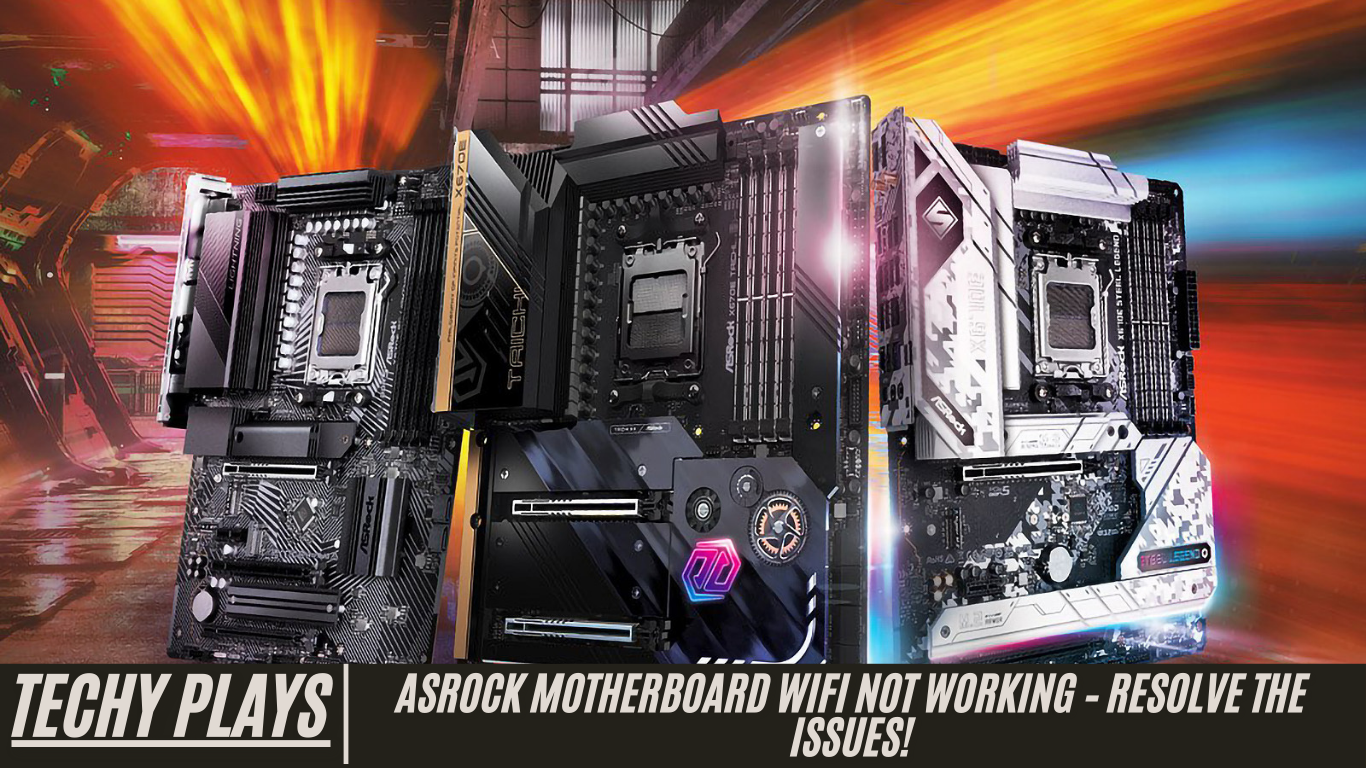
Wi-Fi connectivity has become an indispensable feature for modern computing, enabling users to stay connected to the internet without the constraints of wired connections.
In today’s fast-paced digital world, having reliable Wi-Fi on your computer is no longer a luxury—it’s a necessity. Whether you are working from home, streaming high-definition content, gaming online, or managing smart devices, a stable Wi-Fi connection ensures uninterrupted access to the internet. Many modern motherboards, including ASRock models, come with built-in Wi-Fi support to meet this growing demand. However, there are instances where users may face connectivity issues, preventing them from taking full advantage of their motherboard’s wireless capabilities.
If your ASRock motherboard’s Wi-Fi isn’t working, try these steps:
When your ASRock motherboard Wi-Fi stops functioning, it can be frustrating, but most issues can be resolved with a systematic approach. Start by turning off your PC and unplugging it from the power source. This ensures that the motherboard and all connected devices reset completely. Next, drain any residual charge by holding the power button for a few seconds.
After powering off, check your BIOS settings carefully. Look for an option labeled “WAN Radio” or similar, and ensure it is enabled. This setting controls the activation of the wireless module on your motherboard. Physically inspect your system to confirm the presence of the Wi-Fi module; sometimes, modules may be improperly seated or disconnected.
Updating your drivers is another crucial step. Visit the ASRock official website to download the latest Wi-Fi and Bluetooth drivers compatible with your motherboard model. Once installed, ensure that the Wi-Fi and Bluetooth settings are enabled in both your operating system and BIOS. Following these steps typically resolves most connectivity issues.
This guide will explore why ASRock motherboard Wi-Fi may not work and provide troubleshooting steps to resolve these issues effectively.
There are several reasons why an ASRock motherboard Wi-Fi might fail. Common causes include outdated drivers, disabled BIOS settings, faulty or missing Wi-Fi modules, or system configuration conflicts. By systematically addressing each potential cause, you can identify the root problem and restore full wireless functionality. Keeping your drivers up to date, verifying BIOS settings, and ensuring the hardware is properly installed are essential practices to maintain stable Wi-Fi performance. Additionally, performing these checks periodically can prevent future connectivity problems, ensuring that your ASRock motherboard delivers reliable and high-speed wireless access whenever needed.
Importance of Wi-Fi Functionality
Wi-Fi functionality is a critical component for ensuring seamless computing experiences in today’s highly connected digital world. A reliable wireless connection allows users to access the internet without the limitations of cables, enabling smoother multitasking, faster communication, and uninterrupted access to online services.
Whether you are streaming high-definition multimedia content, participating in online gaming sessions, attending virtual meetings, or performing sensitive business transactions, a stable Wi-Fi connection is paramount. Recognizing this need, ASRock integrates advanced Wi-Fi capabilities into many of its motherboard models. These built-in wireless features provide users with the flexibility and convenience to stay connected effortlessly, enhancing overall productivity and user experience.
Common Causes of ASRock Motherboard WiFi Issues
1. Hardware-related issues
Hardware problems are a frequent cause of Wi-Fi connectivity issues on ASRock motherboards. Faulty Wi-Fi adapters, loose or improperly connected antennas, damaged PCIe slots, or incorrect module installation can prevent the motherboard from establishing a stable wireless connection. Ensuring that all components are correctly seated and functioning is essential for consistent performance.
2. Software-related issues
Software and driver-related problems can also disrupt Wi-Fi functionality. Outdated drivers, incompatible firmware, or incorrect configuration settings can interfere with the proper operation of Wi-Fi adapters. Keeping drivers and firmware updated ensures that your motherboard’s wireless components operate efficiently and remain compatible with the latest operating systems and networking standards.
3. Interference from other devices
Wi-Fi signals are susceptible to interference from other electronic devices, neighboring networks, and physical obstacles such as walls or furniture. These interferences can degrade signal strength, reduce connection speeds, and cause intermittent connectivity problems. Optimizing the placement of your PC, Wi-Fi antennas, and routers can minimize interference and improve overall wireless performance.
4. Driver and BIOS updates
Regularly updating drivers and the motherboard BIOS is essential for maintaining optimal Wi-Fi functionality. Failing to update these components can result in compatibility issues, software glitches, and reduced performance of the built-in Wi-Fi adapters. Keeping your system up to date ensures stable connectivity, enhances security, and maximizes the performance of ASRock motherboard wireless features.
Read more: Can I Use 2400mhz RAM in 3200mhz Motherboard – Exploring!
Troubleshooting Steps
1. Hardware troubleshooting
When Wi-Fi isn’t functioning properly on your ASRock motherboard, the first step is to inspect the physical hardware components. Check the Wi-Fi adapter for any visible damage and ensure that the antenna connections are securely attached. Improperly installed adapters or loose antennas can prevent your motherboard from establishing a stable wireless connection. Make sure the Wi-Fi module is correctly seated in the PCIe slot or M.2 slot, depending on your motherboard model. Even small misalignments can disrupt connectivity, so careful inspection and secure installation are essential.
2. Software troubleshooting
Software issues are another common cause of Wi-Fi problems. Outdated drivers, incorrect network settings, or firmware incompatibilities can prevent your ASRock motherboard from connecting to wireless networks. Ensure that you have the latest Wi-Fi drivers and motherboard firmware installed. Verify that your network settings are properly configured and check for potential conflicts with other installed software that may interfere with connectivity. Regular software maintenance is key to maintaining a smooth and reliable Wi-Fi experience.
3. Checking for interference
Interference from surrounding electronic devices or nearby networks can significantly reduce Wi-Fi performance. Common sources of interference include cordless phones, microwaves, or other wireless networks operating on the same frequency. To improve your connection, adjust your router settings, such as changing the Wi-Fi channel, and consider relocating your PC or Wi-Fi router to reduce physical obstacles and minimize signal disruption. This can dramatically enhance signal strength and overall stability.
4. Resetting network settings
Resetting network settings to their default values can resolve many configuration-related issues on ASRock motherboards. Access the BIOS and restore the network settings to default, which can correct misconfigurations affecting Wi-Fi adapters. This step often restores proper wireless functionality without requiring hardware replacement or complex troubleshooting.
Updating Drivers And Bios
Regularly updating drivers and BIOS is crucial for ensuring optimal performance and stability on ASRock motherboards. Outdated drivers or firmware are often responsible for Wi-Fi issues, as they can cause compatibility problems, software glitches, or connectivity drops.
To update drivers and BIOS on your ASRock motherboard, follow these steps:
- Visit the official ASRock website and navigate to the support section.
- Enter your specific motherboard model to locate the latest Wi-Fi drivers and BIOS updates.
- Download the correct files and carefully follow the provided installation instructions.
- After updating, restart your computer to apply the changes and ensure proper functionality.
Wi-Fi Not Working On My ASRock Computer
If your ASRock computer’s Wi-Fi is still not working after these steps, start by examining the physical components. Confirm that the Wi-Fi adapter and antennas are installed correctly and are free from damage. Proper hardware installation is essential for reliable connectivity. In many cases, combining hardware inspection with updated drivers, BIOS updates, and interference management will restore full Wi-Fi functionality on your ASRock motherboard.
New PC With Wifi Motherboard But No Wifi Option
If you have recently set up a new PC equipped with a Wi-Fi-enabled motherboard but cannot locate the Wi-Fi option, start by checking the physical hardware. Ensure that the Wi-Fi adapter is correctly seated in the PCIe slot, and confirm that all antennas are securely attached. Improper installation or loose connections can prevent your system from detecting the wireless adapter, resulting in missing Wi-Fi options. Performing a careful hardware inspection often resolves this common issue.
How Do I Fix My Wi-Fi On My Motherboard?
To resolve Wi-Fi problems on your motherboard, updating drivers and firmware to the latest versions is essential. Outdated drivers or firmware can cause connectivity issues and prevent your motherboard from functioning correctly. Additionally, verify that your network settings are properly configured, and check for potential software conflicts that may interfere with Wi-Fi operation. Ensuring both hardware and software components are properly set up provides a reliable wireless connection.
ASRock Motherboard Wifi Not Working After Reset?
If your ASRock motherboard’s Wi-Fi stops working after performing a reset, it is likely due to configuration changes. Resetting the network settings to default within the BIOS can help resolve these configuration errors. This simple step often restores Wi-Fi functionality by re-establishing the correct settings for the wireless adapter.
ASRock B760m Wifi Not Working?
For users experiencing Wi-Fi issues on the ASRock B760m motherboard, start by checking all physical connections. Ensure the Wi-Fi adapter is properly seated and the antennas are securely attached. Updating drivers is also crucial, as outdated drivers can prevent connectivity. If the problem persists, consider resetting the network settings in the BIOS to eliminate any configuration errors.
ASRock B450m/Ac Wifi Not Working?
If Wi-Fi is not functioning on the ASRock B450m/Ac motherboard, updating drivers and firmware should be your first step. Check the physical antenna connections and troubleshoot any software conflicts or misconfigurations that may be preventing the wireless adapter from operating correctly. Regular maintenance of drivers and system updates ensures stable Wi-Fi performance.
ASRock Z690m-Itx/Ax Wifi Not Working
For the ASRock Z690m-Itx/Ax motherboard, Wi-Fi issues often stem from hardware seating, outdated drivers, or network interference. Confirm that the Wi-Fi adapter is securely installed, update all necessary drivers, and troubleshoot for possible interference from nearby devices. If problems persist, resetting network settings can restore proper wireless functionality.
ASRock Z790 Itx Wifi Not Working?
On the ASRock Z790 Itx motherboard, Wi-Fi problems can usually be traced to physical connections, driver issues, or incorrect network settings. Ensure that the Wi-Fi adapter and antennas are correctly installed, update the drivers, verify network configurations, and reset settings if necessary. Additionally, check for interference from nearby electronic devices to improve signal stability.
ASRock Motherboard Wifi Is Not Working. Windows 10
If your ASRock motherboard Wi-Fi is not working on a Windows 10 system, start by updating the drivers and firmware to the latest versions. Confirm that the antennas are correctly connected and check for software conflicts or pending system updates. Proper maintenance and configuration often resolve most Wi-Fi problems on Windows 10 systems.
ASRock Motherboard Wifi Not Working Windows 11
For Windows 11 users, ensure that your motherboard’s Wi-Fi drivers are fully compatible with the operating system. Update drivers and firmware, verify network settings, and troubleshoot for any configuration conflicts specific to Windows 11. Compatibility issues can sometimes prevent Wi-Fi from functioning correctly, so keeping the system fully updated is essential.
ASRock H370m-Itx/Ac Wifi Not Working, Not Even Showing In Device Manager
If the Wi-Fi adapter on an ASRock H370m-Itx/Ac motherboard is not showing in Device Manager, hardware issues may be the cause. Check for loose or faulty connections and reseat the Wi-Fi module if necessary. In cases where the adapter is damaged, replacing the component may be required to restore Wi-Fi functionality. Ensuring proper hardware installation is crucial for the system to detect and utilize the wireless adapter correctly.
Onboard Lan On B650e Pg Riptide Wifi Not Working
If the onboard LAN or Wi-Fi on your ASRock B650e PG Riptide motherboard is not functioning properly, start by checking the BIOS settings. Ensure that the LAN and Wi-Fi adapters are enabled in the BIOS, as disabled settings can prevent the system from detecting the network hardware. Next, verify all physical connections, including antennas and cables, to ensure the hardware is properly installed. Updating the motherboard’s drivers and firmware is also critical, as outdated software can lead to connectivity issues. If the problem persists, troubleshoot for potential hardware faults or compatibility issues to restore full LAN and Wi-Fi functionality.
Wifi – “Can’t Connect To This Network” – Asrock X570 Taichi
If your ASRock X570 Taichi motherboard displays the error “Can’t Connect to This Network,” start by verifying that the Wi-Fi network’s SSID and password are correct. Sometimes incorrect credentials or network changes can prevent connection. Restarting your router and attempting to reconnect can often solve temporary network issues. Additionally, ensure that the motherboard’s Wi-Fi drivers and firmware are up to date, and check for interference from nearby devices or software conflicts that may be disrupting connectivity. These steps typically resolve most connection problems.
Why Is My Pc Not Detecting My Wifi Adapter?
If your PC is failing to detect the Wi-Fi adapter, the issue may be related to either hardware or software. Begin by checking BIOS settings to confirm that the Wi-Fi adapter is enabled. Inspect the physical connections to ensure that the adapter is correctly seated and that antennas are attached securely. Updating drivers and firmware is also essential to maintain compatibility and functionality. If the problem persists, consider troubleshooting for potential hardware faults or compatibility issues that may prevent the system from recognizing the adapter.
Frequently Asked Questions(FAQs)
1. How Do I Enable Wi-Fi On My Onboard Bios?
To enable Wi-Fi through your motherboard’s onboard BIOS, access the BIOS settings and navigate to the network configuration section. Look for an option to enable Wi-Fi and save the changes before exiting. This ensures that the system recognizes the Wi-Fi adapter during startup.
2. Does Asrock Motherboard Have Wi-Fi?
Some ASRock motherboards come with built-in Wi-Fi functionality, but not all models include this feature. Always check the specifications of your motherboard to determine if Wi-Fi is supported.
3. Why My Wi-Fi Adapter Is Not Working?
If your Wi-Fi adapter isn’t functioning, first ensure that drivers and firmware are updated to the latest versions. Verify that the hardware is properly connected and troubleshoot for software conflicts or configuration errors that could affect network performance.
4. B550 Phantom Gaming-Itx/Ax Wifi/Bt Disappeared?
If the Wi-Fi or Bluetooth function has disappeared on your B550 Phantom Gaming-ITX/AX motherboard, update drivers and firmware. Check physical connections and inspect for potential hardware issues to restore connectivity.
5. Asrock H370m-Itx/Ac Wifi Not Working, Not Even Showing In Device Manager?
When the Wi-Fi adapter is not visible in Device Manager, inspect for loose connections or faulty components. Reseat the Wi-Fi module, and if necessary, replace it to restore proper functionality.
6. New Pc With Wifi Motherboard But No Wifi Option
Ensure the Wi-Fi adapter is correctly installed and confirm that the BIOS settings related to Wi-Fi are enabled. Also, verify that your motherboard model supports Wi-Fi functionality.
7. Onboard Lan On B650e Pg Riptide Wifi Not Working
Check BIOS settings to ensure both LAN and Wi-Fi adapters are enabled. Update drivers and firmware, verify physical connections, and troubleshoot for hardware faults or compatibility issues.
8. How Do I Get Wifi Function Work After My System Resumes From Sleep Mode On X299 Platform?
Adjust the power management settings in Windows to ensure that the Wi-Fi adapter remains active during sleep mode. Updating drivers and firmware can resolve compatibility issues with the X299 platform and maintain consistent wireless connectivity.
9. Wi-Fi Not Working On My Asrock Computer
If Wi-Fi is not functioning on your ASRock computer, inspect physical connections, update drivers and firmware, verify network settings, and troubleshoot for software conflicts or misconfigurations.
10. Z590 Extreme Widi 6e Asrock Motherboard Wifi Not Working?
For the Z590 Extreme Widi 6E motherboard, update drivers and firmware for the Wi-Fi adapter. Check all physical connections and troubleshoot for interference or compatibility problems to restore proper wireless performance.
Conclusion
In conclusion, resolving ASRock motherboard Wi-Fi issues requires a combination of hardware and software troubleshooting. Checking physical connections, updating drivers and BIOS, verifying network settings, and addressing interference or compatibility issues are essential steps. By following these comprehensive troubleshooting measures, users can effectively restore Wi-Fi functionality and enjoy reliable, high-speed wireless connectivity on their ASRock motherboards.
