

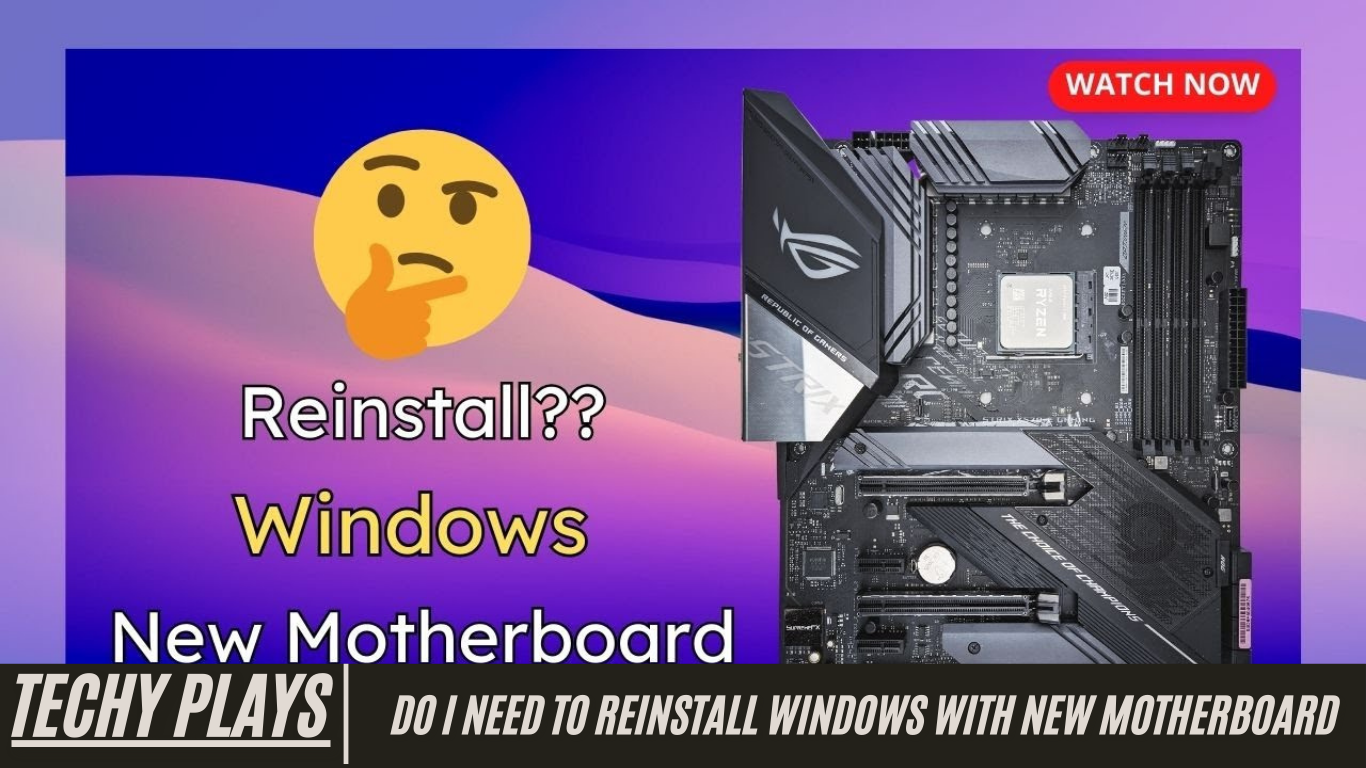
Understanding Motherboards and Windows Installation
Understanding how motherboards and Windows work together is crucial when you are considering upgrading your computer hardware. The motherboard is often described as the central nervous system of a computer because it coordinates communication between all components, including the CPU, RAM, GPU, storage devices, and peripherals. Every part relies on the motherboard to function correctly, and Windows must understand the motherboard’s configuration to operate efficiently.
When you change your motherboard, it essentially introduces a new “brain” to your system. Windows, which is configured for your previous motherboard, may encounter compatibility issues or fail to boot correctly. In many cases, the safest approach is to reinstall Windows to ensure the operating system fully recognizes the new motherboard and all connected components. Doing this helps maintain system stability, performance, and prevents potential errors or driver conflicts.
Reinstalling Windows after a motherboard upgrade may seem like a hassle, but it guarantees that the operating system can work seamlessly with the new hardware, giving your computer a fresh start while avoiding long-term issues.
Can I Upgrade My Motherboard and CPU Without Reinstalling Windows 10?
Read more: Do You Need To Reinstall Windows After Replacing Motherboard
Yes, it is possible to upgrade your motherboard and CPU without performing a fresh Windows 10 installation, but it comes with challenges and potential complications. When you replace these critical components, Windows may fail to recognize the new hardware correctly. Think of it like upgrading your car engine while the car’s onboard computer is still configured for the old engine. Sometimes, Windows can automatically adapt to the changes, installing the necessary drivers and adjusting system settings.
However, this automatic adjustment is not guaranteed. In some cases, Windows may encounter errors, fail to boot, or experience instability due to mismatched drivers or incompatible configurations. If such issues arise, reinstalling Windows 10 becomes the most reliable solution. A clean installation ensures that Windows fully integrates with your new motherboard and CPU, optimizing performance and preventing recurring system problems.
Upgrading without reinstalling Windows can save time, but it carries risks. For a smoother experience, it’s essential to back up your data, ensure you have all necessary drivers, and be prepared to perform a clean installation if problems occur.
How To Upgrade Motherboard and CPU Without Reinstalling Windows 10? [Step By Step Instruction]
Upgrading your motherboard and CPU without reinstalling Windows 10 is possible, but it requires careful preparation and a methodical approach. While Windows 10 is capable of recognizing some hardware changes automatically, major upgrades, especially motherboard replacements, may cause system instability if not handled correctly. If you encounter errors or performance issues, reinstalling Windows 10 is recommended to ensure full compatibility and stability.
Here’s one of the most effective methods to upgrade your motherboard and CPU without a fresh installation:
Method 1. Perform a Universal Restore Using EaseUS Todo Backup
EaseUS Todo Backup offers a feature called Universal Restore, designed to help transfer your existing Windows system to a new computer or to accommodate major hardware changes like a motherboard or CPU replacement. This process allows your current Windows installation to adapt to the new hardware without losing data or applications.
The Universal Restore process works by injecting the necessary drivers for the new motherboard and CPU, ensuring Windows can boot correctly on the updated system. EaseUS Todo Backup guides you through every step, making it accessible even for users who are not highly technical.
Steps to use Universal Restore:
- Back up your current system using EaseUS Todo Backup to create a full system image.
- Replace the motherboard and CPU in your computer carefully, following all safety precautions.
- Boot from the EaseUS recovery media and select the Universal Restore option.
- Follow the on-screen instructions to restore the system image onto the new hardware.
- Restart your computer and allow Windows to detect the new hardware, automatically installing necessary drivers.
Using this method can save time and prevent the hassle of reinstalling Windows entirely while ensuring your system operates smoothly after a major hardware upgrade. However, if you notice persistent errors or instability, a fresh Windows 10 installation may still be the most reliable solution.
Method 2. Upgrade Motherboard and CPU Without Reinstalling Windows by Modifying Registry Online
If you want to upgrade your motherboard and CPU without going through a complete reinstallation of Windows, one advanced method is to modify the Windows Registry online. This approach can help Windows recognize the new hardware and maintain system stability, avoiding the time-consuming process of a fresh installation.
A key step in this method is linking your Windows account to your Microsoft account online. Doing so ensures that your Windows settings, digital licenses, and personalization preferences are securely tied to your Microsoft account. By establishing this connection, you make it possible to transfer your Windows digital entitlements to a new motherboard and CPU seamlessly. This reduces the risk of license issues or activation errors after a major hardware change.
Once your account is linked, the next step involves modifying the Windows Registry to accommodate the new motherboard and CPU. The Registry is the central database where Windows stores hardware configurations, software settings, and system preferences. Updating the relevant entries ensures that Windows recognizes the new motherboard and CPU without encountering boot errors or driver conflicts.
Performing these modifications online offers several advantages: it avoids the complexity of offline registry edits, reduces the chance of errors during the upgrade, and helps maintain your current Windows setup intact. By carefully updating the Registry and linking your Microsoft account, you can upgrade critical components like the motherboard and CPU while keeping your existing Windows installation fully functional.
This method is particularly useful for users who want to preserve installed applications, personal files, and system settings while performing a major hardware upgrade. However, it is important to proceed cautiously, as incorrect Registry modifications can lead to system instability. Always back up your system and Registry before making changes to ensure a safe and smooth upgrade process.
Method 3. Upgrade Motherboard And CPU without Reinstalling Windows By Modifying Registry Offline
For users who prefer a more hands-on approach, it is possible to upgrade your motherboard and CPU without reinstalling Windows by performing offline registry modifications. Unlike online methods, this technique involves directly accessing and editing the Windows Registry on your computer without an active internet connection.
Offline registry modifications provide greater control over the upgrade process, allowing you to manually adjust specific hardware settings and ensure that Windows recognizes the new motherboard and CPU correctly. While this method requires a higher level of technical expertise, it can be highly effective for experienced users who want to maintain their existing Windows installation, installed applications, and system configurations without relying on third-party tools.
Before attempting offline registry edits, it is crucial to back up your system and the Registry. Any incorrect modification can lead to system instability or even prevent Windows from booting. By carefully updating the relevant registry entries, you can align Windows with the new motherboard and CPU, allowing a smoother transition and avoiding unnecessary reinstallation.
Do I Need To Reinstall Windows 10 After Upgrading Motherboard And CPU?
Whether you need to reinstall Windows 10 after upgrading your motherboard and CPU depends on several factors, including hardware compatibility and the specific changes made. Some users may experience a smooth transition without any issues, while others encounter boot failures, driver conflicts, or hardware recognition problems.
One common issue after a motherboard upgrade is that Windows 10 may fail to boot. This usually occurs due to conflicts between the existing Windows installation and the new motherboard hardware. Windows may not recognize critical system components, causing errors during startup or leading to incomplete driver installation. In such cases, performing a fresh Windows installation can resolve booting problems and ensure that the operating system fully supports the new hardware configuration.
The decision to reinstall Windows also depends on performance considerations. While some users find that Windows adapts successfully to new hardware, others notice stability issues or reduced performance without a clean installation. A fresh Windows 10 installation with a new motherboard ensures optimal compatibility, eliminates lingering driver conflicts, and provides a stable foundation for the upgraded system.
Upgrading CPU and Motherboard, Do I Need To Reinstall Windows?
When upgrading critical components like the CPU and motherboard, many users naturally ask whether a complete Windows reinstallation is necessary. The answer depends on the extent of the hardware changes and how Windows interacts with your system.
For minor upgrades or compatible hardware replacements, Windows 10 or 11 may adapt automatically without requiring a fresh installation. However, replacing the motherboard, which serves as the central hub connecting all components, often introduces significant system-level changes. In such cases, a clean Windows installation may be the safest way to ensure full compatibility, avoid driver conflicts, and maintain system stability.
Before making a decision, it is essential to carefully assess your hardware, existing Windows setup, and potential implications. Taking a proactive approach ensures a smooth transition and helps prevent issues such as boot failures or system crashes.
Reactivating Windows After A Hardware Change
After performing major hardware upgrades, such as replacing your motherboard and CPU, it is often necessary to reactivate Windows. Reactivation is the process of validating your Windows license to confirm that it remains genuine and active.
Typically, reactivation involves entering your Windows product key or verifying your digital license through Microsoft’s activation servers. Linking your Windows license to a Microsoft account beforehand can simplify this process, allowing Windows to automatically detect and reactivate your copy after the hardware change. Ensuring proper activation is critical to maintain full access to updates, security features, and system functionality.
Is Reinstalling Windows On A New PC A Simple Process?
For users building or setting up a new PC, reinstalling Windows is generally straightforward. Windows installation tools guide users through the process, making it accessible even for beginners.
However, several factors can affect the ease and success of the installation, including hardware compatibility, driver installation, system configuration, and the presence of pre-existing partitions or data. Planning ahead and paying careful attention to setup steps—such as formatting drives, installing the correct drivers, and applying system updates—ensures a smooth, trouble-free Windows installation on a new PC.
Alternatives To Reinstalling Windows
In many situations, users can resolve common Windows issues without performing a full OS reinstall. Several built-in tools and approaches provide effective alternatives for maintaining system stability and performance after hardware upgrades or software issues.
1. System Restore
System Restore is a native Windows feature that allows you to revert system files, settings, and configurations to a previous stable state. This is particularly useful if problems arise after installing new software, drivers, or updates. By returning your system to a known working point, you can often fix compatibility or performance issues without reinstalling Windows.
2. Repair Install
A repair install, also known as an in-place upgrade, reinstalls Windows over your existing installation while preserving your personal files, settings, and applications. This method is highly effective for repairing corrupted system files or resolving software-related issues without losing data. It refreshes the operating system and ensures proper functionality without the need for a full reinstall.
3. Driver Updates
Outdated or incompatible drivers are a common cause of system instability, hardware malfunctions, and performance issues. Keeping your device drivers up to date ensures compatibility with your CPU, motherboard, and other components. Windows provides built-in tools for managing driver updates, and manufacturers often offer direct downloads for the latest drivers. Regular updates help maintain system stability, improve performance, and prevent post-upgrade conflicts.
4. System Reset
For persistent or complex issues that cannot be resolved through other methods, performing a system reset may be necessary. This option reinstalls Windows while retaining your personal files but removes all installed applications and resets system settings to their defaults. System Reset is a convenient way to resolve deep-rooted software issues without losing personal data, offering a middle ground between troubleshooting and a full Windows reinstallation.
New motherboard: reinstall windows without losing data?
When installing a new motherboard, reinstalling Windows is often necessary to ensure full compatibility, system stability, and optimal performance. The motherboard serves as the backbone of your computer, connecting all components and coordinating communication between them. Without a proper Windows reinstallation, your system may encounter driver conflicts, boot issues, or instability.
However, losing data during this process can be avoided with careful planning. Backing up personal files, documents, photos, and important settings is essential before performing a reinstall. By creating a full system backup or copying important data to an external drive or cloud storage, you can safeguard your data while giving Windows a fresh start that aligns perfectly with your new motherboard.
Re-installing Windows after Motherboard Swap
After swapping your motherboard, reinstalling Windows is often necessary to ensure that the operating system fully recognizes the new hardware. The new motherboard introduces different chipsets, device drivers, and system configurations that Windows must understand to function correctly. A clean installation can prevent potential errors, improve system stability, and ensure that all components work together seamlessly.
Even if Windows attempts to adjust automatically, a fresh reinstall guarantees optimal performance and minimizes the risk of hardware conflicts, driver mismatches, or unexpected system crashes.
Upgrading CPU, motherboard and RAM, do I need to reinstall Windows?
When performing a major hardware upgrade that includes the CPU, motherboard, and RAM, reinstalling Windows is highly recommended. These upgrades significantly alter your system’s hardware configuration, and without reinstalling, Windows may fail to recognize new components properly or may operate suboptimally.
A clean installation ensures that all drivers, system files, and configurations are correctly aligned with your upgraded hardware. This approach enhances performance, prevents boot failures, and maintains overall system reliability.
Do you need to reinstall Windows if you change the motherboard?
Yes, changing the motherboard generally requires a Windows reinstallation to ensure proper system functionality. The motherboard controls communication between the CPU, RAM, storage, and other peripherals, so a new motherboard introduces significant changes that Windows must adapt to.
Reinstalling Windows helps avoid common issues like boot errors, driver conflicts, or system instability. By performing a clean install, you also ensure that your operating system fully supports all features of the new motherboard, including chipset-specific drivers, power management, and peripheral connectivity.
Do you need to reinstall Windows after replacing CPU and motherboard
Replacing both the CPU and motherboard is a substantial hardware change that typically necessitates a Windows reinstall. This ensures that the operating system recognizes the new components correctly and operates efficiently.
Attempting to continue using the existing Windows installation without reinstalling can result in driver conflicts, system instability, or reduced performance. A fresh installation guarantees that Windows is fully optimized for the new CPU, motherboard, and any additional hardware upgrades.
Do I need to reinstall windows after change Motherboard?
Yes, it is generally recommended to reinstall Windows after changing the motherboard. The motherboard is central to system operation, and Windows may encounter compatibility or stability issues if it is not reinstalled.
Reinstalling Windows ensures that all drivers, system settings, and hardware configurations are correctly aligned, allowing your PC to operate smoothly with the new motherboard and associated components.
Upgrading motherboard and CPU do I need to reinstall windows?
When upgrading both the motherboard and CPU, reinstalling Windows is often necessary to ensure optimal system performance. These upgrades change the core hardware structure of your PC, and a fresh installation aligns the operating system with the new architecture, ensuring proper driver installation, hardware recognition, and system stability.
Skipping a reinstall may result in system errors, performance issues, or even boot failures, making a fresh Windows installation the safest approach.
Will I have to reinstall windows if I upgrade my motherboard?
Yes, upgrading your motherboard typically requires reinstalling Windows to maintain proper system functionality and compatibility. The new motherboard introduces different chipsets, device controllers, and driver requirements.
Replacing Motherboard without Reinstalling Windows
Replacing a motherboard without reinstalling Windows is possible, particularly if the new motherboard has hardware components and drivers similar to your previous setup. Windows may adapt to the new motherboard and continue to function, especially in cases where the CPU, chipset, and storage controllers are compatible. However, for optimal stability, performance, and hardware compatibility, it is generally recommended to perform a fresh Windows installation after a motherboard upgrade. This ensures that all drivers, system files, and configurations are properly aligned with the new hardware.
Do I need to reinstall Windows if I replace just the motherboard but use the same CPU?
Even if you are replacing only the motherboard while keeping the same CPU, it is usually advisable to reinstall Windows. The motherboard manages communication between the CPU, RAM, storage devices, and peripherals. A fresh installation helps Windows recognize the new motherboard’s chipsets, device drivers, and system settings, ensuring stability and minimizing potential errors. While Windows might boot without reinstalling, reinstalling guarantees full compatibility and peak performance.
Do you need to reinstall Windows after replacing the motherboard and the CPU?
Yes, when both the motherboard and CPU are replaced, reinstalling Windows is highly recommended. These components form the core of your PC’s hardware architecture, and changing them can lead to driver conflicts, boot errors, or system instability if Windows is not reinstalled. A clean installation aligns the operating system with the new hardware, ensuring optimal performance, compatibility, and a smoother overall experience.
Is it required to reinstall Windows after installing a new motherboard and a new CPU?
Reinstalling Windows after upgrading to a new motherboard and CPU is often necessary to ensure that all hardware components function correctly. The new configuration may involve different chipsets, controllers, and drivers that Windows needs to recognize for proper operation. Without a reinstall, you may encounter issues such as driver mismatches, boot failures, or reduced system performance. A fresh installation ensures a fully compatible and stable system environment.
Upgrading motherboard – should I reinstall Windows 10?
When upgrading your motherboard, it is generally advisable to reinstall Windows 10. This approach guarantees that your operating system fully supports the new hardware, including chipsets, onboard controllers, and peripheral connections. A clean installation minimizes compatibility issues, improves system reliability, and ensures Windows 10 operates at its best with your updated configuration.
Do I need to reinstall Windows with new CPU
Reinstalling Windows is not always required when installing a new CPU, particularly if the CPU is from the same manufacturer and generation. However, reinstallation may be beneficial if the CPU introduces a major architectural change or if you encounter stability or compatibility issues. A fresh installation ensures proper driver integration and optimal system performance, particularly for high-end CPUs or overclocked configurations.
Do I need to do anything when installing a new motherboard?
When installing a new motherboard, several steps are critical to ensure smooth operation:
- Verify hardware compatibility with existing components such as RAM, CPU, and storage devices.
- Update drivers for chipsets, network adapters, audio devices, and other peripherals.
- Consider reinstalling Windows for maximum stability and compatibility, especially after major hardware changes.
These measures help prevent boot failures, driver conflicts, or system instability while ensuring the new motherboard operates correctly with all components.
Do I need to reinstall Windows with new motherboard Windows 10
Yes, it is generally recommended to reinstall Windows 10 after installing a new motherboard. This ensures that Windows fully recognizes the updated hardware configuration, all necessary drivers are installed correctly, and system stability is maintained. While Windows 10 is capable of adapting to some hardware changes, a clean installation provides the most reliable performance.
What happens to Windows 10 if I change my motherboard?
Changing your motherboard in a Windows 10 system can lead to several potential outcomes. Windows may fail to boot due to significant hardware changes, or it may require reactivation to verify your license. Driver mismatches and hardware incompatibility can also cause system instability. Performing a clean installation ensures that Windows 10 functions correctly with the new motherboard and avoids errors caused by leftover configurations from the old hardware.
Will I lose my data if I change my motherboard?
Replacing your motherboard should not result in data loss if your storage drives remain intact. Personal files, documents, and installed programs on separate drives are generally preserved. However, it is always a good practice to back up important data before performing hardware upgrades. This precaution ensures that even in the unlikely event of a system failure during installation, your critical data remains safe.
Frequently Asked Questions(FAQs)
1. How to reinstall Windows with new motherboard
To reinstall Windows after installing a new motherboard, you need to follow a structured process to ensure a smooth and successful setup. First, back up all important data, including documents, photos, and application files, to avoid losing any critical information. Next, create Windows installation media, such as a USB drive or DVD, using the official Microsoft Media Creation Tool. Once the media is ready, boot your PC from the installation media and follow the on-screen instructions to perform a clean Windows installation.
Reinstalling Windows with a new motherboard ensures that the operating system fully recognizes the updated hardware, installs the correct drivers, and operates without conflicts. Taking these steps carefully prevents boot errors and provides a stable foundation for your upgraded PC.
2. Can I keep my current Windows installation when upgrading my motherboard?
Yes, it is possible to retain your current Windows installation when upgrading your motherboard. This approach allows you to preserve existing applications, settings, and personal files. However, compatibility between your new motherboard and the current hardware, including the CPU, RAM, and storage controllers, must be verified to avoid issues.
While Windows may attempt to adapt automatically, there is always a risk of driver conflicts or system instability. Ensuring that all motherboard drivers and chipset updates are available and installed beforehand increases the chances of successfully keeping your current Windows installation without requiring a full reinstall.
3. Will I lose my data if I reinstall Windows with a new motherboard?
Reinstalling Windows with a new motherboard usually involves formatting the system drive, which will erase all data stored on that drive. To prevent data loss, it is crucial to back up important files, applications, and system settings to an external drive, cloud storage, or a separate partition.
Proper preparation allows you to reinstall Windows while minimizing disruption to your workflow and preserving essential data. For users who prefer not to lose files, using the Windows “reset” or repair install options can sometimes retain personal files while reinstalling system files and drivers.
4. What are the benefits of reinstalling Windows with a new motherboard?
Reinstalling Windows after a motherboard upgrade provides several key benefits. Firstly, it ensures full compatibility with the new hardware, including chipsets, onboard controllers, and peripheral connections. Secondly, a clean installation optimizes system performance, reducing boot times, improving responsiveness, and preventing driver conflicts.
Additionally, reinstalling Windows gives you the opportunity to start fresh, removing unnecessary clutter, outdated software, and accumulated system errors. This clean slate helps maintain a more stable and efficient operating system while ensuring that all installed applications function correctly with the new motherboard.
5. Can I use my existing Windows license after reinstalling with a new motherboard?
Yes, you can use your existing Windows license after reinstalling Windows with a new motherboard. However, if your license was tied to the previous motherboard or OEM hardware configuration, you may need to reactivate Windows. Reactivation can usually be done online using your Microsoft account or, in some cases, by entering your Windows product key manually.
Linking your Windows license to a Microsoft account before upgrading makes this process smoother and avoids potential activation issues, ensuring that your copy of Windows remains fully licensed and functional after the hardware change.
6. Are there any alternative options to reinstalling Windows with a new motherboard?
Yes, several alternative methods exist to resolve hardware compatibility issues without performing a full reinstall of Windows. These include:
- Repair Install (In-place upgrade): Reinstalls Windows over your current installation while keeping files, settings, and applications intact.
- System Restore: Reverts the system to a previous stable state, which can resolve issues caused by hardware changes.
- Driver Updates: Ensures all motherboard, chipset, and peripheral drivers are current and compatible with the new hardware.
- System Reset: Reinstalls Windows while optionally keeping personal files, refreshing the OS without removing user data.
These alternatives provide practical solutions for maintaining system stability while upgrading critical hardware components like the motherboard and CPU.
7. Building new PC and I’m gonna be switching both the motherboard and CPU and reinstalling Windows on my SSD using a USB. Although I have a recovery partition on the drive and was wondering if I could just use that instead?
While it is technically possible to use a recovery partition on your SSD, performing a clean installation of Windows is generally recommended when changing both the motherboard and CPU. Recovery partitions are usually configured for the previous hardware setup, and using them may lead to driver conflicts, system instability, or activation issues.
A clean installation ensures that the operating system fully supports the new hardware configuration, installs the correct drivers, and maintains optimal performance and stability. This approach avoids the potential limitations or errors that could arise from relying solely on a recovery partition.
8. When upgrading a PC motherboard do I have to reinstall Windows and if so do I wipe the SSD before or after I install the new motherboard, and if I do have to wipe the drive can I choose the reset option to keep my files?
When upgrading a PC motherboard, reinstalling Windows is generally recommended to ensure full hardware compatibility. You can choose to wipe the SSD either before or after installing the new motherboard, depending on your preference.
If you want to preserve your personal files, Windows offers a “reset” option that reinstalls the operating system while keeping your files intact. This allows you to refresh Windows, eliminate potential driver conflicts, and ensure a stable system environment without losing important data. Proper preparation and backups remain essential for safeguarding all critical files during this process.
Conclusion
In conclusion, upgrading your motherboard and CPU does not always require a complete reinstallation of Windows, thanks to alternatives like system restore, repair install, driver updates, and system reset. These methods provide practical solutions for hardware compatibility issues and allow your existing Windows installation to adapt to new components.
However, for optimal performance, stability, and full compatibility, a clean Windows installation is often the most reliable approach, especially after major hardware changes. Backing up important data, linking your license to a Microsoft account, and carefully following installation steps ensures a smooth transition while preserving essential files and settings.
