

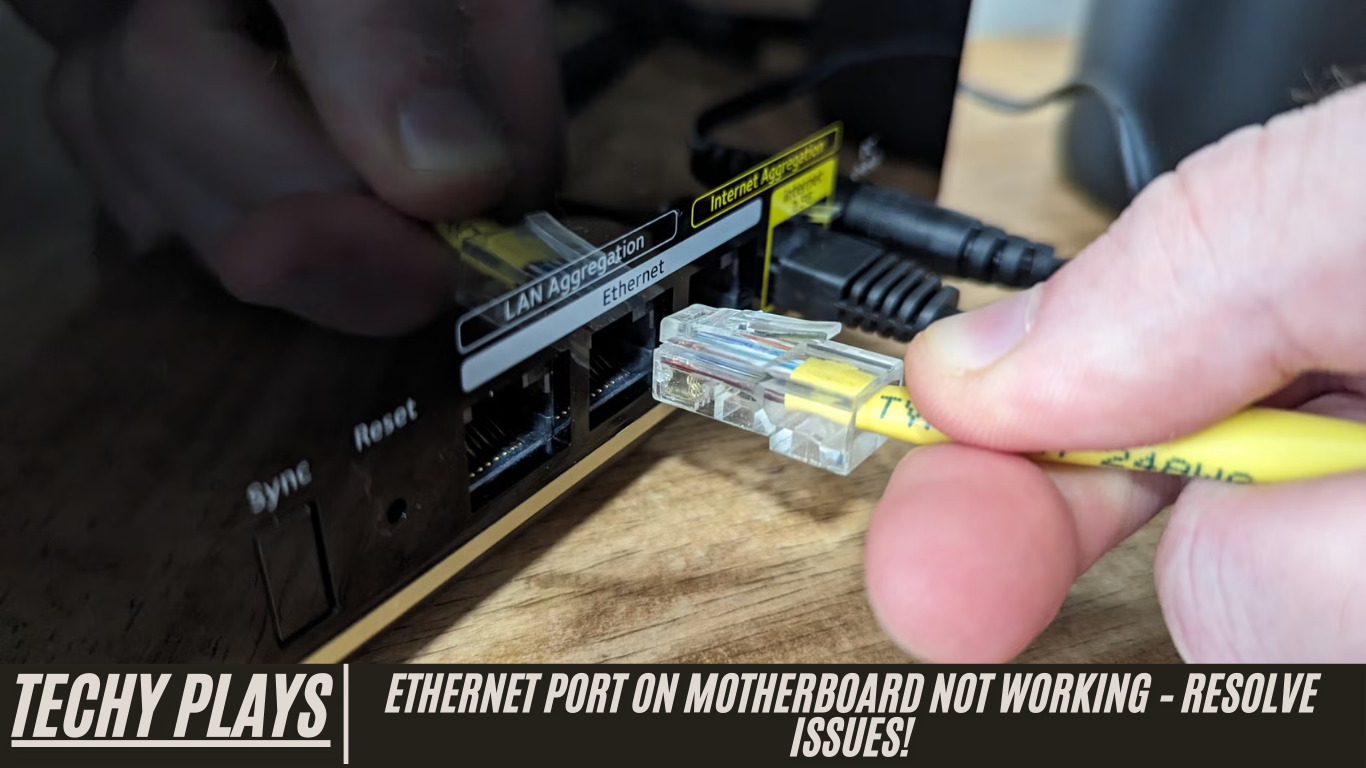
Importance of Ethernet Ports on Motherboards
Ethernet ports on motherboards are a critical component for ensuring fast, stable, and reliable internet connectivity. Unlike wireless connections, Ethernet connections provide consistent speeds and low latency, making them essential for activities that demand high network performance. Whether it’s online gaming, remote work, streaming high-definition content, or transferring large files across networks, a functioning Ethernet port ensures smooth and uninterrupted performance. Additionally, Ethernet ports offer enhanced security compared to wireless networks, reducing the risk of unauthorized access. For professionals, gamers, and anyone relying on a stable network, having a properly working Ethernet port on your motherboard is indispensable for a seamless digital experience.
Common Symptoms of Ethernet Port Not Working on Motherboard
A malfunctioning Ethernet port can cause a variety of network-related issues. Identifying these symptoms early can help troubleshoot and fix connectivity problems efficiently.
Reqad more: Orange Motherboard Light – The Ultimate Guide In 2025!
1. No Internet Access
One of the most noticeable signs of a faulty Ethernet port is the inability to access the internet. If your computer cannot connect to the internet, you may see notifications such as “No internet” or experience web pages failing to load. This problem may arise due to issues with the Ethernet port itself, incorrect network settings, or even problems with your internet service provider. Ensuring your Ethernet connection is properly configured and checking your network drivers can help resolve this issue.
2. Limited Connectivity
Limited connectivity occurs when your computer connects to the network but cannot reach the internet. Often, this is indicated by a warning icon on the network status in the system tray. This issue could be caused by a partially functional Ethernet port, router misconfigurations, or incorrect network settings. Troubleshooting may involve checking IP configurations, restarting your router, or verifying that the Ethernet port is operational.
3. Network Cable Unplugged
When you see the message “Network Cable Unplugged,” it indicates that the Ethernet cable is not properly connected to either the computer or the router. This is one of the simplest issues to resolve but can be easily overlooked. Ensure both ends of the Ethernet cable are securely plugged in, and check for any visible damage to the cable that might affect connectivity.
4. Intermittent Connection
An intermittent connection is another common symptom of a malfunctioning Ethernet port. In this case, your network may connect and disconnect repeatedly, leading to unstable internet access. Such behavior can disrupt online gaming, video calls, and file transfers. Possible causes include loose connections, damaged ports, faulty cables, or outdated network drivers. Regular maintenance and proper cable management can help reduce these disruptions.
5. No Lights or Indicators
Ethernet ports typically have indicator lights that show the connection status. If these lights fail to illuminate, it suggests a connectivity problem. This could be due to a defective Ethernet port, a damaged cable, or issues with the connected device. Monitoring these lights can help quickly diagnose whether the port or the cable is the source of the problem.
6. Failed Network Diagnostics
When network diagnostics fail to detect or resolve issues with your Ethernet port, it signals more complex underlying problems. This could involve hardware malfunctions, driver conflicts, or motherboard issues. In such cases, manual troubleshooting or professional assistance may be necessary to restore full network functionality. Advanced diagnostics might include testing the port with a different cable, updating drivers, or even replacing the motherboard if the port is physically damaged.
Possible Causes of Ethernet Port Malfunction
Ethernet port malfunctions on a motherboard can stem from a variety of hardware and software-related issues. Identifying the root cause is crucial for troubleshooting and restoring reliable network connectivity.
1. Hardware-Related Issues
Several physical factors can affect the performance of an Ethernet port:
- Physical Damage: Physical damage is one of the most common causes of Ethernet port failure. This can occur due to accidental impacts, mishandling, or improper insertion of cables. Bent or broken pins, damaged connectors, or internal circuitry issues can prevent the port from functioning correctly, leading to intermittent or complete loss of network access. Regular inspection and careful handling can minimize such damage.
- Loose Connections: Loose connections between the Ethernet cable and the port can lead to unstable network connectivity. Even if the cable appears to be plugged in, a slightly loose fit can result in dropped connections or slow data transfer speeds. Always ensure that the Ethernet cable is securely inserted into the port for consistent performance.
- Defective Ethernet Cable: Sometimes, the Ethernet cable itself may be the source of the problem. Worn-out wires, frayed ends, or internal damage can hinder proper data transmission between your computer and network devices. Replacing the cable with a high-quality, functional one is a straightforward solution to restore reliable connectivity.
- Faulty Network Device: Issues with connected network devices, such as routers, switches, or modems, can also affect the Ethernet port’s functionality. A malfunctioning router may fail to provide a stable connection, making it appear as if the Ethernet port is defective. Testing the connection with a different network device can help identify the source of the problem.
- Electrical Surges: Power fluctuations, including lightning strikes or unexpected outages, can damage the Ethernet port or its internal circuitry. Using surge protectors or unplugging devices during storms can help protect the hardware from electrical damage.
- Outdated Firmware: Firmware governs the operation of Ethernet ports and network devices. Outdated firmware can result in compatibility issues, reduced performance, or unstable connections. Regularly updating the firmware on both your motherboard and networking devices ensures smooth network operation and stability.
2. Software-Related Issues
Even when the hardware is intact, software-related problems can prevent an Ethernet port from functioning properly:
- Outdated or Incompatible Drivers: Drivers act as the communication link between your Ethernet hardware and operating system. Using outdated, missing, or incompatible drivers can cause connection failures or erratic network behavior. Keeping your drivers up-to-date ensures seamless communication and optimal network performance.
- Incorrect Network Settings: Misconfigured network settings, such as wrong IP addresses, subnet masks, or DNS server configurations, can prevent your Ethernet port from connecting to the internet. Verifying and correcting these settings is essential to ensure proper network access.
- Software Conflicts: Certain applications or programs may conflict with network operations, causing Ethernet connectivity issues. Conflicts can arise from VPN software, firewall settings, or network monitoring tools. Identifying and disabling conflicting software can restore normal port functionality.
- Malware or Virus Infections: Malicious software can interfere with network operations, corrupt drivers, or block internet access through the Ethernet port. Running a thorough antivirus or antimalware scan and removing any detected threats can resolve these issues and restore network stability.
- Operating System Updates: Occasionally, updates to your operating system may lead to compatibility problems with Ethernet port drivers. If you experience connectivity issues after an update, rolling back the update or installing the latest compatible drivers can help resolve the problem and maintain reliable network access.
Initial Checks and Preparations
Before diving into complex troubleshooting, it’s important to perform some basic checks and preparations to identify the root cause of Ethernet port issues.
1. Verify Physical Connections
Ensure that both ends of the Ethernet cable are securely plugged into the computer and the router or switch. Inspect the cable and ports for any visible damage such as bent pins, frayed wires, or broken connectors. Reseating the connections can often restore a stable link and prevent intermittent connectivity problems. A secure physical connection is the first step toward reliable network access.
2. Test with Different Ethernet Cables
Sometimes, the Ethernet cable itself may be faulty. Test your network connection with multiple cables to rule out cable-related issues. If the Ethernet port still does not function correctly with different cables, the problem may lie with the port or the connected device, rather than the cables themselves.
3. Ensure Power and Network Activity Indicators
Check for indicator lights on your Ethernet port, router, or switch. These lights are crucial diagnostic tools, as they show whether the port is receiving power and if network activity is occurring. No lights may indicate hardware failure, a faulty cable, or issues with the connected device.
4. Restart the Computer and Network Devices
Restarting your computer, router, or switch can resolve temporary software glitches and refresh network connections. This simple step often restores Ethernet functionality without requiring more complex troubleshooting.
5. Test on Different Devices
Connect your Ethernet cable to another computer, laptop, or device. If the issue persists on multiple devices, it indicates a problem with the cable, port, or network configuration rather than the computer itself. This helps isolate the source of the problem efficiently.
6. Check for BIOS/UEFI Updates
Visit the motherboard manufacturer’s website to check for updates to the BIOS or UEFI firmware. Updating firmware can resolve compatibility issues, improve Ethernet port performance, and ensure that network-related hardware functions properly with the latest software standards.
Troubleshooting Ethernet Port Not Working on Motherboard
When initial checks do not resolve the issue, more detailed troubleshooting steps may be necessary to identify and fix the problem.
1. Update Drivers and Firmware
Ensure that your Ethernet port has the latest drivers and firmware installed. Outdated or incompatible drivers can cause connectivity issues, so keeping both the network drivers and firmware up-to-date can significantly improve Ethernet port performance and compatibility.
2. Check for BIOS/UEFI Updates
Updating your motherboard’s BIOS or UEFI firmware can address hardware compatibility problems, stabilize network operations, and improve overall system performance. Always download updates from the official manufacturer’s website and follow the installation instructions carefully.
3. Test on Different Devices
Connecting the Ethernet cable to another device can help determine whether the problem is isolated to your computer. Persistent issues on multiple devices suggest a problem with the network cable, router, or network configuration.
4. Verify Network Settings
Double-check your network settings, including IP addresses, subnet masks, default gateways, and DNS servers. Correct configuration is essential for proper communication with the network, and misconfigured settings can prevent the Ethernet port from working.
5. Checking IP Settings and DHCP
Ensure that your device is set to obtain an IP address automatically via DHCP. Incorrect IP configuration can prevent your computer from accessing the network. Manually verifying DHCP settings can help resolve connectivity problems.
6. Troubleshoot Network Configuration Issues
Use built-in network troubleshooting tools to detect and repair common configuration problems. These tools can identify misconfigured settings, address conflicts, and restore proper Ethernet functionality.
7. Boot into Safe Mode
Starting your computer in Safe Mode helps isolate software-related issues. Safe Mode loads only essential drivers and services, which can help determine if third-party software is interfering with your Ethernet port.
8. Use Diagnostic Tools and Commands
Utilize diagnostic commands like ipconfig on Windows or ifconfig on Linux to gather detailed information about your network configuration. These tools can pinpoint issues such as IP conflicts, connectivity errors, or driver problems affecting the Ethernet port.
9. Ethernet Port Hardware Damage
Inspect the Ethernet port physically for any signs of damage, such as bent pins, loose connectors, or debris. Hardware damage may require professional repair or replacement of the motherboard port.
10. Downgrading BIOS/UEFI Version
If a recent BIOS or UEFI update caused Ethernet port issues, consider reverting to a previous stable version. Follow the manufacturer’s instructions carefully, as incorrect procedures can cause system instability or hardware damage.
11. Conflicts with Third-Party Software
Third-party firewalls, antivirus programs, or network monitoring tools may conflict with Ethernet operations. Temporarily disabling or uninstalling such software can help determine if it is causing connectivity issues.
12. Operating System Updates
Check for recent operating system updates that may have affected Ethernet drivers. Rolling back problematic updates or ensuring that all patches and drivers are up-to-date can resolve compatibility issues.
13. Network Card Power Management Settings
Some operating systems have power-saving features that can disable network adapters to save energy. Adjust the network adapter’s power management settings to prevent intermittent connectivity problems and ensure stable Ethernet performance.
14. Issue with DNS Cache
Flushing your DNS cache can resolve connectivity problems caused by outdated or corrupt DNS information. This forces your computer to perform fresh DNS lookups, improving network access and resolving errors related to unreachable websites.
15. DNS Configuration
If automatic DNS assignment is not working correctly, manually configuring DNS servers can help. Specify preferred DNS servers, such as Google DNS or OpenDNS, to ensure smooth DNS resolution and reliable network connectivity.
16. Seek Professional Help
If all troubleshooting steps fail, seek assistance from a professional technician or the manufacturer’s support team. Expert guidance can identify complex hardware or software issues and provide solutions tailored to your specific Ethernet port problem.
Ethernet port on MSI motherboard does not work
If the Ethernet port on your MSI motherboard is not functioning, there are several troubleshooting steps you can take to resolve the issue. Start by ensuring that the Ethernet cable is securely connected to both your motherboard and the router or switch. Next, update the network drivers and motherboard firmware to the latest versions available from MSI’s official website, as outdated software can cause connectivity issues. Additionally, check your network settings to verify proper IP configuration and DNS settings. Testing the Ethernet connection with multiple devices can help determine whether the problem lies with the port, the cable, or the network hardware. If these steps do not resolve the issue, it is advisable to seek professional assistance or contact MSI support for expert guidance.
Ethernet not working on my new motherboard
When setting up a new motherboard, Ethernet connectivity problems can be frustrating. Begin by inspecting all physical connections to ensure the Ethernet cable is firmly seated in the port. Testing with different, functional Ethernet cables can help rule out cable issues. It is also essential to verify that your network settings, including IP address, subnet mask, gateway, and DNS servers, are correctly configured. Updating the network drivers and motherboard firmware may also resolve compatibility issues with new hardware. If the Ethernet port continues to malfunction, contacting the motherboard manufacturer’s support team is recommended for further assistance and troubleshooting guidance.
Ethernet/LAN suddenly no longer detected and no link lights
If your Ethernet or LAN connection suddenly stops working and no link lights appear, the issue may be hardware or software-related. Start by checking the physical Ethernet connection and testing with different cables to ensure the port and cable are functional. Updating drivers and firmware can resolve compatibility or software conflicts that may prevent the Ethernet port from being detected. If these steps do not restore network connectivity, seeking technical support is advised to identify potential motherboard issues or deeper hardware failures.
New motherboard not recognizing Ethernet cable
If a newly installed motherboard fails to recognize the Ethernet cable, first ensure that the cable is securely connected to both the port and your networking device. Testing with multiple Ethernet cables can rule out faulty wiring. Updating drivers and the motherboard BIOS or UEFI firmware is crucial, as outdated software can prevent proper detection of network hardware. Persistent problems should be addressed by contacting technical support to explore potential motherboard or Ethernet port issues.
Why is the LAN port on my motherboard not working?
A non-functional LAN port on a motherboard can have multiple causes, ranging from physical damage to software incompatibilities. Begin by verifying that the Ethernet cable is properly connected and not damaged. Testing with different cables can isolate cable-related issues. Ensuring that all network drivers are up-to-date is critical, as outdated drivers often cause the port to malfunction. For unresolved issues, consulting the motherboard manufacturer’s support resources is recommended for professional troubleshooting.
How do I test the Ethernet port on a motherboard?
Testing the Ethernet port on a motherboard is straightforward. Connect a reliable Ethernet cable from the port to a working networking device such as a router, switch, or another computer. Check for indicator lights on the port to confirm power and activity. Verify that the connected device recognizes the network connection. If the connection is not detected, try alternative cables or devices to determine whether the issue is with the port, cable, or network configuration.
Why isn’t my Ethernet port working? How do I fix it?
If your Ethernet port is not working, start by confirming that all physical connections are secure and free from damage. Updating network drivers and firmware can resolve many common issues, while testing with different cables helps isolate the source of the problem. Restarting your computer and router can fix temporary glitches. If these steps fail, contacting technical support for professional assistance is the next recommended step to ensure proper network functionality.
Motherboard not detecting Ethernet cable
If your motherboard is not detecting the Ethernet cable, first ensure the cable is securely plugged in and functional. Testing with a different Ethernet cable or another network device can help identify whether the issue is with the cable, motherboard port, or router. Updating drivers and motherboard firmware is also critical for ensuring compatibility and stable connectivity. Persistent problems should be addressed with technical support for expert guidance.
Ethernet port not lighting up and no network detected
A lack of indicator lights and no detected network on the Ethernet port suggests a potential hardware or configuration issue. Begin by checking that the Ethernet cable is properly connected and in good condition. Testing with different cables can confirm whether the issue is cable-related. Ensure that all drivers and firmware are updated. If the port still does not function, seek technical support to investigate potential motherboard or Ethernet hardware faults.
Motherboard Ethernet Port Problem
If you are experiencing problems with the motherboard’s Ethernet port, begin troubleshooting by verifying all physical connections and testing with multiple Ethernet cables. Updating drivers and firmware can resolve many software-related issues. For persistent problems, contact technical support to explore hardware solutions or potential repairs.
Motherboard Ethernet port not working on new build
When building a new PC, Ethernet port issues can arise due to connection problems, outdated drivers, or firmware incompatibility. Ensure that the Ethernet cable is properly connected and test with multiple cables. Updating the motherboard’s drivers and BIOS/UEFI firmware can often resolve these issues. If the Ethernet port still does not function, professional technical support is recommended to ensure your network hardware operates correctly.
My motherboard’s onboard Ethernet port isn’t working
If the onboard Ethernet port on your motherboard is not functioning, start by ensuring that the Ethernet cable is firmly connected to both the motherboard port and the router or switch. Sometimes, loose connections can be the simplest cause of network issues. Next, test the connection with multiple Ethernet cables to rule out cable-related problems. Updating the Ethernet drivers through the operating system or the motherboard manufacturer’s website is crucial, as outdated or corrupted drivers can prevent the port from working properly. If these steps do not restore connectivity, consider seeking technical assistance from a professional technician. As an alternative, using a dedicated external network adapter can provide a temporary or permanent solution while troubleshooting the onboard port.
ASUS motherboard Ethernet not working Windows 11
If the Ethernet port on your ASUS motherboard is not working in Windows 11, there are several troubleshooting steps you can take. Begin by updating your network drivers to the latest versions from ASUS’s official website, ensuring full compatibility with Windows 11. Checking for BIOS updates can also resolve hardware recognition or compatibility issues that may prevent the Ethernet port from functioning. Additionally, verify your network settings, including IP configuration and DNS settings, to ensure proper connectivity. If the problem persists despite these efforts, contacting ASUS support can provide guidance and potentially resolve more complex hardware or software issues.
Ethernet port not working Windows 11
When an Ethernet port fails to work on Windows 11, start by checking all physical cable connections and ensuring that the Ethernet cable is fully seated in both the computer and router ports. Updating network drivers can fix compatibility or communication issues between the hardware and the operating system. Additionally, review network settings to confirm correct IP addressing, DNS configuration, and network profile settings. If the port still does not function, seeking technical support from your motherboard or PC manufacturer can help identify more advanced issues that may be affecting connectivity.
New MSI motherboard Ethernet not working
For a newly installed MSI motherboard, if the Ethernet port is not functioning, first confirm that the Ethernet cable is securely connected and not damaged. Testing with different Ethernet cables can rule out cable faults. Updating both the network drivers and the motherboard BIOS or UEFI firmware ensures compatibility and can resolve recognition issues with new hardware. Checking that network settings are correctly configured is also essential. If the Ethernet port continues to malfunction, contacting MSI support or a qualified technician can help troubleshoot hardware or software issues effectively.
Ethernet port not working on PC
If the Ethernet port on your PC fails to work, begin by inspecting the cable connection for any loose or damaged ends. Updating the Ethernet drivers ensures proper communication between your hardware and operating system. Additionally, check your network settings for correct IP addresses, subnet masks, gateways, and DNS configurations. If connectivity issues persist, professional technical support may be required to diagnose potential motherboard hardware faults or more complex network problems.
Ethernet port not working on router
If the Ethernet port on your router isn’t functioning, try restarting the router to resolve temporary glitches. Check the cable connection to ensure it is properly inserted and not damaged. Inspect the port for physical damage, such as bent pins or broken connectors, which can prevent network access. If the problem persists, contacting your Internet Service Provider (ISP) is recommended to determine if the issue lies with the router or external network connection.
MSI BIOS Ethernet settings
To access Ethernet settings on an MSI motherboard, restart your computer and repeatedly press the “Delete” key or “F2” key during startup to enter the BIOS or UEFI menu. Once inside, navigate to the “Integrated Peripherals” section or a similar menu that controls onboard devices. Here, you can enable or disable the Ethernet port, configure network boot options, and adjust other Ethernet-related settings. Ensuring that the onboard LAN controller is enabled in the BIOS is essential for proper Ethernet functionality.
Frequently Asked Questions(FAQs)
1. Ethernet port isn’t detecting any cable, no LEDs, feeling insecure even after purchasing premium products
If your Ethernet port is not detecting any cable and none of the indicator LEDs are lit, it can be frustrating, especially after investing in high-end hardware. Start by ensuring that the Ethernet cable is properly connected and undamaged. Test the port with different, known-working cables to rule out cable issues. Also, verify that the onboard LAN controller is enabled in your motherboard’s BIOS or UEFI firmware. If the issue persists, it may indicate a hardware fault, and contacting technical support or a professional technician is recommended to diagnose and resolve the problem.
2. Bought a new PC, and the Ethernet port is not working
If you’ve purchased a new PC and the Ethernet port is not functioning, begin by checking all cable connections to ensure they are securely attached. Updating the network drivers from the motherboard or PC manufacturer’s website can resolve software compatibility issues. Additionally, verify network settings such as IP address configuration and DNS servers. If the Ethernet port still does not work, the issue may be hardware-related, and contacting the manufacturer’s support team is advisable for guidance and potential repair.
3. How do I fix my motherboard’s Ethernet port if its locking mechanism broke and cables keep falling out?
A broken Ethernet port locking mechanism can prevent cables from staying securely connected. To address this, you may need to replace the Ethernet port if the motherboard allows for it, or use temporary solutions such as securing the cable with tape or cable ties to maintain a stable connection. For long-term reliability, professional repair or motherboard replacement may be necessary if the locking mechanism cannot be restored.
4. Motherboard LAN port not working – how can I identify if the LAN is dead?
To determine whether the LAN port on your motherboard is non-functional, begin by inspecting the port for physical damage, such as bent pins or loose connectors. Confirm that the Ethernet cable is securely connected and test with multiple devices and cables to rule out external factors. Updating the network drivers and BIOS/UEFI firmware may also restore functionality. If the port still does not operate after these steps, it is likely that the LAN hardware is faulty and may require professional repair or replacement.
5. How can the LAN port on a motherboard be fixed without replacement?
In some cases, a LAN port can be fixed without replacing it. Begin by updating network drivers to the latest version and ensuring that all physical connections are properly secured. Test the port with multiple Ethernet cables to rule out cable issues. Adjusting BIOS/UEFI settings, including enabling the onboard LAN controller, can sometimes restore connectivity. If these methods fail, consult detailed online repair guides or contact technical support for expert solutions without replacing the port.
Conclusion
In conclusion, troubleshooting Ethernet port issues on a motherboard involves a systematic approach: verifying physical connections, testing with multiple Ethernet cables, updating drivers and firmware, and reviewing BIOS/UEFI settings. While minor issues can often be resolved through these steps, persistent problems may indicate hardware faults requiring professional assistance. Following these troubleshooting methods ensures reliable network connectivity and helps maintain optimal motherboard performance.
