

Understanding Error Codes
1. What Are Error Codes?
Error codes are essentially messages from your computer that indicate something isn’t functioning properly. On an MSI motherboard, these codes appear as numbers, letters, or combinations of both whenever an issue arises. Each code carries a specific meaning, providing valuable insight into what part of your system may be experiencing a problem.
Read more: Green Light Motherboard – Explore Green Light Solutions 2025
Think of error codes as your motherboard’s way of communicating with you—they help you diagnose issues without having to guess. For instance, an error code may point directly to a memory issue, a graphics card problem, or a boot failure. Understanding these codes can save time and prevent further damage to your computer.
2. Importance of Error Codes
While error codes may initially appear confusing or technical, they are extremely important for maintaining and troubleshooting your system. These codes guide users and technicians alike, enabling them to identify the exact source of a problem efficiently.
Without error codes, troubleshooting your MSI motherboard would be largely guesswork, which could lead to unnecessary hardware replacements or prolonged downtime. By paying attention to these codes, you can quickly narrow down potential issues and take appropriate action to fix them, ensuring your computer remains reliable and performs optimally.
Common MSI Motherboard Error Codes
Understanding common MSI motherboard error codes is essential for diagnosing and resolving issues. These codes are designed to provide specific feedback about different areas of your system, helping you pinpoint the exact problem.
1. Debug LED Codes
Debug LED codes act like small, built-in indicators on your MSI motherboard. When an issue occurs, these LEDs light up or display numbers that correspond to specific problems. For example, a particular LED sequence might indicate a CPU initialization error or a memory issue.
Whenever you encounter a Debug LED code, it’s important to refer to your motherboard’s manual, which provides detailed explanations for each code. This helps you understand the problem without relying on trial-and-error methods.
2. Memory Related Errors
Memory-related errors happen when your computer cannot properly communicate with its RAM. This can occur if the RAM modules are incorrectly installed, incompatible with your motherboard, or faulty.
Properly identifying memory errors is critical because RAM issues can lead to system instability, frequent crashes, or failure to boot. By paying attention to memory error codes, you can quickly determine whether you need to reseat your RAM, replace it, or adjust BIOS settings to resolve the problem.
3. Boot Failure Codes
Boot failure codes indicate that your system cannot start up correctly. These codes are essential for diagnosing startup issues on your MSI motherboard.
Common causes of boot failures include BIOS configuration errors, hard drive malfunctions, or disconnected hardware components. By analyzing the boot failure code displayed on your motherboard, you can identify the exact cause of the problem and take corrective action, whether that’s updating the BIOS, checking your storage devices, or ensuring all connections are secure.
Troubleshooting MSI Motherboard Error Codes
1. BIOS Error Code Troubleshooting
BIOS error codes are messages generated by your computer’s basic input/output system, which is the core software responsible for initializing and managing hardware during startup. When these codes appear on your MSI motherboard, they indicate that there may be an issue with the BIOS settings or configuration.
To troubleshoot BIOS error codes, start by entering the BIOS setup. Check for misconfigured settings, outdated firmware, or incorrect hardware recognition. Updating the BIOS to the latest version from MSI’s official website can often resolve these errors. Additionally, restoring default BIOS settings or clearing the CMOS can help fix persistent issues, ensuring that your motherboard communicates correctly with all connected components.
2. Hardware Error Code Troubleshooting
Hardware error codes are signals that indicate problems with the physical components of your computer, such as the CPU, RAM, GPU, or storage devices. On MSI motherboards, these error codes are particularly useful because they provide a clear indication of which component may be causing a malfunction.
When you encounter a hardware error code, begin by checking all physical connections. Ensure that the RAM and graphics card are properly seated in their slots and that all cables to storage devices are secure. If a specific component is identified, you may need to replace it or test it in another system to confirm the fault. Properly diagnosing hardware issues can prevent further damage and improve system stability.
3. Software Error Code Troubleshooting
Software error codes are alerts related to the programs and applications installed on your computer. These codes typically indicate a bug, software conflict, or corrupted file that is affecting system performance.
To address software error codes on your MSI motherboard system, start by updating all affected programs to the latest version. If the error persists, uninstalling and reinstalling the software can resolve underlying issues. Additionally, running system utilities such as Windows Update or performing a system scan for corrupted files can help identify conflicts between software programs and ensure smooth operation.
The Most Commonly Seen Debug Code Errors on MSI Motherboards, and How to Fix Them
Debug Code errors on MSI motherboards act as diagnostic clues, revealing exactly what part of your computer is experiencing a problem. These codes usually appear as numbers on the motherboard display, with each number corresponding to a specific error.
For effective troubleshooting, consult your motherboard manual, which provides a detailed list of Debug Codes and their meanings. Many MSI users also find helpful guides and solutions online, which can offer step-by-step instructions for resolving specific Debug Code errors. By understanding these codes, you can quickly identify the problem and take the necessary steps to fix it, whether it involves hardware, BIOS, or software adjustments.
Where to Find the Debug Code LED on Your MSI Motherboard?
1. Via a Standalone Display
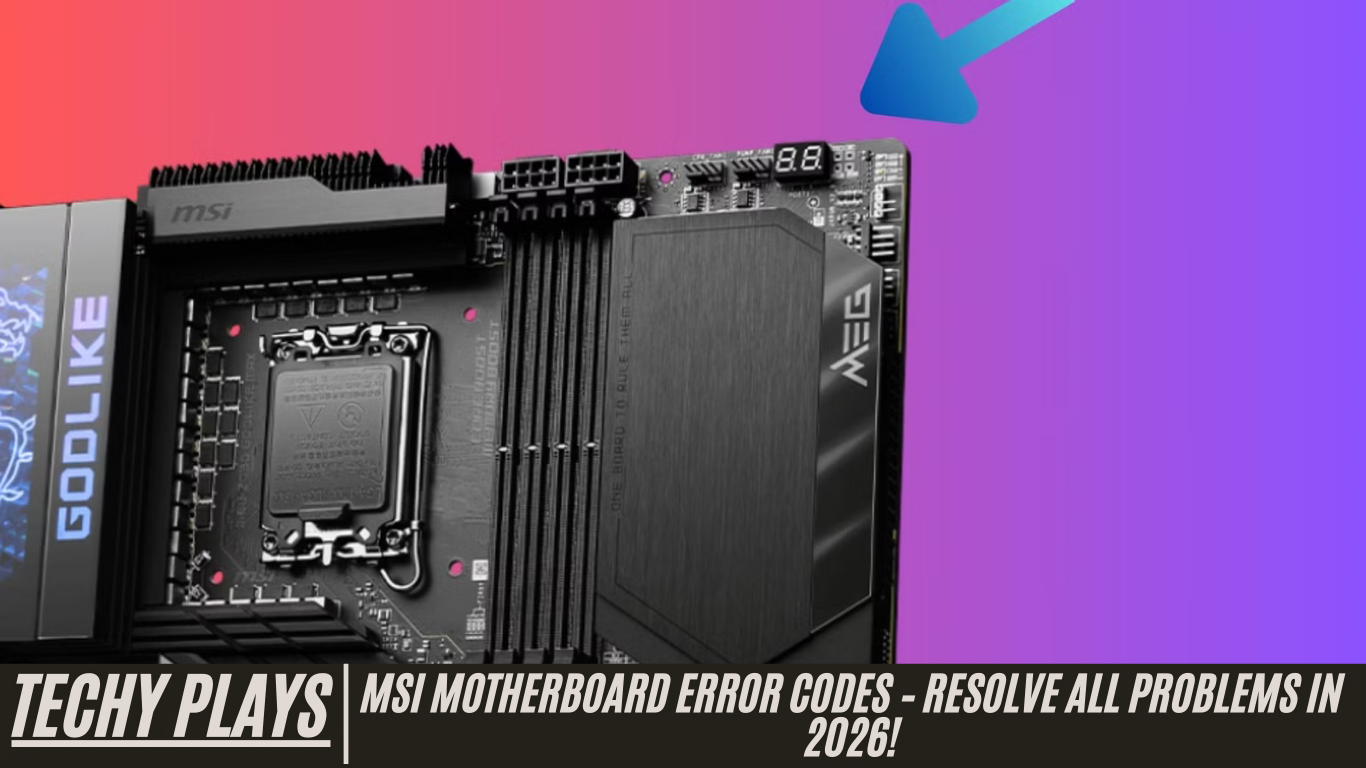
On most MSI motherboards, Debug Codes are displayed on a dedicated LED panel located on the top-right side of the motherboard. This small display is usually positioned near the RAM slots, making it easy to view while assembling or troubleshooting your system.
The standalone Debug Code LED provides real-time error information during startup, allowing you to identify issues immediately without additional software. By keeping an eye on this display, you can monitor your system’s health and quickly address any errors, improving overall performance and reliability.
[Motherboard] What to Do if There Is No Power After Booting Up or No Display on the Monitor
Experiencing no power or a blank display after booting up your computer can be frustrating. These issues are common on MSI and other motherboards, but they can usually be diagnosed and resolved with systematic troubleshooting. Here’s a detailed guide to help you fix these problems effectively.
1. Check the Power Jumper on the Front Panel
The power jumper on your computer’s front panel is a small switch that controls the flow of electricity to your motherboard. If it is incorrectly positioned or loose, your computer may fail to power on.
Carefully inspect the front panel connectors and make sure the power jumper is securely and correctly connected according to your motherboard manual. Proper setup of the power jumper ensures that power reaches all critical components, allowing your system to start up normally.
2. Check CPU Compatibility
The CPU, often called the brain of your computer, must be compatible with your motherboard for the system to function properly. Using an incompatible processor can prevent your computer from booting, cause instability, or even damage components.
Verify the CPU compatibility by checking the motherboard’s official documentation or MSI’s website. Ensuring compatibility guarantees that your CPU and motherboard work seamlessly together, providing stable performance and preventing boot failures.
3. Check Computer Hardware
Loose, improperly installed, or faulty hardware can cause your system to power on but fail to display anything on the monitor. Key components to inspect include:
- RAM: Ensure memory modules are fully seated in the correct slots.
- Graphics Card: Check that the GPU is properly installed and powered.
- Hard Drive/SSD: Verify connections and ensure the drive is functional.
A thorough inspection and proper reseating of components often resolve many common power or display issues.
4. Check the Display Screen
Sometimes the problem lies not with the motherboard but with the display connection. Verify that your monitor or TV is properly connected to your computer and powered on.
Check the video cable for damage and ensure it is plugged into the correct port on both the monitor and motherboard or GPU. Switching to another display or cable can help isolate whether the issue is with the screen or the computer itself.
5. Check EZ Debug LED Indicator
Many MSI motherboards feature an EZ Debug LED, a small light that indicates potential hardware problems during startup. This LED provides quick insights into which component may be causing a boot issue, such as the CPU, RAM, GPU, or storage device.
Consult your motherboard manual to interpret the EZ Debug LED codes accurately. Following the LED indications can help you pinpoint the problem without unnecessary guesswork.
6. Perform a POST Test
The Power-On Self-Test (POST) is a diagnostic process your motherboard performs during startup to check hardware functionality. During POST, the system detects and reports errors related to CPU, RAM, GPU, and other critical components.
To perform a POST test, turn on your computer and carefully observe any beeps, lights, or error messages. These signals provide valuable information about failing or misconfigured components and guide you in resolving boot and display issues.
7. Discharge to Clear CMOS
If your motherboard is still not displaying anything or failing to power on, clearing the CMOS (Complementary Metal-Oxide-Semiconductor) can reset the BIOS settings to default. This can resolve issues caused by incorrect BIOS configurations.
To clear the CMOS, follow the procedure outlined in your motherboard manual. Usually, this involves either removing the CMOS battery for a few minutes or using a dedicated jumper to discharge it. Resetting the CMOS ensures that your system starts with default BIOS settings, often resolving persistent boot and display problems.
How to Find Motherboard Error Codes on My Motherboard?
To locate motherboard error codes on your system, the first step is to consult your motherboard’s user manual or the manufacturer’s official website. Most manufacturers provide detailed guidance on how to interpret error codes or LED indicators specific to each motherboard model. Understanding these codes is essential for diagnosing issues quickly and preventing further hardware damage.
Gigabyte Motherboard Error Codes List
Gigabyte motherboards are equipped with error code indicators that help users identify system issues during startup. These codes are often displayed through LED lights directly on the motherboard. Each code corresponds to a specific problem, such as memory errors, CPU faults, or boot failures.
For a complete list of Gigabyte motherboard error codes and their meanings, it is recommended to check the user manual or visit Gigabyte’s support resources online. By referencing this information, you can accurately diagnose and resolve hardware problems, ensuring smooth system performance.
ASUS Motherboard Error Codes List
ASUS motherboards feature a Q-Code display that shows numerical codes representing different system statuses or errors. These Q-Codes allow users to pinpoint issues with hardware components, BIOS, or startup processes.
To effectively use the Q-Code display, consult your motherboard manual or the ASUS support website, which provides a comprehensive list of Q-Codes along with troubleshooting steps. Following these instructions can help you quickly identify and fix issues, saving time and reducing frustration during system maintenance.
MSI Motherboard Error Codes List
MSI motherboards commonly utilize EZ Debug LED indicators to communicate error codes related to hardware issues during system startup. These LEDs provide visual signals that correspond to specific components such as the CPU, RAM, or GPU, making it easier for users to troubleshoot problems.
For a detailed list of MSI motherboard error codes and instructions for resolving them, refer to the motherboard manual or MSI’s online support resources. Understanding EZ Debug LED indicators ensures that users can systematically diagnose and correct hardware issues without unnecessary trial and error.
What is a Motherboard Q-Code (Error Code)
A motherboard Q-Code, also referred to as an error code, is a numerical value that represents specific system statuses or hardware errors. These codes serve as a diagnostic tool, helping users identify problems that may prevent the system from functioning correctly.
Q-Codes are particularly useful during system startup or operation, as they allow for quick detection of issues with components such as the CPU, memory, graphics card, or storage devices. By interpreting Q-Codes correctly, users can take appropriate troubleshooting steps to restore system stability.
How Do Motherboard Error Codes Work?
Motherboard error codes are generated by the system’s built-in diagnostic tools to indicate hardware or software malfunctions. When an issue occurs, the motherboard communicates the problem through LED indicators or a Q-Code display, depending on the manufacturer and model.
These codes provide specific information about the component or process causing the problem, allowing users to diagnose and address issues effectively. Whether it is a memory error, boot failure, or CPU issue, understanding how motherboard error codes work ensures accurate troubleshooting and helps maintain optimal system performance.
Z790 Motherboard Error Codes (Intel 13th and 14th Gen)
The Z790 motherboard series, specifically designed for Intel’s 13th and 14th generation processors, comes with error codes that are tailored to its advanced hardware architecture. These error codes help users quickly identify hardware issues during system startup or operation, whether it’s related to the CPU, memory, GPU, or storage devices.
To understand and interpret Z790 motherboard error codes, always refer to the motherboard manual or the manufacturer’s official support resources. These guides provide a comprehensive explanation of each error code along with recommended troubleshooting steps to resolve issues efficiently, ensuring your system runs smoothly.
How to Find a Motherboard Fault from a Fault Code
To identify a motherboard fault from a fault code, start by noting the exact code displayed during boot-up or on the diagnostic LEDs. Consult the user manual or official support resources for your specific motherboard model to determine what the code represents.
Each error code corresponds to a particular hardware or configuration issue. By following the recommended troubleshooting steps in the manual, you can systematically diagnose the problem, whether it involves reseating hardware, updating BIOS settings, or replacing a faulty component. This structured approach ensures accurate identification and resolution of motherboard faults.
How to Read MSI EZ Debug LEDs?
MSI EZ Debug LEDs are small diagnostic lights integrated on MSI motherboards to indicate hardware problems during startup. Each LED corresponds to a specific component, such as the CPU, RAM, GPU, or boot device.
If an LED remains lit or flashes during boot-up, it signals a problem with that particular component. For example, a CPU LED that stays on may indicate an improperly installed processor or a compatibility issue. By observing which LED is active, you can pinpoint the source of the problem and take corrective measures, such as reseating components, checking power connections, or updating BIOS firmware.
What to Do if There Is No Power After Booting Up or No Display on the Monitor?
If your computer powers on but fails to display anything on the monitor—or if it doesn’t power on at all—start by checking all physical connections. Ensure that all power cables are securely plugged in and that the power outlet or surge protector is functioning correctly.
Next, inspect the internal hardware, including the RAM, GPU, and storage devices, making sure they are properly installed. Additionally, check the monitor connection and verify that the display is functioning. If these basic steps do not resolve the issue, consult the motherboard manual or manufacturer support resources for detailed troubleshooting steps specific to your motherboard model.
What Is Error Code 37 on MSI Motherboard?
Error code 37 on an MSI motherboard typically points to a CPU-related problem. This error often indicates that the CPU may not be properly installed or seated in its socket, or there could be compatibility issues with the motherboard.
To resolve error code 37, ensure that the CPU is correctly installed and supported by your motherboard model. You may also need to update the BIOS to ensure proper CPU recognition. Always refer to the motherboard manual or MSI’s official support resources for step-by-step guidance to fix this issue safely.
MSI Motherboard Error Codes Windows 10?
MSI motherboard error codes are hardware-specific and are not dependent on the operating system, including Windows 10. These codes are displayed through EZ Debug LEDs, Q-Code displays, or BIOS error messages during system startup, providing insight into potential hardware malfunctions.
While the codes themselves are independent of the operating system, troubleshooting may involve steps such as reseating components, updating BIOS, or replacing faulty hardware. Understanding MSI motherboard error codes allows users to identify and resolve hardware issues efficiently, ensuring system stability across any operating system.
MSI Motherboard Error Beep Codes
MSI motherboards may use beep codes as an additional diagnostic tool to indicate hardware issues during startup. Each beep pattern corresponds to a specific problem, such as memory failure, CPU errors, or graphics card issues. These audible signals are particularly useful when the motherboard cannot display error codes on the screen. Always consult your motherboard manual for a detailed beep code chart to interpret the signals accurately and take corrective action.
First Time Building a PC Error Codes on My MSI Motherboard
Encountering error codes is common when building a PC for the first time using an MSI motherboard. These codes serve as diagnostic indicators to help identify hardware problems. When building your system, refer to the motherboard manual and perform troubleshooting steps, such as checking that all components are properly connected, reseating RAM or GPU, and updating the BIOS if necessary. Understanding these codes ensures a smoother first-time build and prevents potential hardware damage.
MSI LED Error Codes
MSI motherboards feature EZ Debug LEDs that indicate hardware issues during startup. Each LED corresponds to a specific component, such as the CPU, DRAM, VGA, or boot device. If an LED stays lit or flashes, it signals a problem with that component. These indicators allow for quick identification of failing hardware, making the troubleshooting process faster and more efficient.
Error Codes: 98, 9C, B4, A2, & 99 in Order
MSI motherboard error codes such as 98, 9C, B4, A2, and 99 represent different stages of hardware initialization during POST (Power-On Self-Test). These errors often point to problems with USB devices, boot devices, or VGA initialization. To resolve these issues, ensure all peripherals, graphics cards, and storage devices are correctly connected and functional. Consulting the motherboard manual can provide specific guidance for each code.
MSI Flashing 30 and 31 POST Code
MSI POST codes 30 and 31 usually indicate memory-related issues or problems when waking from sleep mode. To fix these errors, ensure the RAM modules are properly seated and compatible with the motherboard. Updating the BIOS and checking the motherboard manual for specific instructions can help resolve these issues effectively.
MSI Mobo Error Codes 56-58
Error codes 56 to 58 on MSI motherboards typically relate to CPU or PCIe device problems. Ensure the CPU is correctly installed and that all PCIe devices, such as GPUs or expansion cards, are properly seated and functioning. Checking for bent pins and secure connections can often resolve these errors.
MSI MEG ACE ERROR CODE: D6
On MSI MEG ACE motherboards, error code D6 indicates a VGA-related issue, meaning the graphics card is not detected. To resolve this, ensure the GPU is correctly installed in the PCIe slot, connected to the power supply if required, and compatible with the motherboard. Reseating or testing the GPU in a different slot can help diagnose the problem.
Motherboard Error Codes – MSI – MEG – UNIFY – X Z690
The MSI MEG UNIFY X Z690 motherboard uses error codes to help identify hardware issues during POST. Refer to the motherboard manual for specific code definitions and follow the recommended troubleshooting steps, such as checking connections, reseating components, or updating the BIOS, to resolve errors efficiently.
MSI Motherboard Error Code 00
Error code 00 on MSI motherboards generally indicates a CPU-related problem. This could be due to an improperly installed processor or a faulty CPU. Check for bent pins in the CPU socket, ensure the CPU is seated correctly, and confirm compatibility with the motherboard.
MSI Motherboard Code 0D
Error code 0D on MSI motherboards typically points to memory initialization issues. Verify that RAM sticks are correctly installed and seated. Testing each module individually or in different slots can help identify a faulty stick or slot.
MSI Motherboard Error Code 55
Error code 55 signifies that memory is not installed or detected. Ensure all RAM modules are compatible, seated correctly, and properly inserted in the recommended slots. Reseating or testing alternative memory sticks can resolve this issue.
MSI Motherboard Error Code A2
Error code A2 indicates a problem with IDE or storage device initialization. Verify that all connected storage devices, such as SSDs and HDDs, are properly connected and recognized by the BIOS. Updating the BIOS may also help resolve this error.
MSI Motherboard Code 33
Error code 33 usually relates to CPU initialization problems. Ensure the CPU is correctly installed, check for bent pins, and reseat the processor if necessary. Trying a different compatible CPU may help confirm if the processor is faulty.
How to Fix MSI Error?
To fix MSI motherboard errors, start by resetting the CMOS to restore default BIOS settings. Ensure all components, including CPU, RAM, GPU, and storage devices, are properly seated and connected. Verify power supply connections, and update the BIOS to the latest version available. Always refer to the motherboard manual for specific error codes and detailed troubleshooting instructions.
What Is Error 43 on MSI Motherboard?
Error code 43 on MSI motherboards usually indicates a USB device or controller problem. Disconnect all USB devices and peripherals, then reconnect them one by one to identify the faulty component. This approach helps isolate the issue and restore USB functionality.
What Is Error Code 29 on MSI Motherboard?
Error code 29 typically appears during the initial Power-On Self-Test (POST) and indicates a hardware initialization issue. Check that all hardware connections, especially the CPU and RAM, are secure and correctly seated. Following the troubleshooting steps in the motherboard manual can help resolve this error efficiently.
What Is Error Code 55 on MSI Motherboard?
Error code 55 on MSI motherboards indicates a “memory not installed” issue. This typically occurs when the system fails to detect installed RAM modules during the Power-On Self-Test (POST). To resolve this, ensure all RAM sticks are fully seated in their designated slots and are compatible with your motherboard. If the problem persists, try reseating the RAM or testing individual modules in different slots. Proper installation and compatibility checks are crucial to prevent recurring memory detection issues.
What Is Error Code 33 on MSI Motherboard?
Error code 33 on MSI motherboards usually relates to CPU initialization problems. This error may appear if the CPU is improperly installed, or if there are bent pins in the CPU socket. To fix this, carefully reseat the CPU and inspect for any physical damage. If necessary, testing with a different compatible CPU can help determine whether the processor itself is faulty. Proper CPU installation ensures stable system startup and prevents hardware errors during boot.
What Is Error Code 94 on MSI Motherboard?
Error code 94 on MSI motherboards signals a PCI bus initialization error. This often occurs when PCIe devices, such as graphics cards or expansion cards, are not correctly seated or are incompatible with the motherboard. To troubleshoot, remove and reseat each PCIe device and verify that all connected cards are fully compatible. Ensuring proper PCIe device installation helps prevent system instability and boot failures.
What Is Error Code 31 on MSI Motherboard?
Error code 31 typically indicates a problem related to waking the system from sleep mode. This may be caused by BIOS settings, outdated firmware, or improperly seated hardware components. To resolve this issue, update your motherboard BIOS to the latest version, check all component connections, and verify that power management settings are correctly configured in the BIOS and operating system.
What Is Error Code 30 on MSI Motherboard?
Error code 30 on MSI motherboards usually relates to waking from sleep or hibernation issues. To fix this, ensure that the BIOS is up to date, review the system’s power settings, and check that all hardware components, including RAM and GPU, are securely connected. Proper configuration of sleep and hibernation settings, along with correctly installed hardware, can resolve this error and ensure smooth system resumption.
What Is Error Code 28 on MSI Motherboard?
Error code 28 on MSI motherboards indicates a problem during CPU initialization. This can happen if the CPU is not installed correctly or if there are bent pins in the socket. To resolve the issue, carefully reseat the CPU, inspect for any physical damage, and, if necessary, test with another compatible processor. Correct CPU installation is essential to ensure proper system startup and hardware recognition.
What Is Error Code 45 MSI?
Error code 45 on MSI motherboards generally points to issues detecting connected peripherals. This may include USB devices, PCIe expansion cards, or other hardware connected to the motherboard. To troubleshoot, verify that all peripherals are correctly seated and compatible with your system. Disconnect and reconnect devices individually to identify the faulty component and restore normal operation.
What Is Error Code 50 on MSI Motherboard?
Error code 50 on MSI motherboards usually signifies a memory initialization error. This error occurs when the motherboard cannot detect or initialize RAM modules during POST. To fix this, ensure all RAM sticks are properly seated in their respective slots and are compatible with the motherboard. Testing each module individually or in different slots can help identify faulty memory and restore system functionality.
Conclusion
In summary, understanding MSI motherboard error codes is crucial for efficiently diagnosing and resolving hardware issues. These error codes serve as diagnostic tools that help identify problems with critical components such as the CPU, RAM, GPU, and storage devices. By referring to the motherboard manual or visiting the manufacturer’s official website, users can interpret error codes accurately and follow recommended troubleshooting steps to restore system stability. Mastery of these codes not only saves time but also prevents unnecessary hardware replacements, ensuring your computer operates reliably and efficiently.
Frequently Asked Questions(FAQs)
1. MSI Z690 motherboard debug error codes: Why do I always get debug error codes?
Debug error codes on the MSI Z690 motherboard indicate hardware or initialization issues during startup. These codes act as a guide to identify faulty components such as the CPU, RAM, or storage devices. Understanding the meaning of each debug code allows you to troubleshoot effectively and apply the necessary fixes to resolve system errors.
2. Where are MSI motherboard error codes defined?
MSI motherboard error codes are defined in the user manual provided with your motherboard. Additionally, the MSI official website provides a comprehensive list of error codes along with detailed explanations, making it easy for users to reference and understand each code during troubleshooting.
3. What should I do if my MSI motherboard displays an error code during startup?
If your MSI motherboard displays an error code during startup, consult the motherboard manual or MSI support resources for guidance. The manual provides step-by-step instructions for interpreting each code and resolving the associated hardware or configuration issues, ensuring a precise and safe troubleshooting process.
4. What to do if there is no power after booting up or no display on the monitor?
If your system powers on but shows no display, or there is no power at all, first check all power and data connections to ensure they are secure. Confirm that the power supply and wall outlet are functioning properly. If the problem persists, refer to the motherboard manual for troubleshooting steps specific to your MSI model, such as checking RAM, CPU, GPU, or resetting the CMOS.
5. MSI X99-A Godlike Gaming RAM problems & error codes
RAM-related errors on the MSI X99-A Godlike Gaming motherboard can often be resolved by following the troubleshooting instructions in the manual. Ensure that all memory modules are compatible, correctly seated, and functioning properly. Testing individual RAM sticks in different slots can help identify and isolate the faulty module.
6. BIOS Debug Hex Codes Decoded & BIOS Manuals Links
BIOS debug hex codes provide insight into system issues during POST. These codes are decoded in the motherboard manual or on the manufacturer’s website. By understanding these codes, users can identify hardware malfunctions or misconfigurations and apply the correct troubleshooting steps to resolve them.
7. What is error code AB on MSI motherboard?
Error code AB on MSI motherboards indicates a successful boot to BIOS. Unlike other error codes, AB is not a problem; instead, it confirms that the system has successfully entered the BIOS setup utility, allowing you to configure system settings safely.
8. What is error 41 on MSI motherboard?
Error code 41 typically signifies a hardware initialization failure on MSI motherboards. This can involve improperly seated or incompatible components such as the CPU or RAM. Check that all components are securely installed, verify compatibility, and update the BIOS if needed to resolve this issue effectively.
9. How to reset MSI motherboard?
To reset an MSI motherboard, locate the CMOS reset jumper or button, usually positioned near the CMOS battery. Alternatively, you can remove the CMOS battery for a few minutes and then reinsert it. This process resets the BIOS to its default settings, which can resolve configuration issues and system errors caused by incorrect BIOS settings.
10. How to troubleshoot motherboard errors?
To troubleshoot MSI motherboard errors effectively, start by checking all internal connections and ensuring that all hardware components, such as RAM, CPU, GPU, and storage devices, are properly seated. Perform a CMOS reset if necessary, test individual components to identify the faulty part, and update the BIOS to the latest version. The motherboard manual provides specific error codes and step-by-step troubleshooting guidance, making it an essential resource for resolving hardware issues efficiently.
